# How can I reduce the abandoned cart rate with Batch?

The [**trigger feature**](https://doc.batch.com/getting-started/features/mobile-engagement-platform/push/timing-delivery#trigger) option enables you to send a notification from one minute to several days after users have triggered an action in the app.

### A/ Pre-requisite

For setting up your abandoned cart campaigns, you need to **plan to trigger actions in your tagging plan:**

→ *"added\_item\_cart"* event, with \[optional] product categories labels (e.g. “*bags*”) \
→ *"validated\_purchase"* \
→ *"cleared\_cart"* \[optional - as an exit event]

### B/ Automation Settings

First, you will need to go into the **Automations** tab, and click on **New automation > Omnichannel trigger**

<figure><img src="https://509463063-files.gitbook.io/~/files/v0/b/gitbook-x-prod.appspot.com/o/spaces%2FfiAYaWDWqtFZeXxyg67F%2Fuploads%2FtO1wAdXMJ82SlkJB0ToI%2FScreenshot%202025-05-05%20at%2017.55.05.png?alt=media&#x26;token=d82b6fe3-5f3e-4953-bc50-8edd9a88f897" alt=""><figcaption></figcaption></figure>

Then, you can follow the instructions and create your automation:

#### 1. Entry event

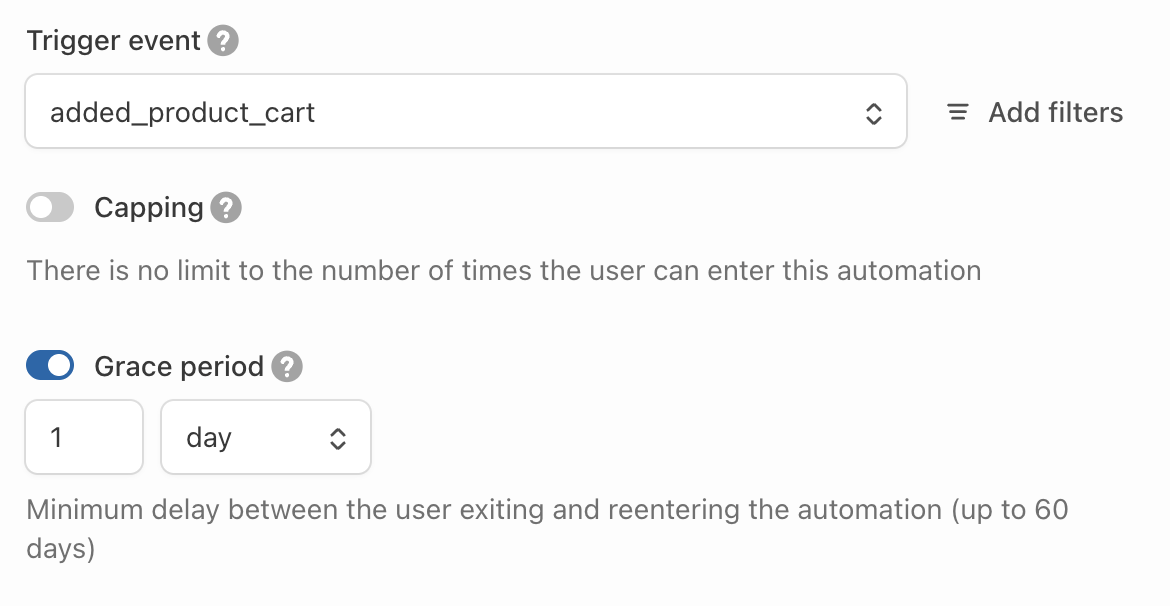
Choose your entry event —> *"added\_product\_cart"* or any equivalent.

<figure><img src="https://509463063-files.gitbook.io/~/files/v0/b/gitbook-x-prod.appspot.com/o/spaces%2FfiAYaWDWqtFZeXxyg67F%2Fuploads%2F2GmsN9GxhJBhjh9Q2i9b%2FMessage_abandonned_event_030425.png?alt=media&#x26;token=b11046c7-0eff-480e-b5ec-d9825a38544c" alt=""><figcaption><p>Select your trigger event</p></figcaption></figure>

At this stage, you can add [**capping**](https://doc.batch.com/getting-started/features/customer-engagement-platform/settings/cappings#global-capping) if you do not want a user to receive this trigger campaign more than X times.&#x20;

Alternatively, you can use the [**grace period**](https://doc.batch.com/getting-started/features/customer-engagement-platform/22-cep-orchestration/05-trigger-automations), which prevents users from re-entering the flow if they have already triggered the event before (up to 6O days).

<figure><img src="https://509463063-files.gitbook.io/~/files/v0/b/gitbook-x-prod.appspot.com/o/spaces%2FfiAYaWDWqtFZeXxyg67F%2Fuploads%2F91jFl50FXfNPGn1C3SLe%2FScreenshot%202025-04-11%20at%2017.45.57.png?alt=media&#x26;token=24127336-79e5-4937-afc9-0987e6e460bd" alt=""><figcaption><p>Use the capping or grace period option</p></figcaption></figure>

{% hint style="warning" %}
We recommend only using the **grace period** on abandoned carts, because a user can make multiple orders over different periods.
{% endhint %}

Then, you also have the option to enable **parallel automations** - When this option is activated, the user can trigger and advance through the same automation several times in parallel, each time they trigger the entry event with a different attribute value.&#x20;

<figure><img src="https://509463063-files.gitbook.io/~/files/v0/b/gitbook-x-prod.appspot.com/o/spaces%2FfiAYaWDWqtFZeXxyg67F%2Fuploads%2FPpmn0MbzmqQYPHhdmTdU%2FScreenshot%202025-04-16%20at%2014.53.12.png?alt=media&#x26;token=bbb785a9-75fc-41c6-bea8-3c28c564ec6d" alt=""><figcaption><p>How to activate parallel automations</p></figcaption></figure>

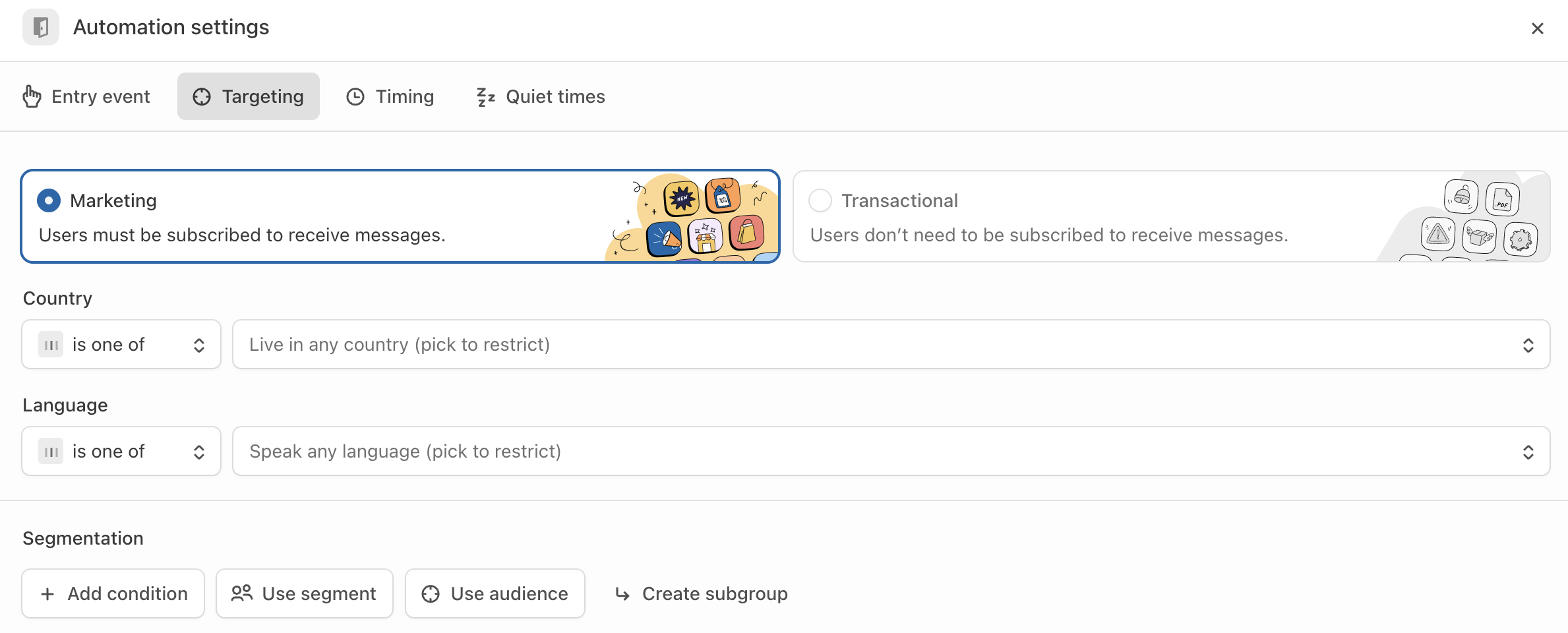
**2. Targeting**

It is not necessary to fill in the targeting part, except if you need to manage a multilingual campaign or target specific users, based on conditions ⇒ Check out [**this documentation**](https://help.batch.com/en/articles/4237182-how-to-manage-a-multilingual-campaign).

<figure><img src="https://509463063-files.gitbook.io/~/files/v0/b/gitbook-x-prod.appspot.com/o/spaces%2FfiAYaWDWqtFZeXxyg67F%2Fuploads%2F5dgCdp1tVdyxPwmD5YN8%2FScreenshot%202025-05-05%20at%2018.04.57.png?alt=media&#x26;token=1512dbbc-5bcb-4899-ae55-bda138920299" alt=""><figcaption><p>How to target specific users</p></figcaption></figure>

**3. Timing**

By default, the starting date will be "now" and the ending date "never", but you can enter a specific date for both of them.

<figure><img src="https://509463063-files.gitbook.io/~/files/v0/b/gitbook-x-prod.appspot.com/o/spaces%2FfiAYaWDWqtFZeXxyg67F%2Fuploads%2FzQcheEIVa4oC1CqG5PfD%2FScreenshot%202025-05-05%20at%2015.16.20.png?alt=media&#x26;token=c8e819cc-e512-4fb8-8066-cd015fabdd6d" alt=""><figcaption><p>Add your timing preferences</p></figcaption></figure>

**4. Quiet times**

It is possible to add **quiet hours** and **quiet days** if you do not want your audience to receive messages on specific times or days.

You can then choose the **fallback strategy:** whether you want the notification initially scheduled during the quiet times to be sent at the next available slot, or not to send the notification at all and skip it.

<figure><img src="https://509463063-files.gitbook.io/~/files/v0/b/gitbook-x-prod.appspot.com/o/spaces%2FfiAYaWDWqtFZeXxyg67F%2Fuploads%2FnoDj2XwEZEMoP7pWtrZA%2FScreenshot%202025-05-05%20at%2015.28.29.png?alt=media&#x26;token=37abc8db-4cf9-4a8c-8bf0-31b8333a832f" alt=""><figcaption><p>Setting up quiet times</p></figcaption></figure>

### C/ Automation builder <a href="#c-automation-creation-in-the-builder" id="c-automation-creation-in-the-builder"></a>

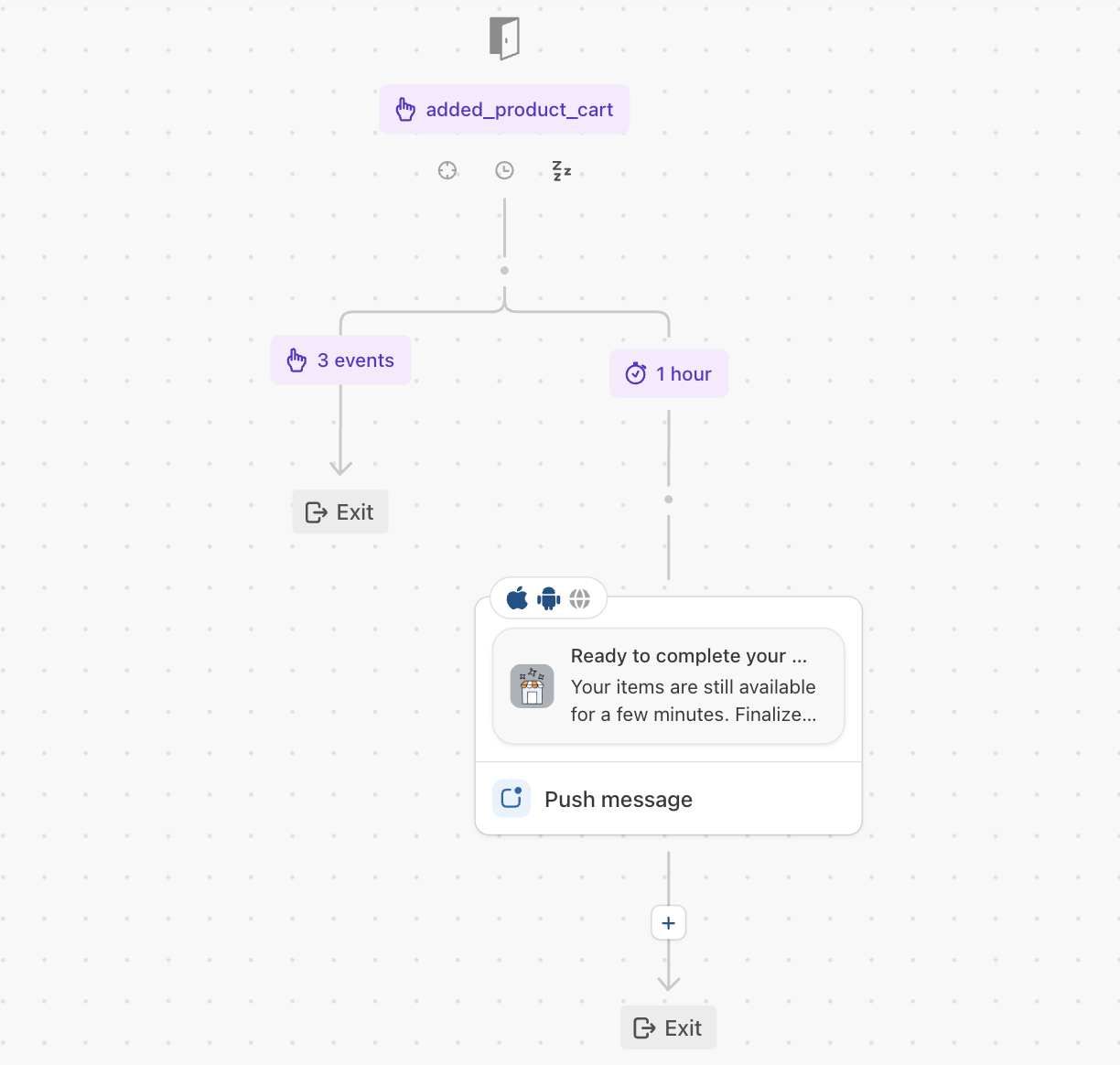
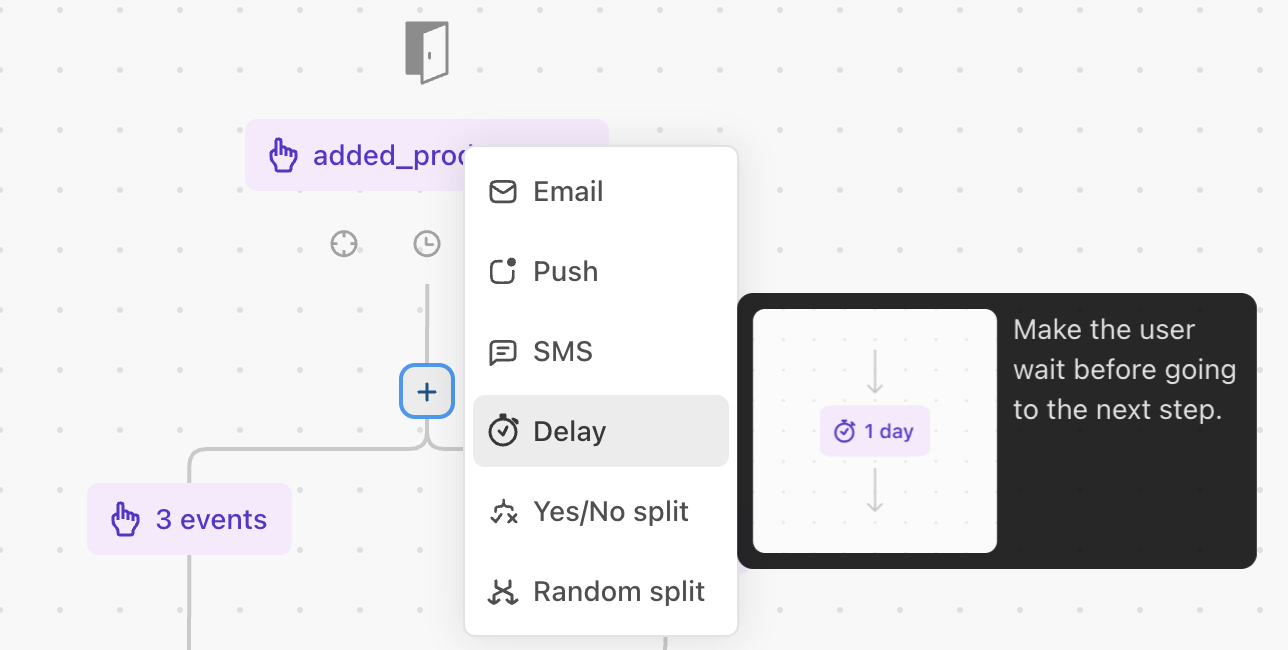
When you are in the automation builder, you can add steps by clicking on the '**+',** in order to create the journey you want. Here is the documentation related to ⇒ [**Adding steps to the scenario**](https://doc.batch.com/getting-started/features/customer-engagement-platform/22-cep-orchestration/05-trigger-automations#handling-the-marketing-pressure-of-the-automation)**.**

<figure><img src="https://509463063-files.gitbook.io/~/files/v0/b/gitbook-x-prod.appspot.com/o/spaces%2FfiAYaWDWqtFZeXxyg67F%2Fuploads%2FJwM8R7ycEvkTEuYKQaDx%2FScreenshot%202025-05-05%20at%2016.41.20.png?alt=media&#x26;token=c2064249-7e78-48d2-a68f-9a217dc9de64" alt=""><figcaption><p>Final abandoned cart scenario</p></figcaption></figure>

#### 1. Delay & Exit event

You can add the **delay** of your choice to trigger the message. You have 2 options:

* **Wait until:** X minutes/hours/days after the "item added to cart" event is triggered.
* **Wait for:** the next slot at 11:00 AM, on any day, or a specific day.

<figure><img src="https://509463063-files.gitbook.io/~/files/v0/b/gitbook-x-prod.appspot.com/o/spaces%2FfiAYaWDWqtFZeXxyg67F%2Fuploads%2FBuWcSEOlYtRARYWQYPeG%2FScreenshot%202025-05-05%20at%2018.31.49.png?alt=media&#x26;token=137f102a-5deb-4da2-a7da-ef3312987324" alt=""><figcaption></figcaption></figure>

{% hint style="info" %}
The "wait for" option is generally the most appropriate for this use case.
{% endhint %}

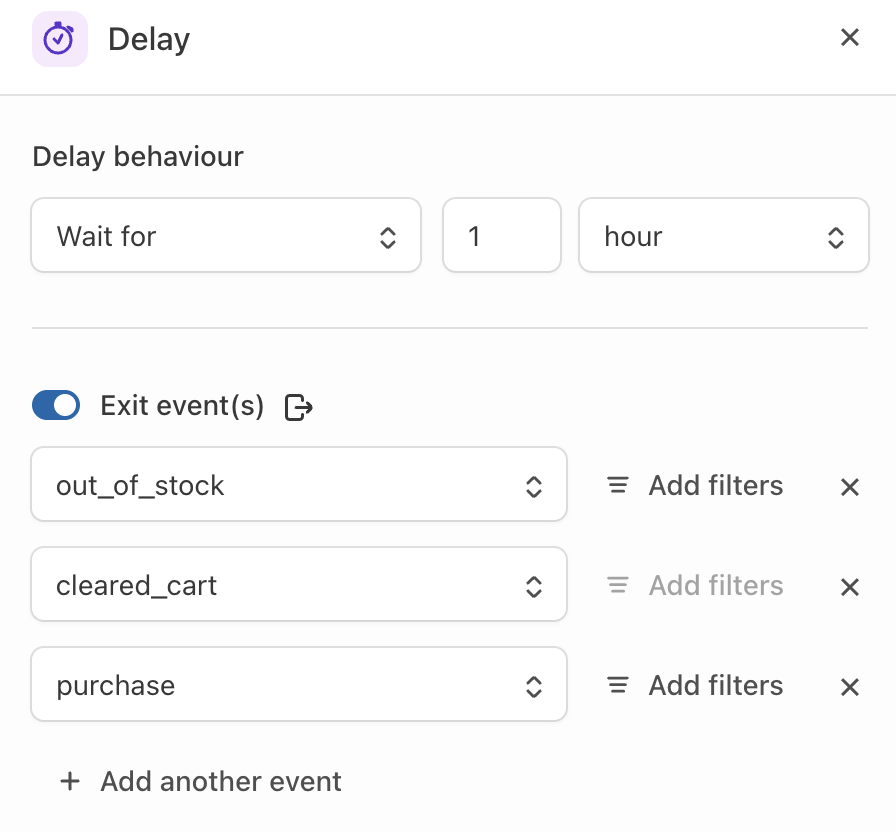
On this delay, you can attach **exit events**, so that the user exits the automation and does not receive the message if they trigger a specific event.

In the following example, the user **exits the automation** if the product is *"out\_of\_stock"*, if he *"cleared\_cart",* or if he validated his *"purchase"* within a delay of 1 hour.

<figure><img src="https://509463063-files.gitbook.io/~/files/v0/b/gitbook-x-prod.appspot.com/o/spaces%2FfiAYaWDWqtFZeXxyg67F%2Fuploads%2FJXirmHjufTHud4SZKl7s%2FScreenshot%202025-05-05%20at%2016.00.05.png?alt=media&#x26;token=4421934c-4214-412a-9c5b-4c76ca772a0e" alt=""><figcaption><p>Adding a delay and an exit event</p></figcaption></figure>

#### 2. Push message

You can then add the push message step to write the content you want for your abandoned cart campaign. Your campaign is now ready to activate!

<figure><img src="https://509463063-files.gitbook.io/~/files/v0/b/gitbook-x-prod.appspot.com/o/spaces%2FfiAYaWDWqtFZeXxyg67F%2Fuploads%2F2sSy2YPtSAgEpGIuSgvo%2FScreenshot%202025-05-05%20at%2016.55.51.png?alt=media&#x26;token=ecc072fc-d316-4c30-9507-aa22c974c232" alt="" width="540"><figcaption><p>How to add a push message in an automation</p></figcaption></figure>

{% hint style="info" %}
We encourage you to test different wordings, images, etc., using the **Random Split** (A/B/C/D Test) feature.
{% endhint %}

### D/ Best practices <a href="#c-automation-creation-in-the-builder" id="c-automation-creation-in-the-builder"></a>

General recommendations :&#x20;

* **Personalization** is key (for example, using the user's first name)
* Make it **Omnichannel** (Push, SMS, Email...)

To **maximize conversion** and have a more **impactful** **strategy**, you can create omnichannel journeys to reach your users on their preferred channels.

In the following journey, we've added a yes/no split step to ensure that if the user is opted-in for push notifications, they receive that priority, otherwise they will receive the email version.

<figure><img src="https://509463063-files.gitbook.io/~/files/v0/b/gitbook-x-prod.appspot.com/o/spaces%2FfiAYaWDWqtFZeXxyg67F%2Fuploads%2FHdcuNsm5YtvHmatKO3nS%2FScreenshot%202025-05-06%20at%2010.48.32.png?alt=media&#x26;token=7e7bcf7a-71b2-45e9-a382-187586187f7c" alt=""><figcaption></figcaption></figure>

**How to do this Yes/No split ?**&#x20;

By adding a step in the automation '**+**' and selecting the Yes/No split option.&#x20;

<figure><img src="https://509463063-files.gitbook.io/~/files/v0/b/gitbook-x-prod.appspot.com/o/spaces%2FfiAYaWDWqtFZeXxyg67F%2Fuploads%2FwZyj12Z3JOeRRisDuMJc%2FScreenshot%202025-05-06%20at%2010.54.36.png?alt=media&#x26;token=da5002bb-62b6-4b19-b1ef-68cdd3d0b021" alt=""><figcaption></figcaption></figure>

Then you will have to fill in the targeting conditions for your split (in the example, IOS and Android push opt-ins).

<figure><img src="https://509463063-files.gitbook.io/~/files/v0/b/gitbook-x-prod.appspot.com/o/spaces%2FfiAYaWDWqtFZeXxyg67F%2Fuploads%2FLAhCNc2Q9udLwIM2PY3o%2FScreenshot%202025-05-06%20at%2011.10.05.png?alt=media&#x26;token=d0df5f16-2a2e-4abc-a291-c441cb6f2a6a" alt=""><figcaption></figcaption></figure>