# Step 1 - Performance Assessment

Before considering you are ready to start your email warmup process, be sure you know how the emails you are currently sending are performing.

{% stepper %}
{% step %}

### **💡** Goals

Understand how your campaigns and automations are currently performing and evaluate the reputation of your existing sending domains.
{% endstep %}

{% step %}

### **📌** Deliverables

* Global email performance review
* Delivery performance analysis
* Campaigns & automations performance review
  {% endstep %}
  {% endstepper %}

## Check Your Current Sending Domains Reputation <a href="#h_7c27aa0feb" id="h_7c27aa0feb"></a>

The fastest way to evaluate how you are performing as a sender is to **take a look at your reputation**.&#x20;

This can be done by checking the reports of different tools available online. While they only offer a partial vision of your current reputation, they prove to be useful to detect negative or positive trends.

Use these tools to note:

* Your spam rate
* Each one of your domains/IP reputation
* Identify campaigns that may cause issues

If you notice significant decrease of your domain reputation, try to find a correlation between sent campaigns and the reputation issue (e.g., high spam rate, high unsubscribe rate).

There are several tools you can use:

<details>

<summary>Google Postmaster Tools V1</summary>

[Google Postmaster Tools](https://support.google.com/mail/answer/9981691?hl=en) is a free service provided by Google to help domain owners and email senders improve their email deliverability to Gmail users.

It offers **insights and data** on the performance of your email messages, allowing you to monitor and troubleshoot any issues that may affect your email delivery to Gmail inboxes.

[SNDS](https://sendersupport.olc.protection.outlook.com/snds/) enables senders to monitor the perception by Microsoft of all sent emails from your IPs. Unlike Google Postmaster Tools, Microsoft SNDS doesn't show data for subdomains.

By using Google Postmaster Tools, email senders can identify and address potential issues, optimize their email sending practices, and ultimately enhance their chances of reaching Gmail users' inboxes.&#x20;

{% hint style="info" %}

* **Sending performance**: To know which one of your IPs is performing better and guess why.

Access to Google Postmaster Tools requires domain verification, and it's primarily designed for domain owners and email administrators.
{% endhint %}

Some of the features provided by Google Postmaster Tools include:

#### <mark style="color:blue;">Spam Rate</mark>

Details on the percentage of your emails that were marked as spam by Gmail users.

<figure><img src="https://509463063-files.gitbook.io/~/files/v0/b/gitbook-x-prod.appspot.com/o/spaces%2FfiAYaWDWqtFZeXxyg67F%2Fuploads%2FdPiUsXvaN4m05PlygfLs%2Fdeliverability_gpt1-spam-rate_310325.png?alt=media&#x26;token=94a01edf-13fa-40a8-9d5e-abe34e65f8b9" alt=""><figcaption></figcaption></figure>

{% hint style="warning" %}
Batch recommends to rely on the spam rate of Google Postmaster Tools V2.
{% endhint %}

#### <mark style="color:blue;">IP Reputation</mark>

Data on the reputation of your sending IP addresses, which can affect email deliverability.

<figure><img src="https://509463063-files.gitbook.io/~/files/v0/b/gitbook-x-prod.appspot.com/o/spaces%2FfiAYaWDWqtFZeXxyg67F%2Fuploads%2FKUJZHcRY8Ty9tZzDlGoW%2Fdeliverability_gpt1-ip-reputation_310325.png?alt=media&#x26;token=507ba63d-d7d9-44e7-81c6-480129ca51b5" alt=""><figcaption></figcaption></figure>

#### <mark style="color:blue;">Domain Reputation</mark>

Check how the reputation of your sending domain is evolving over time.

<figure><img src="https://509463063-files.gitbook.io/~/files/v0/b/gitbook-x-prod.appspot.com/o/spaces%2FfiAYaWDWqtFZeXxyg67F%2Fuploads%2FM6pqWDj6HMhYamPMS1b7%2Fdeliverability_gpt1-domain-reputation_310325.png?alt=media&#x26;token=ce915caa-668e-43e3-93d3-47e76c76f92a" alt=""><figcaption></figcaption></figure>

#### <mark style="color:blue;">Feedback Loop</mark>

Identify campaigns or automations that are responsible for most of your spam complaints.

<figure><img src="https://509463063-files.gitbook.io/~/files/v0/b/gitbook-x-prod.appspot.com/o/spaces%2FfiAYaWDWqtFZeXxyg67F%2Fuploads%2FWjVC3NjXzAuDCM9x3AAI%2Fdeliverability_gpt1-feedback-loop_310325.png?alt=media&#x26;token=c6b9fde8-7c6c-49fd-a84a-dc9c2ee1a8ff" alt=""><figcaption></figcaption></figure>

#### <mark style="color:blue;">Other Reports</mark>

**Authentication:** Insights into your email authentication practices, including DKIM (DomainKeys Identified Mail) and SPF (Sender Policy Framework).

**Delivery errors:** Information about emails that couldn't be delivered to the recipient's inbox.

**Encryption:** Information about the usage of TLS (Transport Layer Security) encryption for your emails.

</details>

<details>

<summary>Google Postmaster Tools V2</summary>

Google is gradually introducing Version 2 of its Postmaster Tools, which will fully replace the earlier version. The updated tools offer a streamlined display of data and feature a comprehensive compliance report. Additionally, Google has refined its method for calculating and displaying spam rates, providing more accurate insights.

#### <mark style="color:blue;">Compliance Report</mark>

Google allows senders to see at a glance if they comply with the senders guidelines, at the root domain and subdomain level:

<figure><img src="https://509463063-files.gitbook.io/~/files/v0/b/gitbook-x-prod.appspot.com/o/spaces%2FfiAYaWDWqtFZeXxyg67F%2Fuploads%2FO3aNLDSbpV4OEXygmimJ%2Fdeliverability_gpt2-compliance-report_310325.png?alt=media&#x26;token=6fde7438-ad37-4a7c-bc7b-1a05af6a1e31" alt=""><figcaption></figcaption></figure>

#### <mark style="color:blue;">Spam Rate</mark>

The updated Google Postmaster Tools offers a comprehensive spam rate report. This includes visual aids to help you compare your spam rate against guideline limits.

<figure><img src="https://509463063-files.gitbook.io/~/files/v0/b/gitbook-x-prod.appspot.com/o/spaces%2FfiAYaWDWqtFZeXxyg67F%2Fuploads%2F7JOA2mdE9eyrZOfsi2M8%2Fdeliverability_gpt2-spam-rate_310325.png?alt=media&#x26;token=3efed512-e88a-480e-9730-1acdfdaa847f" alt=""><figcaption></figcaption></figure>

#### <mark style="color:blue;">Other Reports</mark>

**Feedback Loop:** Identify campaigns or automations that are responsible for most of your spam complaints.

**Encryption:** Information about the usage of TLS (Transport Layer Security) encryption for your emails.

**Delivery errors:** Information about emails that couldn't be delivered to the recipient's inbox.

</details>

<details>

<summary>Microsoft Smart Network Data Services (SNDS)</summary>

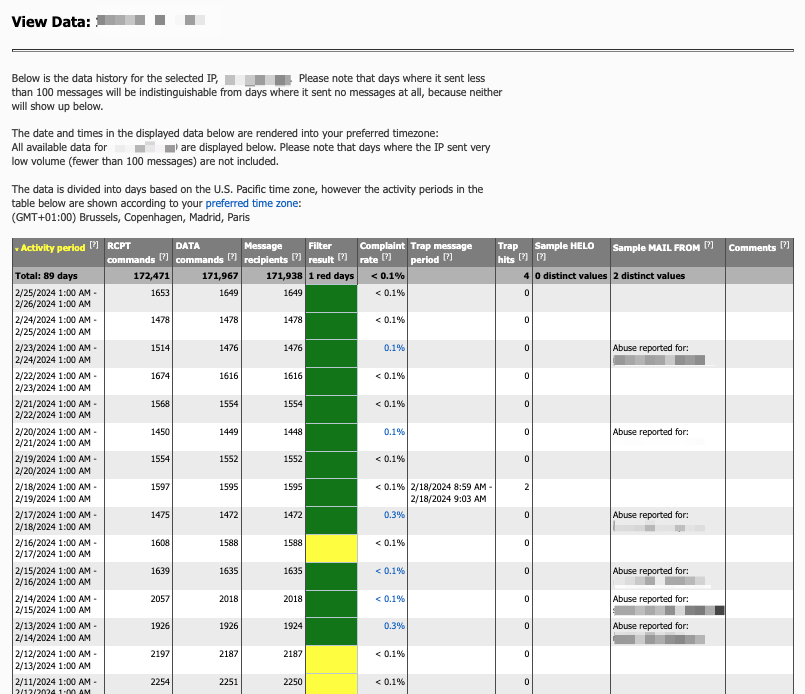
Microsoft SNDS enables senders to monitor the perception by Microsoft of all sent emails from your IPs. Unlike GPT, SNDS doesn't show data for subdomains.

This is still an interesting option to monitor your email activity:

* **Spam traps**: Identify the days when you have hit a spam trap.
* **Performance monitoring**: Understand how your global performance evolves over time.
* **Spam complaints**: Determine the kind of user profiles irritated by your emails, to improve your targeting.
* **Campaigns performance**: Understand which campaigns are causing most of the spam complaints and which campaigns are not qualified positively by Microsoft.

<figure><img src="https://509463063-files.gitbook.io/~/files/v0/b/gitbook-x-prod.appspot.com/o/spaces%2FfiAYaWDWqtFZeXxyg67F%2Fuploads%2FeaKbrXSIK4jc1X2WY1Uy%2Fdeliverability_snds_310325.png?alt=media&#x26;token=58e0704b-1213-4018-928c-0df38e069c93" alt=""><figcaption></figcaption></figure>

</details>

<details>

<summary>Third-party Tools</summary>

Additionally, you can use other tools like [**Talos Intelligence**](https://www.talosintelligence.com/reputation_center/), [**Sender Score**](https://senderscore.org/), and more.

Just like other options, they give you a synthetic view on your email activity that needs to be combined with other information to have a value.

<figure><img src="https://509463063-files.gitbook.io/~/files/v0/b/gitbook-x-prod.appspot.com/o/spaces%2FfiAYaWDWqtFZeXxyg67F%2Fuploads%2FdmcRR8XTsVcVs6gDQeBP%2Fdeliverability_validity_310325.png?alt=media&#x26;token=91ae6a14-6dc4-4280-8c03-850512ff6065" alt=""><figcaption></figcaption></figure>

</details>

<details>

<summary>Blocklist Verification Tools</summary>

A blocklist, also known as a **Real-Time Black Hole List (RBL)**, is a database that identifies IP addresses/domains associated with spam and criminal activities.

Among all existing blocklists, some carry more weight than others in the decision made by inbox providers regarding whether or not to accept an incoming email:

* Spamhaus.org
* SORBS.io
* DNSWL.net
* Barracuda.com

Before starting a warmup, always check if your sending IPs or domains are not listed on an important blocklist. Some tools exist to perform these checks automatically: [MXToolBox](https://mxtoolbox.com/blacklists.aspx) or [MultiRBL.valli.org](https://multirbl.valli.org/).

</details>

## Review Your Current Email Performances <a href="#h_7e63a2f836" id="h_7e63a2f836"></a>

Getting a clear view of your current campaigns/automations performance is key to **identify possible issues** during the warmup process. Before starting a warmup process, we recommend our customers review the performances of their emails **over the last 3 months**.

Here are the reference indices for interpreting your results, based on industry best practices and specific sender guidelines:

| Metric                   | Target Value            |
| ------------------------ | ----------------------- |
| **Accepted rate**        | >98%                    |
| **Global bounce rate**   | <2%                     |
| **Soft bounce rate**     | <0.60%                  |
| **Hard bounce rate**     | <0.40%                  |
| **Unsubscribe rate**     | <0.50%                  |
| **Spam rate**            | <0.3% (better if <0.1%) |
| **Dissatisfaction rate** | <30%                    |

{% hint style="info" %}
**Accepted rate**: Percentage of sent emails that didn't bounce and were accepted by the inbox providers.

**Dissatisfaction rate**: Percentage or proportion of people who are dissatisfied or irritated when receiving a specific type of emails. Obtained by using the following formula: `Amount of unsubscribed users / amount of clicks * 100`.
{% endhint %}

### → Delivery Performance Review <a href="#h_59394c4077" id="h_59394c4077"></a>

Note down you current delivery performance per mailbox providers. This is helpful to **identify existing delivery issues** with mailbox providers, before starting your warm-up.

<details>

<summary>📌 Delivery Performance Analysis</summary>

Emails sent from: \[previous email provider's name]

Period analysed: From xx/xxxx to xx/xxxx

<table data-full-width="true"><thead><tr><th>Mailbox provider</th><th width="128">Bounce rate</th><th>Delay rate</th><th>Global bounce rate</th><th>Soft bounce rate</th><th>Hard bounce rate</th></tr></thead><tbody><tr><td><mark style="background-color:blue;"><strong>Transactional automations</strong></mark></td><td>-%</td><td>-%</td><td>-%</td><td>-%</td><td>-%</td></tr><tr><td>Gmail</td><td></td><td></td><td></td><td></td><td></td></tr><tr><td>Hotmail/Outlook</td><td></td><td></td><td></td><td></td><td></td></tr><tr><td>Yahoo/AOL</td><td></td><td></td><td></td><td></td><td></td></tr><tr><td>Apple</td><td></td><td></td><td></td><td></td><td></td></tr><tr><td><mark style="background-color:purple;"><strong>Marketing automations</strong></mark></td><td>-%</td><td>-%</td><td>-%</td><td>-%</td><td>-%</td></tr><tr><td>Gmail</td><td></td><td></td><td></td><td></td><td></td></tr><tr><td>Hotmail/Outlook</td><td></td><td></td><td></td><td></td><td></td></tr><tr><td>Yahoo/AOL</td><td></td><td></td><td></td><td></td><td></td></tr><tr><td>Apple</td><td></td><td></td><td></td><td></td><td></td></tr><tr><td><mark style="background-color:orange;"><strong>Email campaigns</strong></mark></td><td>-%</td><td>-%</td><td>-%</td><td>-%</td><td>-%</td></tr><tr><td>Gmail</td><td></td><td></td><td></td><td></td><td></td></tr><tr><td>Hotmail/Outlook</td><td></td><td></td><td></td><td></td><td></td></tr><tr><td>Yahoo/AOL</td><td></td><td></td><td></td><td></td><td></td></tr><tr><td>Apple</td><td></td><td></td><td></td><td></td><td></td></tr></tbody></table>

</details>

We are adding by default global inbox providers, but feel free to add other inbox providers that are well represented in your userbase.

<details>

<summary>List of major mailbox providers / country</summary>

Here are some local providers based on the countries you are targeting:

* **Belgium**: Proximus, Scarlet, Telenet, etc.
* **France**: Bouygues Telecom, Free, La Poste, Orange, SFR, etc.
* **Germany**: Freenet, T-Online, United Internet (GMX, Web.de, etc), etc.
* **Italy**: Libero, Telecom Italia (Virgilio, Alice, Tim), Tiscali, etc.
* **Netherlands**: KPN, Telfort, Ziggo, etc.
* **Spain**: Euskatel, Orange, Telefónica, Vodafone, etc.
* **Switzerland**: Sunrise, Swisscom, etc.
* **United Kingdom**: British Telecom, Virgin Media, Vodafone, etc.

</details>

### → Email Performance Review <a href="#h_59394c4077" id="h_59394c4077"></a>

That analysis will give you a **global overview of your current email delivery capacity** and campaigns/automations performance.

Stats are broken down **per purpose**, with details **per inbox provider**.

<details>

<summary>📌 Email Performance Review</summary>

*Period analysed: From xx/xxxx to xx/xxxx*

<table data-full-width="true"><thead><tr><th>Mailbox Provider</th><th>Open rate</th><th>Click rate</th><th>Unsubscribe rate</th><th>Spam rate</th></tr></thead><tbody><tr><td><mark style="background-color:blue;"><strong>Transactional automations</strong></mark></td><td>-%</td><td>-%</td><td>-%</td><td>-%</td></tr><tr><td>Gmail</td><td></td><td></td><td></td><td></td></tr><tr><td>Hotmail/Outlook</td><td></td><td></td><td></td><td></td></tr><tr><td>Yahoo/AOL</td><td></td><td></td><td></td><td></td></tr><tr><td>Apple</td><td></td><td></td><td></td><td></td></tr><tr><td><mark style="background-color:purple;"><strong>Marketing automations</strong></mark></td><td>-%</td><td>-%</td><td>-%</td><td>-%</td></tr><tr><td>Gmail</td><td></td><td></td><td></td><td></td></tr><tr><td>Hotmail/Outlook</td><td></td><td></td><td></td><td></td></tr><tr><td>Yahoo/AOL</td><td></td><td></td><td></td><td></td></tr><tr><td>Apple</td><td></td><td></td><td></td><td></td></tr><tr><td><mark style="background-color:orange;"><strong>Email campaigns</strong></mark></td><td>-%</td><td>-%</td><td>-%</td><td>-%</td></tr><tr><td>Gmail</td><td></td><td></td><td></td><td></td></tr><tr><td>Hotmail/Outlook</td><td></td><td></td><td></td><td></td></tr><tr><td>Yahoo/AOL</td><td></td><td></td><td></td><td></td></tr><tr><td>Apple</td><td></td><td></td><td></td><td></td></tr></tbody></table>

</details>

### → Campaigns & automations performance review <a href="#h_6bc2d8c6a9" id="h_6bc2d8c6a9"></a>

Then, run a similar analysis for each of your automations and recent newsletters to determine which ones should be migrated last due to higher unsubscribe/spam rates and poor overall performance (low open rate, low click rate).

This table will contain several important pieces of information to plan your email warm-up:

* **Emails sent per day**: This is the average number of emails sent per day.
* **Top categories** (transactional automations, etc.): These categories help you identify your warm-up goal. This is the volume of emails you will need to reach by the last day of the warm-up process for the domain responsible for the specific email category.
* **For newsletters**: You need to consider the frequency of your newsletter sends. For example, if you send a newsletter targeting 200K recipients every Wednesday, and every Saturday you send two newsletters targeting 400K and 600K recipients respectively, your warm-up goal for the domain handling newsletters will be the maximum number of emails you send in a single day. In this case: 400K emails + 600K emails = 1M emails/day.
* **Engagement metrics**: These metrics are useful for determining which campaigns or automations should be prioritized during the warm-up process.

<details>

<summary>📌 Campaigns &#x26; automations performance review</summary>

*Period analysed: From xx/xxxx to xx/xxxx*

<table data-full-width="true"><thead><tr><th>Use case</th><th>Emails / day</th><th>Bounce rate</th><th>Open rate</th><th>Click rate</th><th>Unsubscribe rate</th><th>Spam rate</th></tr></thead><tbody><tr><td>Order confirmation</td><td>20K</td><td>0.1%</td><td>54%</td><td>7%</td><td>-</td><td>0%</td></tr><tr><td>Password reset</td><td>2K</td><td>0.2%</td><td>92%</td><td>70%</td><td>-</td><td>0%</td></tr><tr><td>Marketing automations</td><td>95K</td><td>0.6%</td><td>42%</td><td>5%</td><td>3.2%</td><td>0.2%</td></tr><tr><td>Welcome email</td><td>12K</td><td>3%</td><td>63%</td><td>12%</td><td>2%</td><td>0.1%</td></tr><tr><td>Abandoned cart</td><td>83K</td><td>2%</td><td>18%</td><td>3%</td><td>5%</td><td>0.3%</td></tr><tr><td>Email campaigns</td><td>1.02M</td><td>1.7%</td><td>26%</td><td>3.3%</td><td>2.8%</td><td>0.1%</td></tr><tr><td><p>Weekly newsletter</p><p>Monday</p></td><td>820K</td><td>2.1%</td><td>37%</td><td>5.2%</td><td>3%</td><td>0.1%</td></tr><tr><td><p>Weekly newsletter</p><p>Friday</p></td><td>820K</td><td>1.8%</td><td>25%</td><td>3%</td><td>2%</td><td>0</td></tr><tr><td><p>New trends</p><p>Monday</p></td><td>200K</td><td>1.2%</td><td>23%</td><td>2.9%</td><td>1%</td><td>0.1%</td></tr></tbody></table>

</details>

## Next step <a href="#h_bb5ffa97be" id="h_bb5ffa97be"></a>

Now you have assessed your current email performances, you can start the technical setup:

{% content-ref url="step-2-technical-setup" %}
[step-2-technical-setup](https://doc.batch.com/guides-and-best-practices/email-deliverability/domain-and-ip-warm-up/step-2-technical-setup)
{% endcontent-ref %}
