> For the complete documentation index, see [llms.txt](https://doc.batch.com/llms.txt). Markdown versions of documentation pages are available by appending `.md` to page URLs; this page is available as [Markdown](https://doc.batch.com/guides-and-best-practices/message/push-notifications/how-to-send-a-test-push-notification-to-your-web-browser.md).
# How to send a test push notification to your web browser?
You can add a test device and target it from the dashboard to ensure your notification is displayed correctly.
Batch allows you to find information on your installation and test your integration or make sure the notification you are editing works as expected on desktop or mobile.
The easiest way is to use either your [Installation ID](https://doc.batch.com/developer/sdk/web/testing-integration#finding-your-id) if it is displayed on your website, your [Custom ID](https://doc.batch.com/developer/sdk/web/profile-data/custom-user-id) if it is sent to Batch, or the email address linked to the profile if there is one. Once you retrieve your ID, go to point 3.
{% stepper %}
{% step %}
## Accept the push notification prompt
If you visit the website for the first time, you need to subscribe to push notifications (by clicking the **Allow** button):
{% endstep %}
{% step %}
## Locate your Installation ID
There are two ways to locate your installation ID on the web.
### Through the search bar
Simply write *javascript:* in the URL bar of your website and copy and paste the following code:
*batchSDK('ui.showPublicIdentifiers')*
### Through the Inspect window
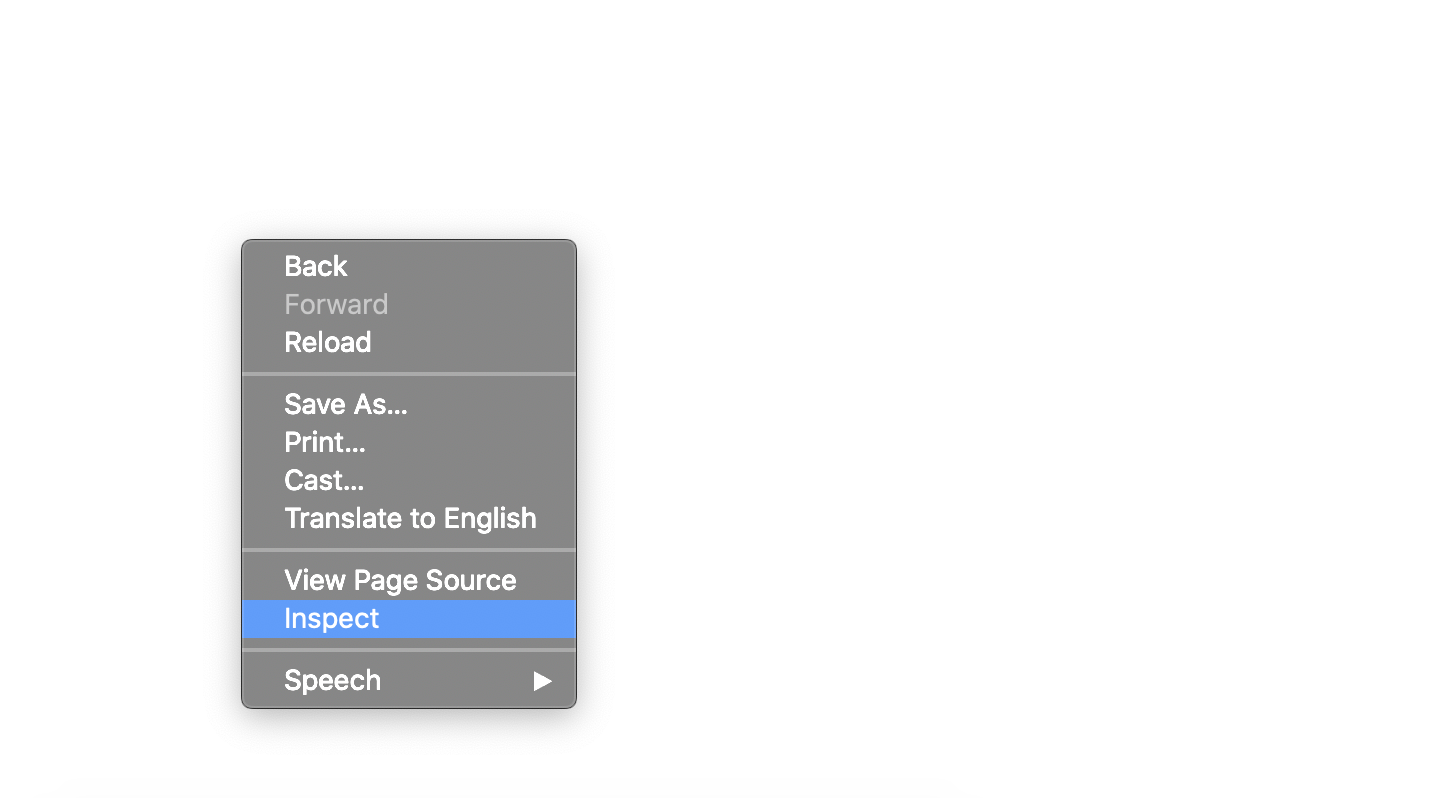
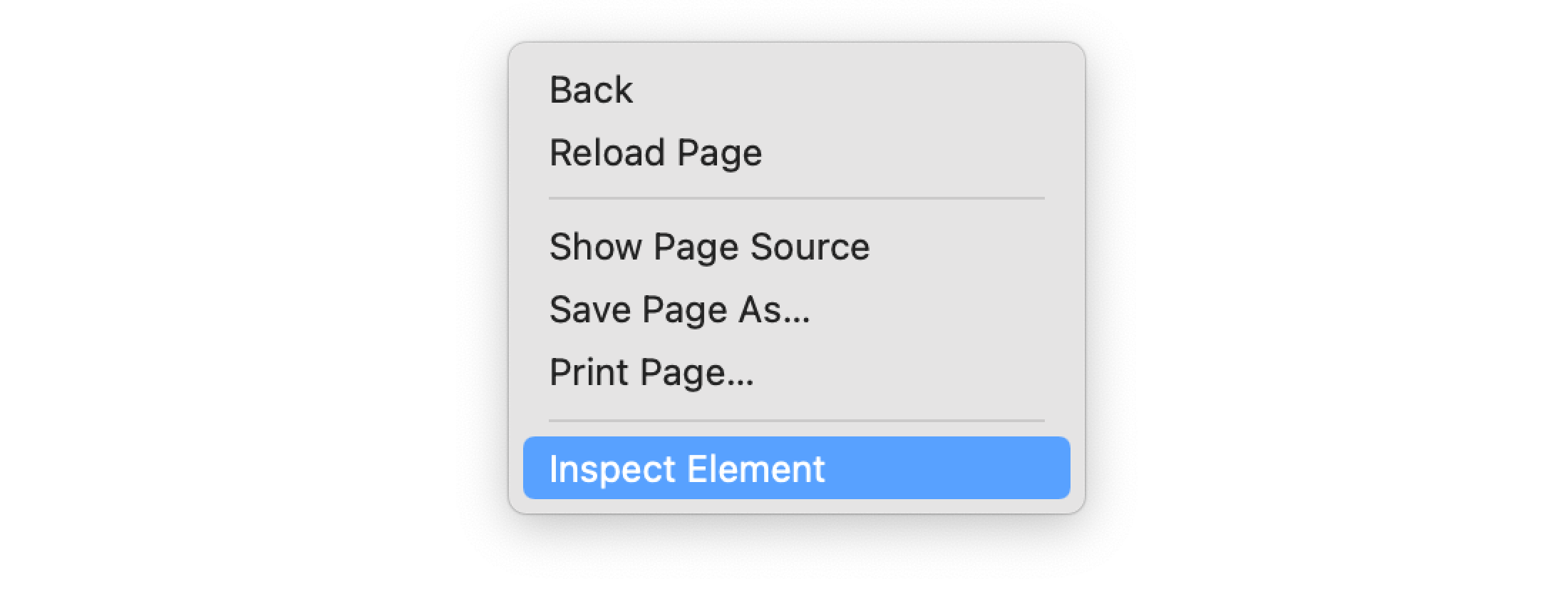
Open your website, right-click somewhere on the page and select **Inspect** or **Inspect Element** in the context menu that appears.
Once you have the developer tools open, click the **Console** tab, paste the following code:
```
batchSDK('ui.showPublicIdentifiers')
```
For both methods, Batch's SDK will then return your identifiers:
Ensure that:
* **Subscribed to notifications?** is set to **Yes ✅**
* The **Registration token** field is not empty **✅**
{% hint style="warning" %}
If these conditions are not fulfilled, or if you do not see the identifiers pop-in, try [resetting your browser opt-in preferences](https://doc.batch.com/guides-and-best-practices/profiles/how-to-reset-your-browser-opt-in-preferences).
{% endhint %}
You can also retrieve your Installation ID from your browser console (see the last step).
{% endstep %}
{% step %}
## Find your device
On the dashboard, go to **Data** > **Find Profile**, and paste your ID (with the correct ID type selected):
In the **Platforms** section, find your browser and click on **Inspect**:
This opens the device pop-in, from which you can send a test push and save the device as a test device:
{% endstep %}
{% step %}
## Send a test notification
You can send a test notification from 2 places:
### a) From the device pop-in
If you just need to test your integration, click **Send test push** in the device pop-in. Batch sends a test notification to your browser.
### b) From the message editor
To see how your message looks, send a test from the message editor. You can send a test two ways:
* Click on **Send Test** **> Saved recipients** and select the recipient you want to send the test to, then hit **Send test:**
* Click on **Send Test** **> One-time recipient**, choose the identifier type (**Custom ID**, **Installation ID** or **Push Token**), enter it in the corresponding field, then hit **Send test:**
{% endstep %}
{% step %}
## Save your device as a test recipient
You can save a test device once and reuse it for every future test, instead of looking up its Installation ID or Custom ID each time. There are two ways to do this:
* From the device pop-in (see step 3), click **Save test device**.
* From **Settings > Channels > Push**, under the **Test recipients** tab. Click **New recipient**, give it a name, and enter its Custom ID, Installation ID, or Push Token:
Recipients saved this way are available at the project level and can be selected directly when sending a test from the Push, In-App, or Mobile Landing message editor.
{% endstep %}
{% step %}
## Locate your installation in your browser console
Alternatively, you can retrieve your Installation ID thanks to the console in the browser you are using.
### a. Chrome
Right-click anywhere on your website, then click **Inspect:**
Then click on the **Application** tab and go to **IndexedDB > BatchWebPush > BatchKVData**:
You should then be able to get your Installation ID, for example here: 1bb71252-2b58-4285-9fe0-321c37ce5730.
### b. Firefox
Right-click anywhere on your website, then click **Inspect Element:**
Go to **Storage > Indexed DB > Your Website URL > BatchKVData:**
Your installation ID is displayed on the first line.
### c. Safari
Right-click anywhere on your website, then click **Inspect Element:**
Then click on the **Storage** tab and go to **Indexed Databases** > **BatchWebPush** > **BatchKVData:**
You should then be able to get your Installation ID, for example here: ebccf486-961f-403e-97a3-39daf001f98c.
{% endstep %}
{% endstepper %}
---
# Agent Instructions
This documentation is published with GitBook. GitBook is the documentation platform designed so that both humans and AI agents can read, navigate, and reason over technical content effectively. Learn more at gitbook.com.
## Querying This Documentation
If you need additional information that is not directly available in this page, you can query the documentation by asking a question.
Perform an HTTP GET request on the following URL with the `ask` and `goal` query parameters:
```
GET https://doc.batch.com/guides-and-best-practices/message/push-notifications/how-to-send-a-test-push-notification-to-your-web-browser.md?ask=&goal=
```
`ask` is the immediate question: it should be specific, self-contained, and written in natural language.
`goal` is what the user is ultimately trying to achieve, the reason they need the answer. Sharing it helps GitBook give you a better, more relevant answer. A goal is most helpful when it describes the outcome the user wants rather than restating the question. For example, with `ask=how do I create an API token`, a goal like `automate deployments from our CI pipeline` lets GitBook tailor the answer to that use case.
The response will contain a direct answer to the question and relevant excerpts and sources from the documentation.
Use this mechanism when the answer is not explicitly present in the current page, you need clarification or additional context, or you want to retrieve related documentation sections.

.png?alt=media&token=bbca41d0-0fc3-4f3c-ab79-15ab77e95d69)