> For the complete documentation index, see [llms.txt](https://doc.batch.com/llms.txt). Markdown versions of documentation pages are available by appending `.md` to page URLs; this page is available as [Markdown](https://doc.batch.com/getting-started/channels/in-app-1.md).
# In-App
An **In-App message** appears inside your app while your user is actively using it.\
It’s a great way to communicate *in the moment* and *in context,* perfect for guiding, informing, or prompting users to take action. It’s also an interesting channel because it lets you reach **opted-out users** (those who didn't enabled push notifications).
This guide will walk you through how to craft a clear, impactful In-App message step by step.\
Let’s get started 🚀✨
## Create an In-App template
The key element will be your message, so it’s essential to create a theme that aligns with the message you want to convey and your branding 🧩\
The **Batch In-App Composer** lets you design beautiful, fully customizable messages, no coding required, thanks to an intuitive drag-and-drop editor.
### Themes available
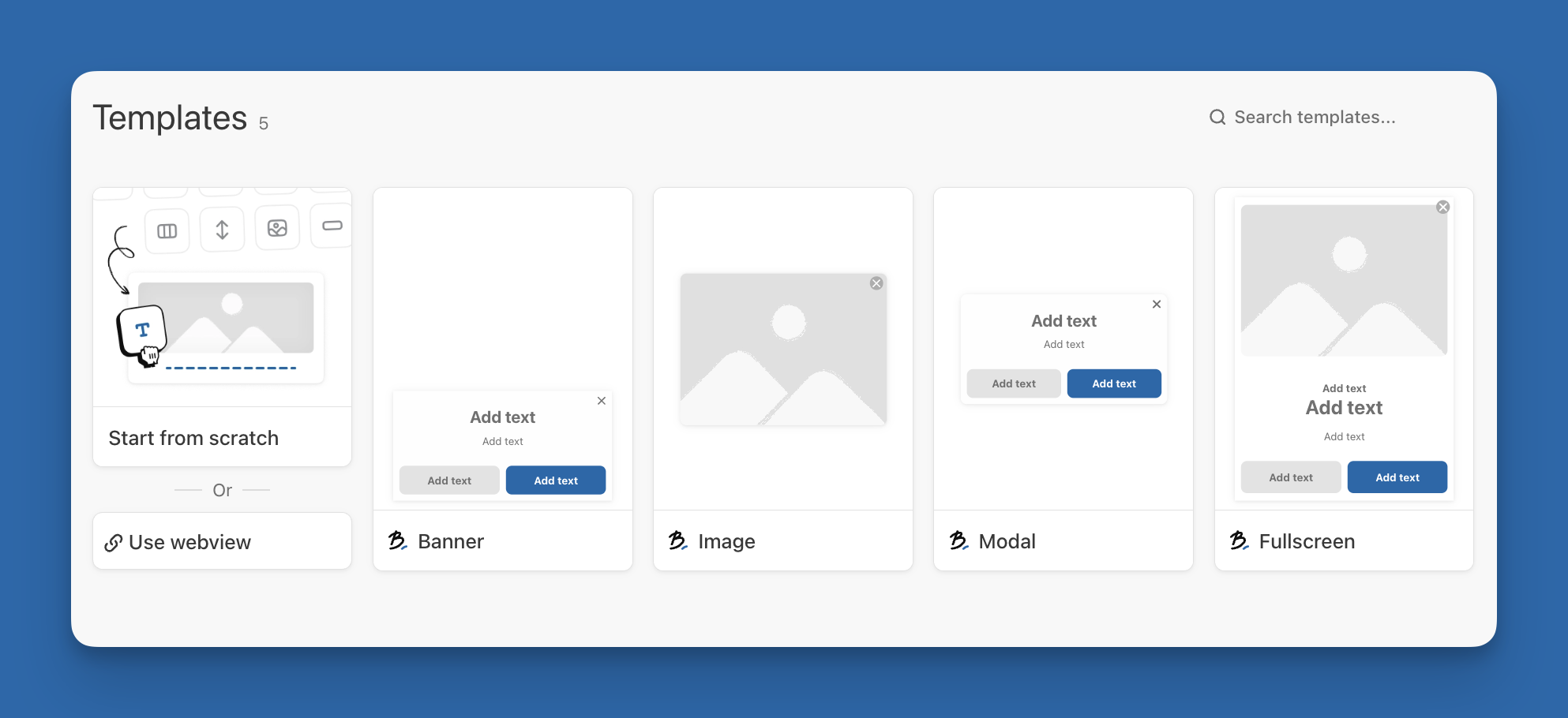
Different default templates are available to get you started:
* **Fullscreen :** a fullscreen format can contain text, an image, up to two buttons, and a close button.\
It’s ideal for highlighting new products, promoting offers, encouraging app updates, or driving sharing.
* **Modal:** the modal format can include an image, text fields, buttons, and an auto-dismiss option.\
Usually displayed at the center of the screen (in landscape orientation), it’s perfect for capturing the user’s full attention.
* **Image:** this format displays a standalone image, optionally within a modal, either fullscreen or with margins.\
You can customize the duration, background color, and auto-close behavior, while keeping your app visible in the background.
* **Banner:** displayed at the top or bottom of the screen, a banner can include text, two buttons, a close button, and an optional auto-dismiss timer (10 seconds by default).\
It’s perfect to encourage feature usage, promoting notifications, or delivering quick updates.
* **WebView:** the WebView format gives you complete creative freedom with custom HTML. You can build rich, interactive content (like carousels or dynamic layouts). Note: this format can only be displayed in *fullscreen* mode.
You can also [**Start from scratch**](#compose-the-message-and-cta-behavior) if you feel inspired 👨🎨
### Where to create your In-App template
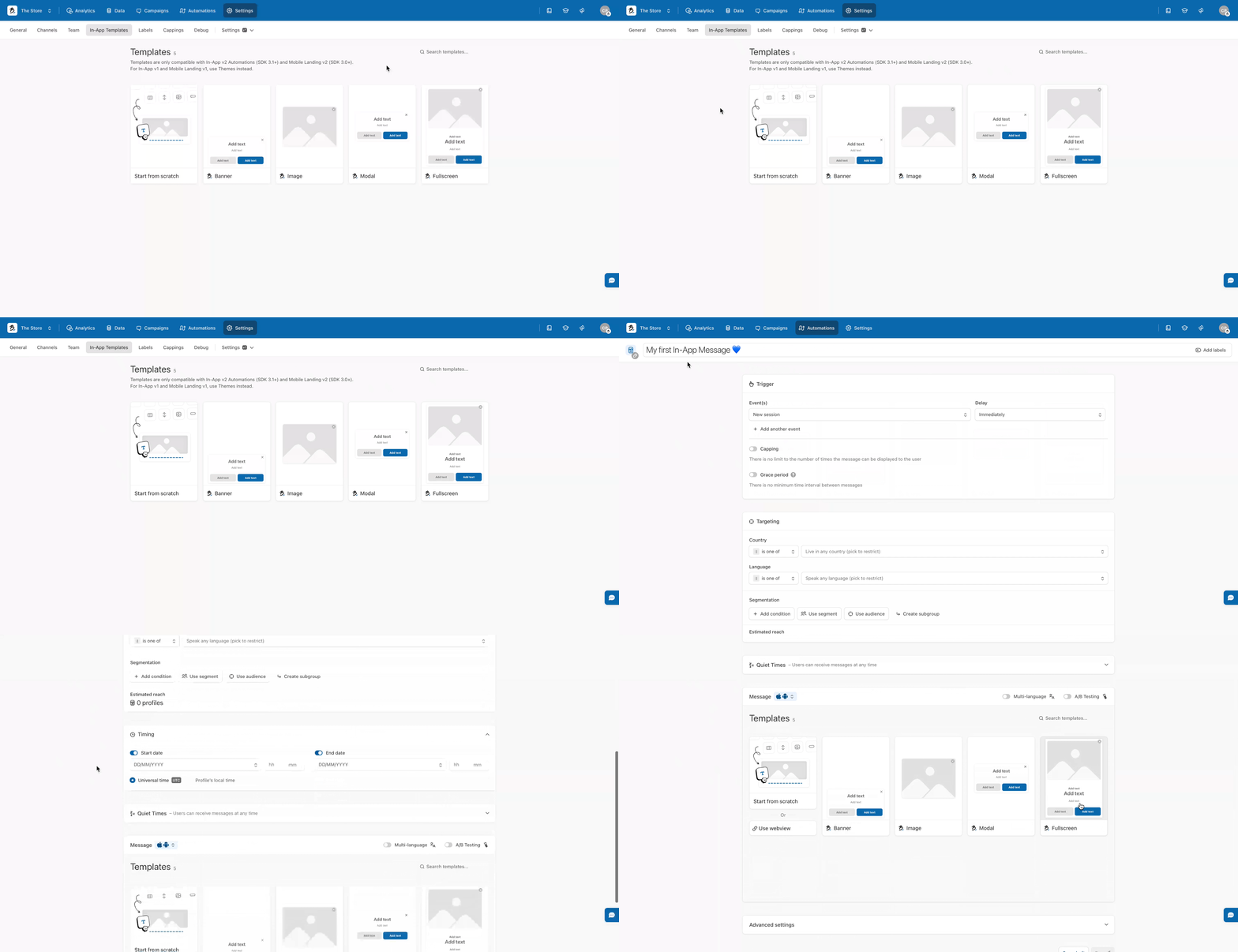
You can create your In-App templates from two different places:
* **Content → In-App Templates**
* Or directly **from the Message creation screen** while setting up your automation.
## Create your In-App automation
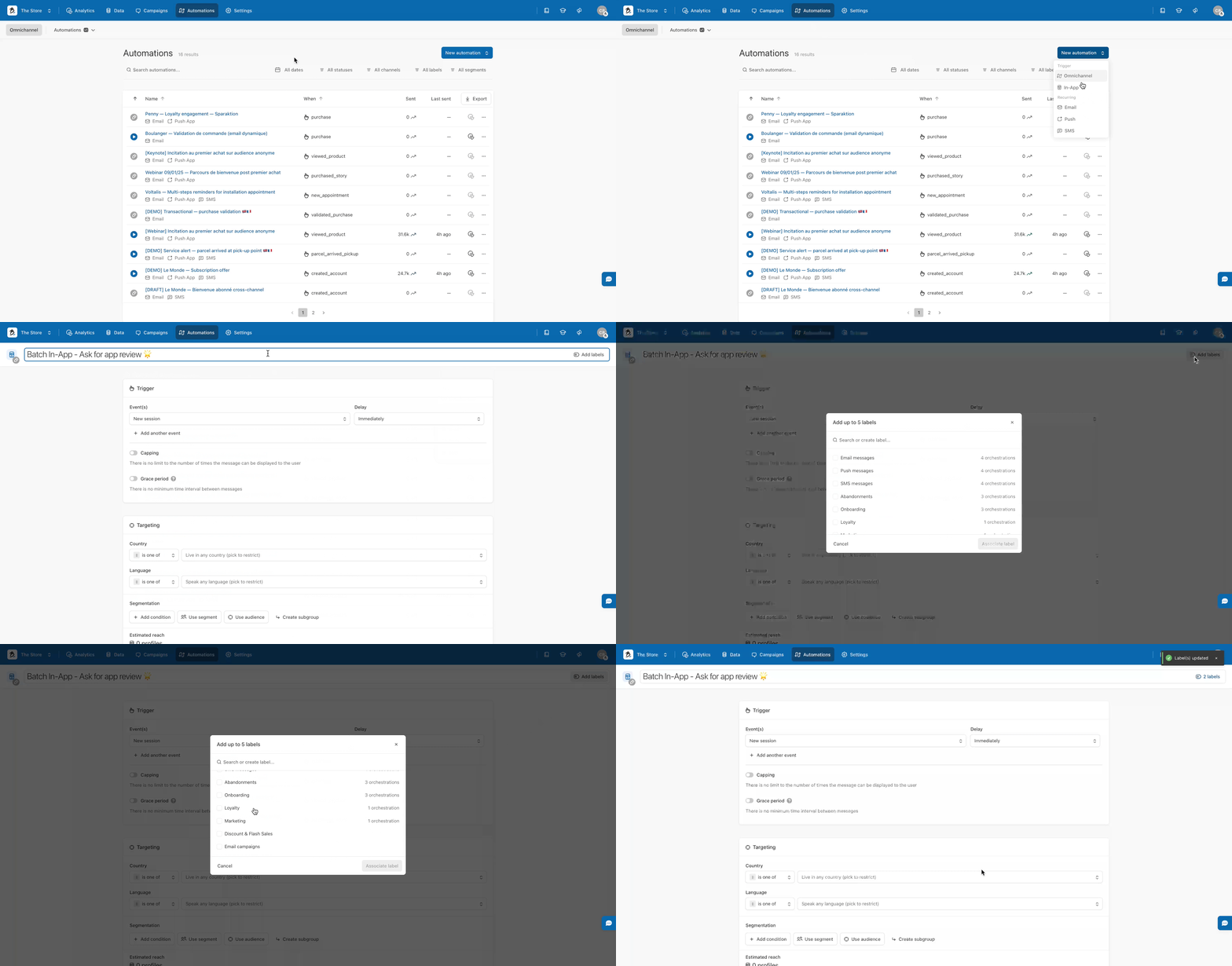
Whether you’ve already created your theme in **Content → In-App Templates** or plan to do it later, you can now move on to building your first automation. Go to **Automations → New Automation → In-App**.
{% hint style="info" %}
Choose a clear and explicit name for your automation, and add labels if needed to keep your workspace organized.
{% endhint %}
### Set the trigger action
In-App messages are **event-based**, meaning they are displayed when a specific event occurs within your app.
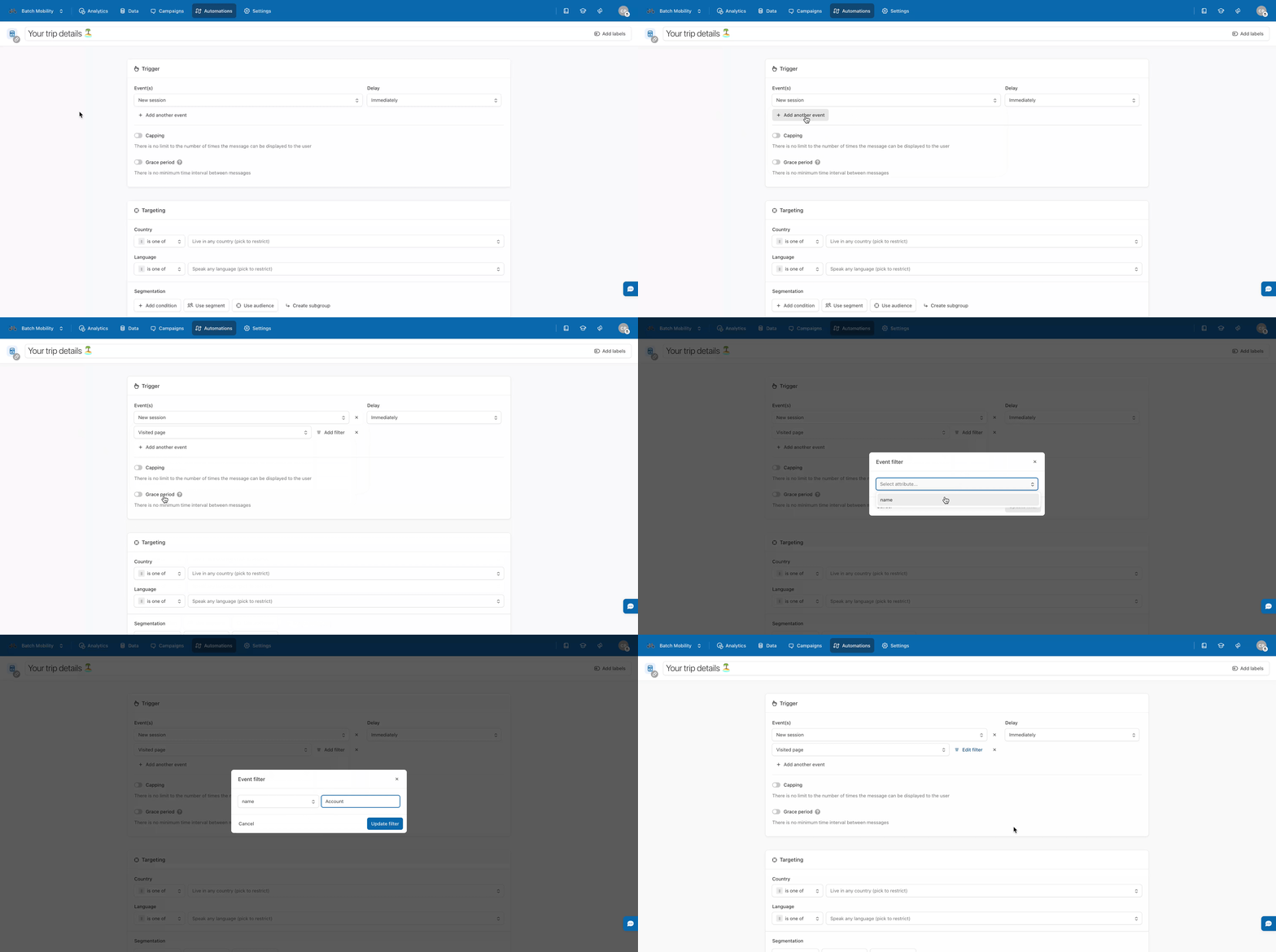
Start by selecting the **event(s)** that will make your message appear to users. You can trigger an In-App on:
* **New session** (a native event triggered when the app is opened)
* **Any tagged or tracked event** collected by the **Batch SDK**
{% hint style="info" %}
If you add multiple events, they are combined using the **OR** condition, meaning the message will display as soon as **any** of those events occurs. You can add up to 10 trigger events.
{% endhint %}
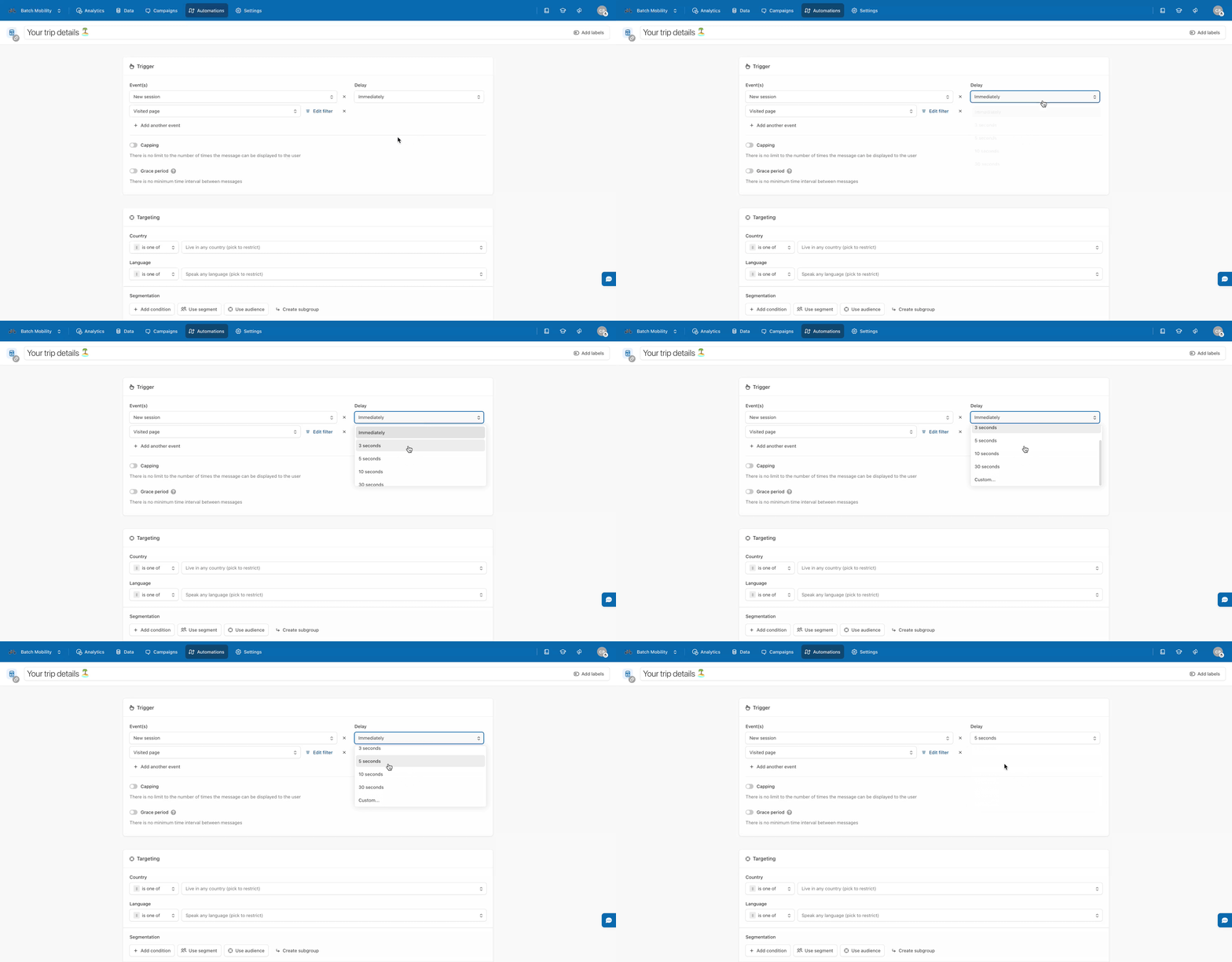
#### Configure the Display Delay
You can define a delay between the trigger event and the actual display of the In-App message:
* **Immediately**
* **Between 3 and 30 seconds**
* **Custom delay (up to 60 seconds)**
{% hint style="info" %}
Avoid setting a delay that’s too long : the user might leave the app before the message appears.
{% endhint %}
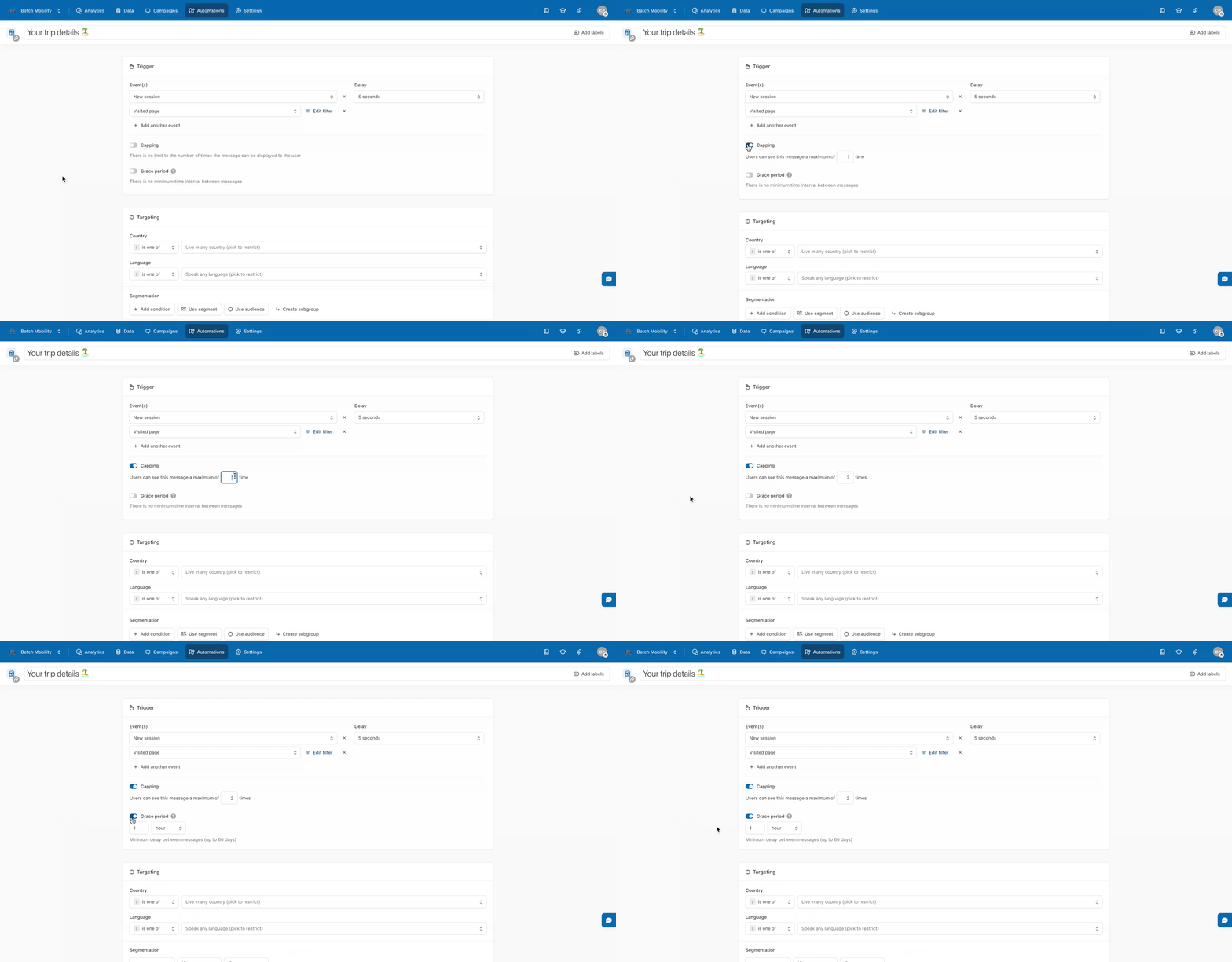
#### Control the marketing pressure
You can fine-tune how often and when your In-App is displayed with these optional parameters:
* **Capping:** Limit how many times a user can see the message.
* **Grace Period:** Define a minimum delay between two displays of the same communication.
{% hint style="info" %}
These controls help you avoid message fatigue and keep the user experience smooth.
{% endhint %}
### Add targeting
Just like with a campaign or automation, you can define [**targeting conditions**](https://doc.batch.com/getting-started/features/customer-engagement-platform/orchestration/targeting) to reach the right audience or segments. Combine attributes, events, or custom user data to make your In-App relevant and contextual!
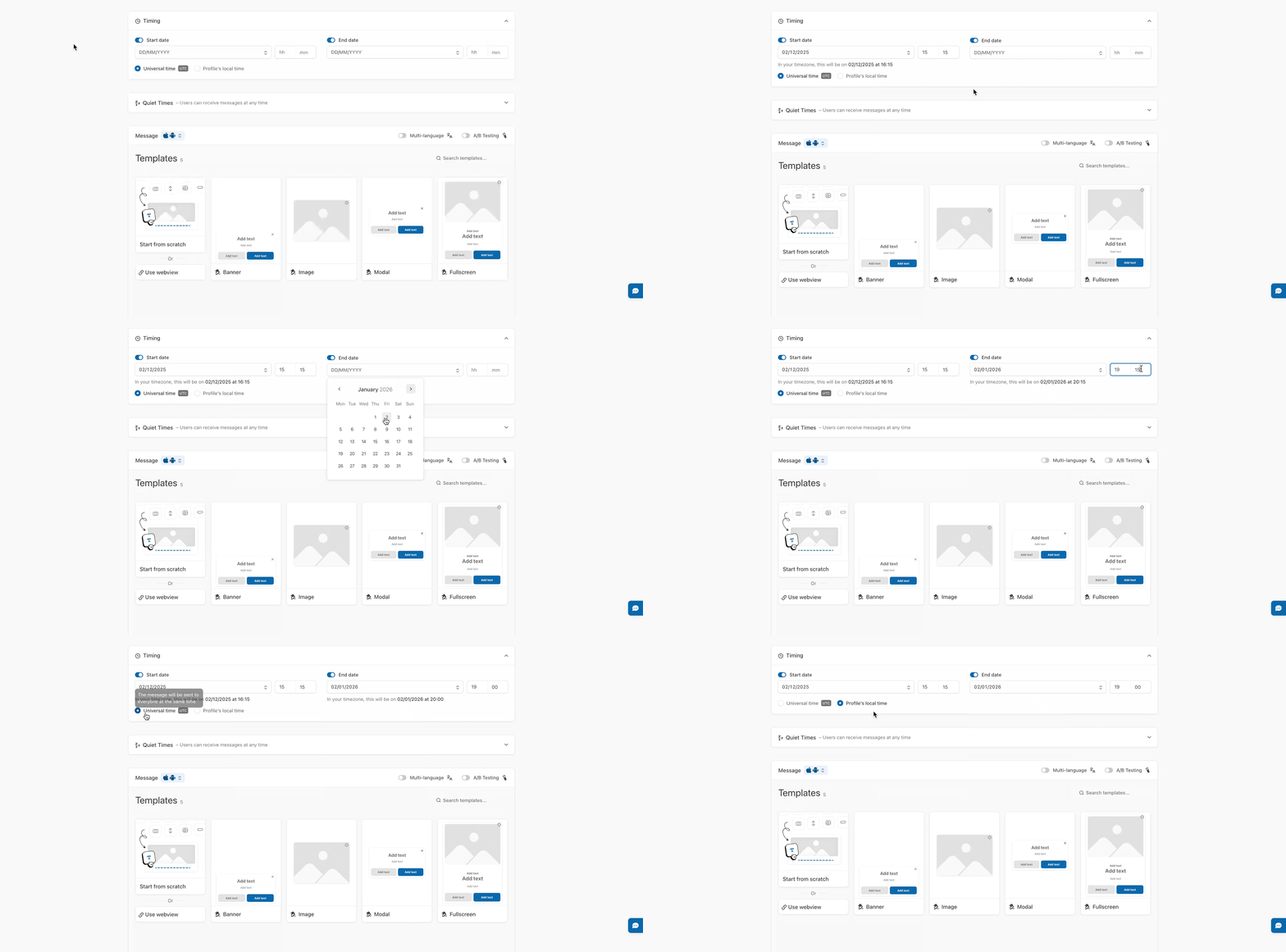
### Choose the timing
You can schedule your campaign’s **availability window**, including start and end dates, hours, and timezone options.
You can base your schedule on either:
* **Universal Time (UTC)**, or
* **The user’s local timezone** (based on profile data).
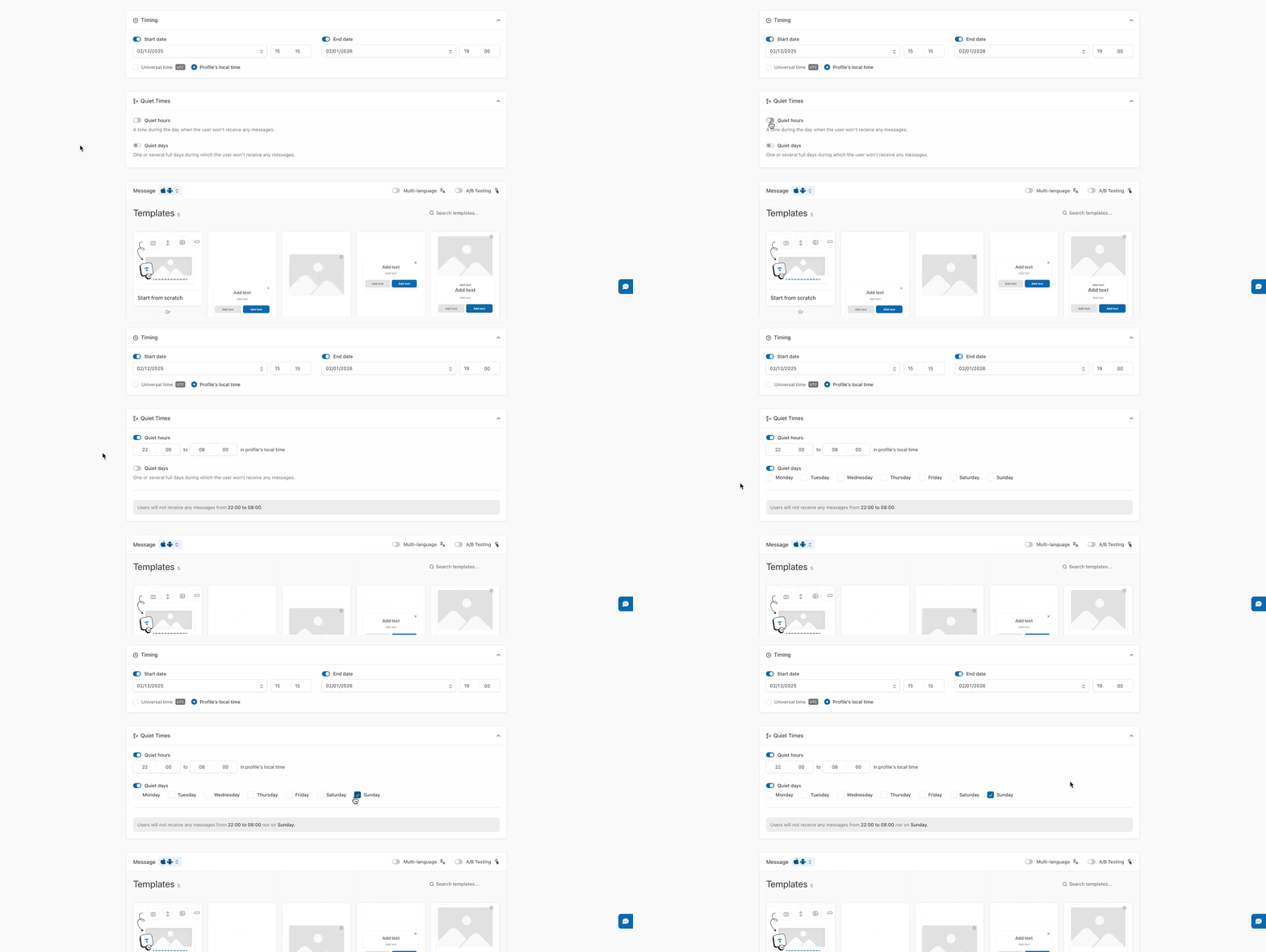
### Add quiets times (optional)
Quiet Times give you more control over when your In-App messages can appear.\
This feature allows you to define **specific time slots or days** during which messages will *not* be displayed to users.
You can configure two levels:
* **Quiet Hours:** Define daily time slots during which no messages are shown.
* **Weekly Quiet Days:** Define one or several days when no messages are shown.
{% hint style="success" %}
⏰ **Example 1 :** **Quiet Hours**
Use case: Avoid showing messages late at night.\
Example: For a shopping app, limit In-App offers to active hours.\
Setup:
* Enable Quiet Hours.
* Set from 10:00 PM to 8:00 AM.
Messages will pause overnight and resume in the morning.
**📅 Example 2 : Quiet Days**
Use case: Skip engagement messages on low-activity days.\
Example: For a B2B app, disable In-Apps on weekends.\
Setup:
* Enable Quiet Hours (e.g., 10:00 PM – 8:00 AM).
* Activate Weekly Quiet Days for Saturday and Sunday.
Your In-Apps will only run Monday to Friday, during active hours.
{% endhint %}
### Set up your messages
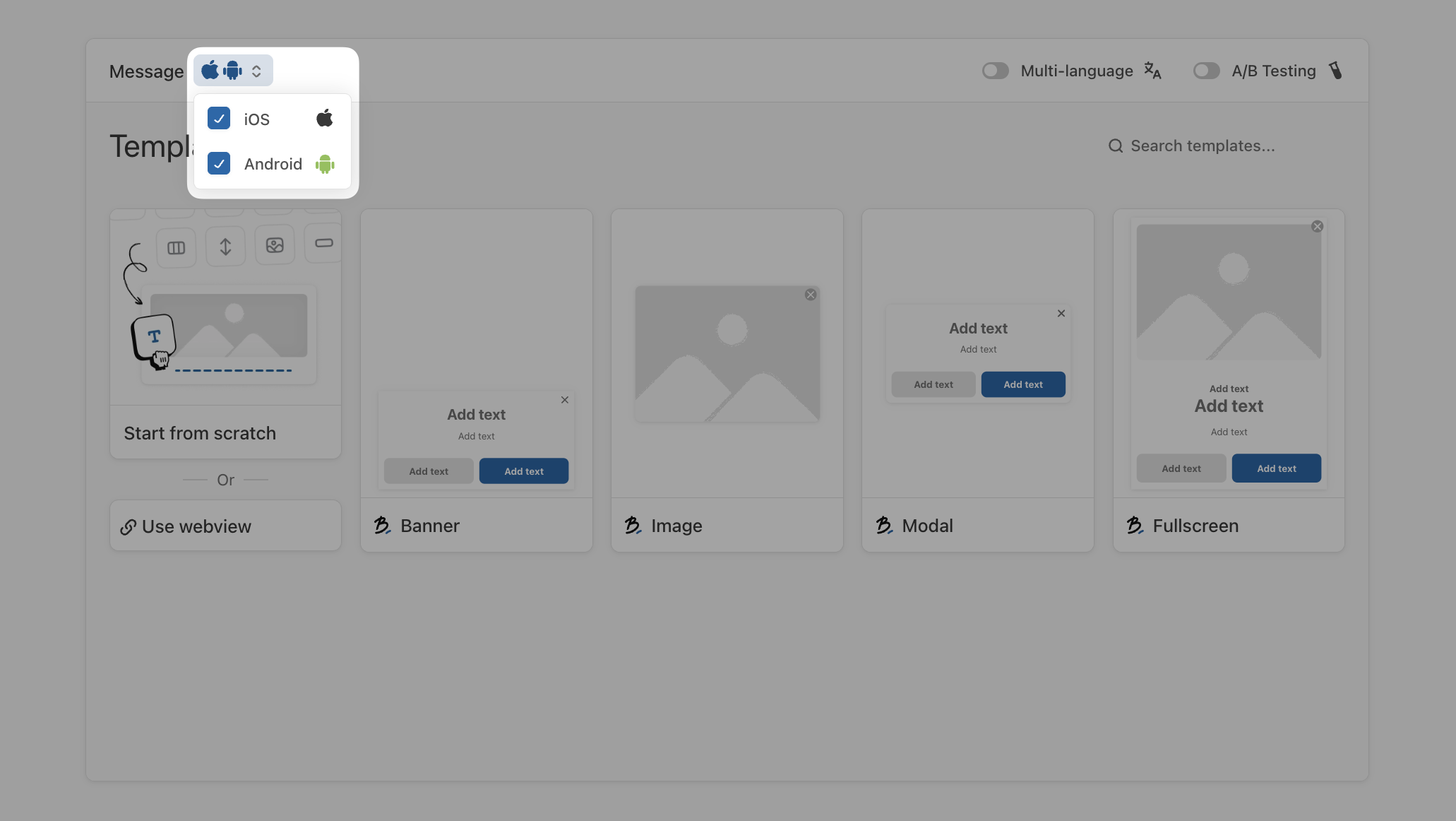
Before composing your In-App message, the first step is to decide **which platform(s)** you want to send display your In-app message to:
* **iOS only**
* **Android only**
* **Both**
{% hint style="info" %}
In-Apps are only available on mobile apps.
{% endhint %}
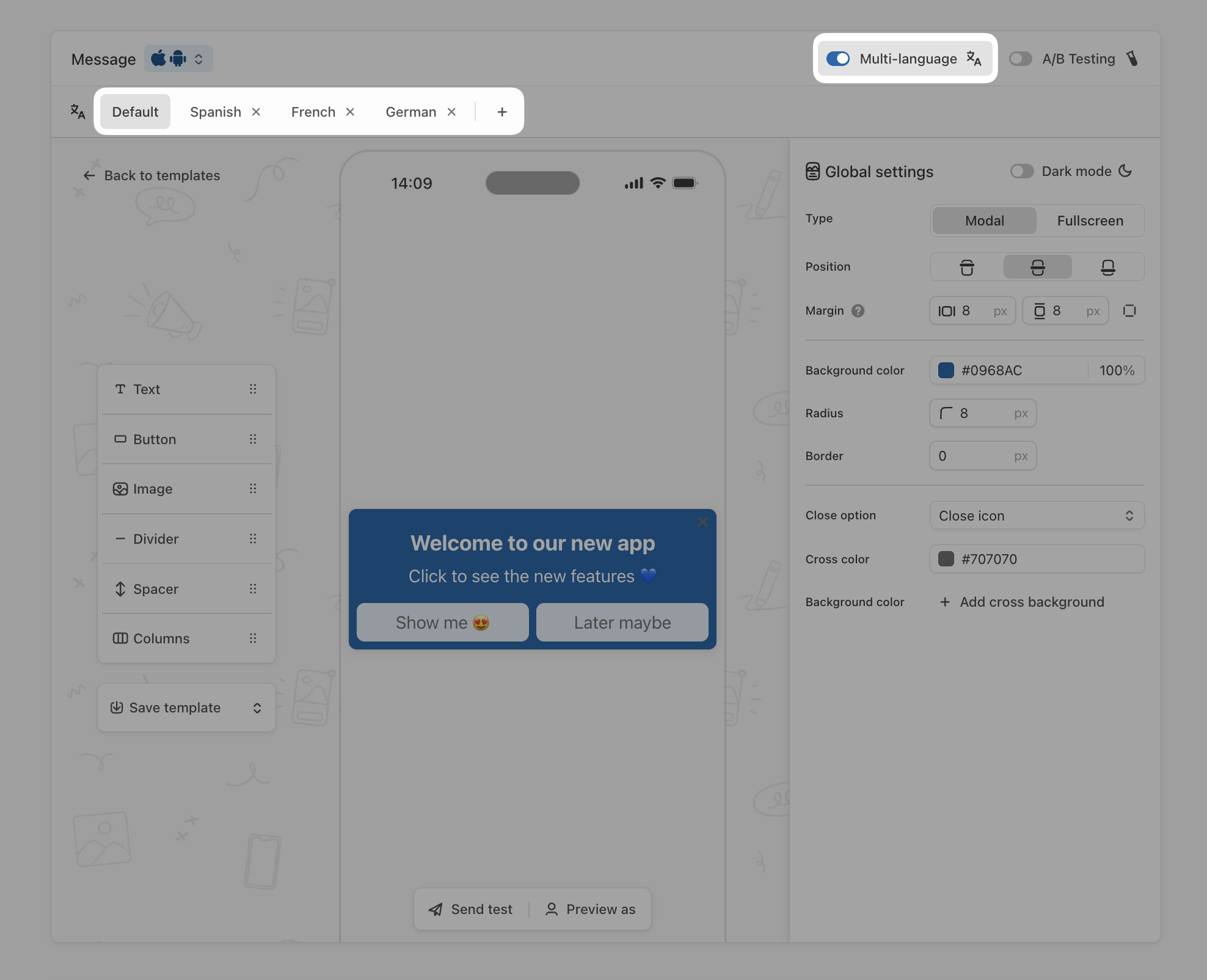
#### Multi-language
You can create multiple versions your In-App message, one for each language, by clicking [**Multi-language**](https://doc.batch.com/getting-started/features/customer-engagement-platform/message/overview)**,** ensuring that profiles receive the message in their own language:
When adding a new language version, the default version will be duplicated, keeping your format options, images, and other elements intact, so you only need to edit the text that requires translation.
{% hint style="info" %}
A default version will be sent to profiles that don’t have a message already specified in their language.
{% endhint %}
#### A/B Testing
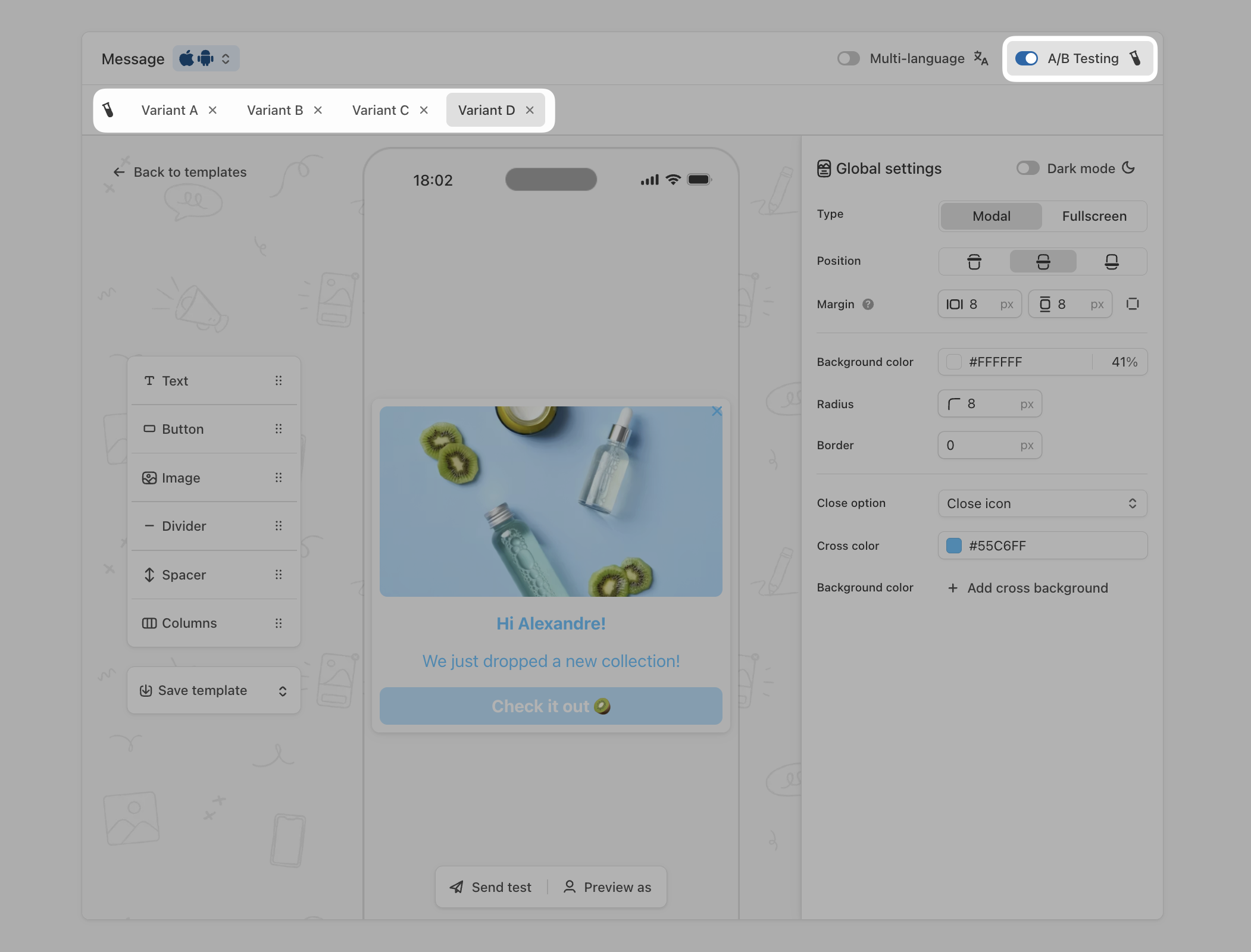
You can [**A/B test**](https://doc.batch.com/getting-started/features/customer-engagement-platform/message/overview) your In-App messages! Here's how:
* Enable the feature by toggling the switch at the top right of the Message section.
* **Create variants**: You can create up to **four variants**, either by duplicating an existing one or starting from scratch:
{% hint style="info" %}
Variants work with the multi-language functionality, so you can easily combine both!
{% endhint %}
### Compose the message and CTA behavior
Now it’s time to craft your In-App message 🌟
You can either use **pre-created templates** or build a message **from scratch**.
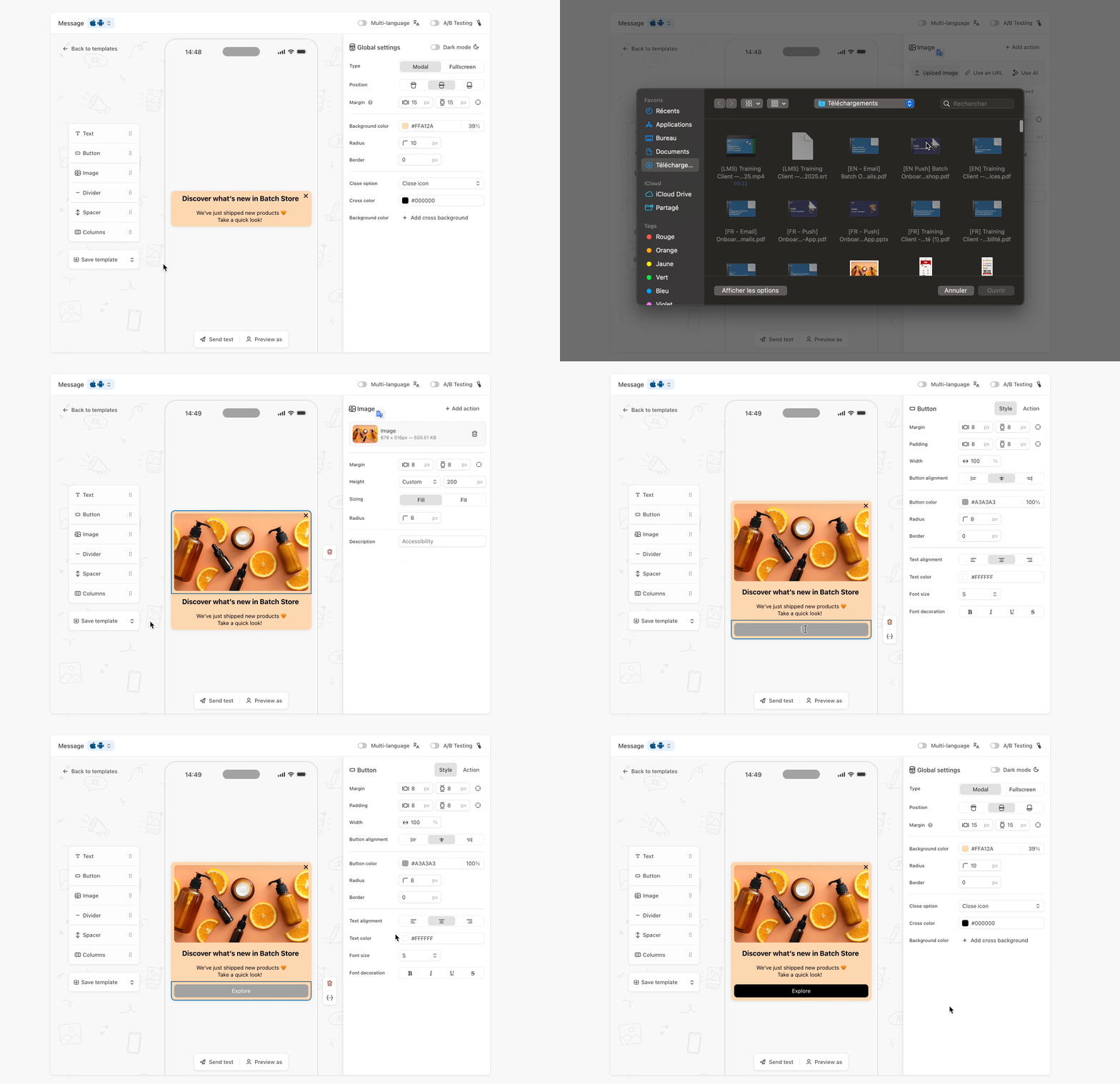
The Composer uses a **drag-and-drop system** to add and arrange blocks: Text, Image, Button, Divider, Spacer and Colums.
For this tutorial, we’ll start **from scratch** using the **In-App Composer** 👨🎨
{% hint style="info" %}
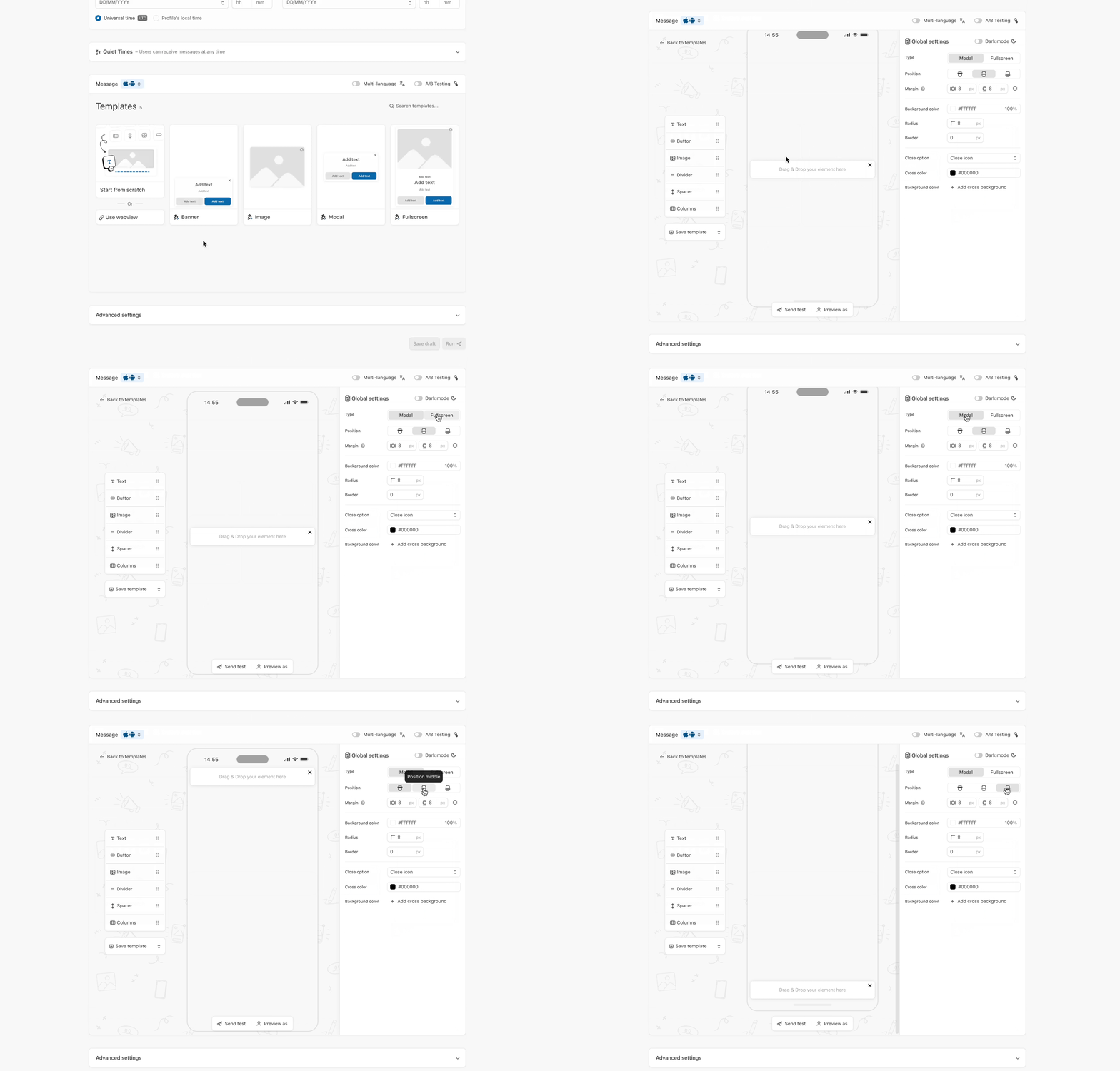
When creating an In-App message from scratch, you can choose:
* **Format:** Modal or Fullscreen
* **Position:** Top, Center, or Bottom of the screen
Depending on your choices, the same format can serve different purposes. For example, a **bottom modal** can work like a **banner**, while a **center modal** feels more like a **classic modal**. Let your creativity shine!
{% endhint %}
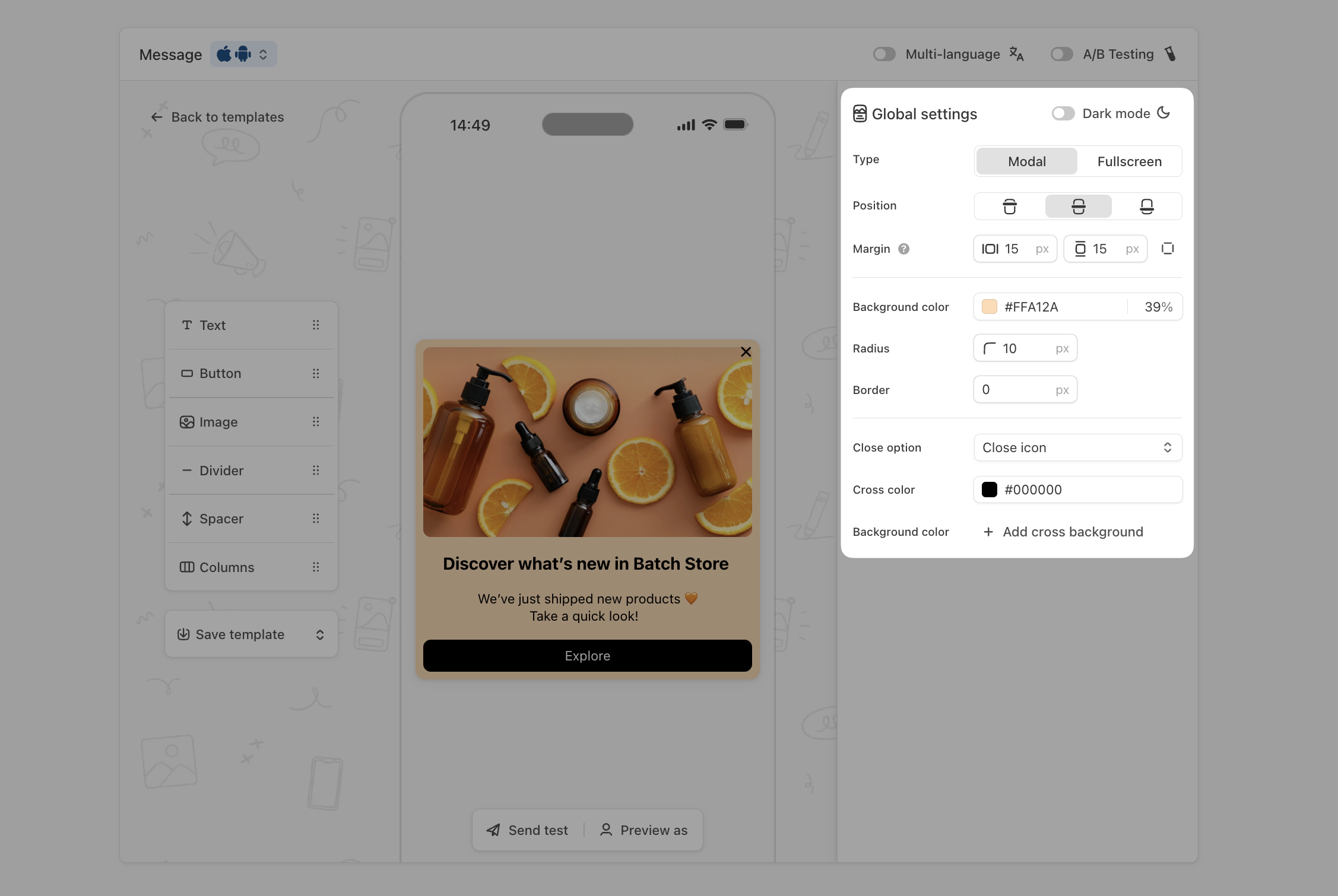
**Global Settings**
Before adding specific blocks, you can configure **global settings** for your In-App:
* **Type & Position:** choose where the In-App appears on the screen.
* **Margins & Radius:** adjust spacing and corner roundness.
* **Background & Border:** set background color and optional border.
* **Close Options:** enable a close button, auto-dismiss after X seconds, both, or none.
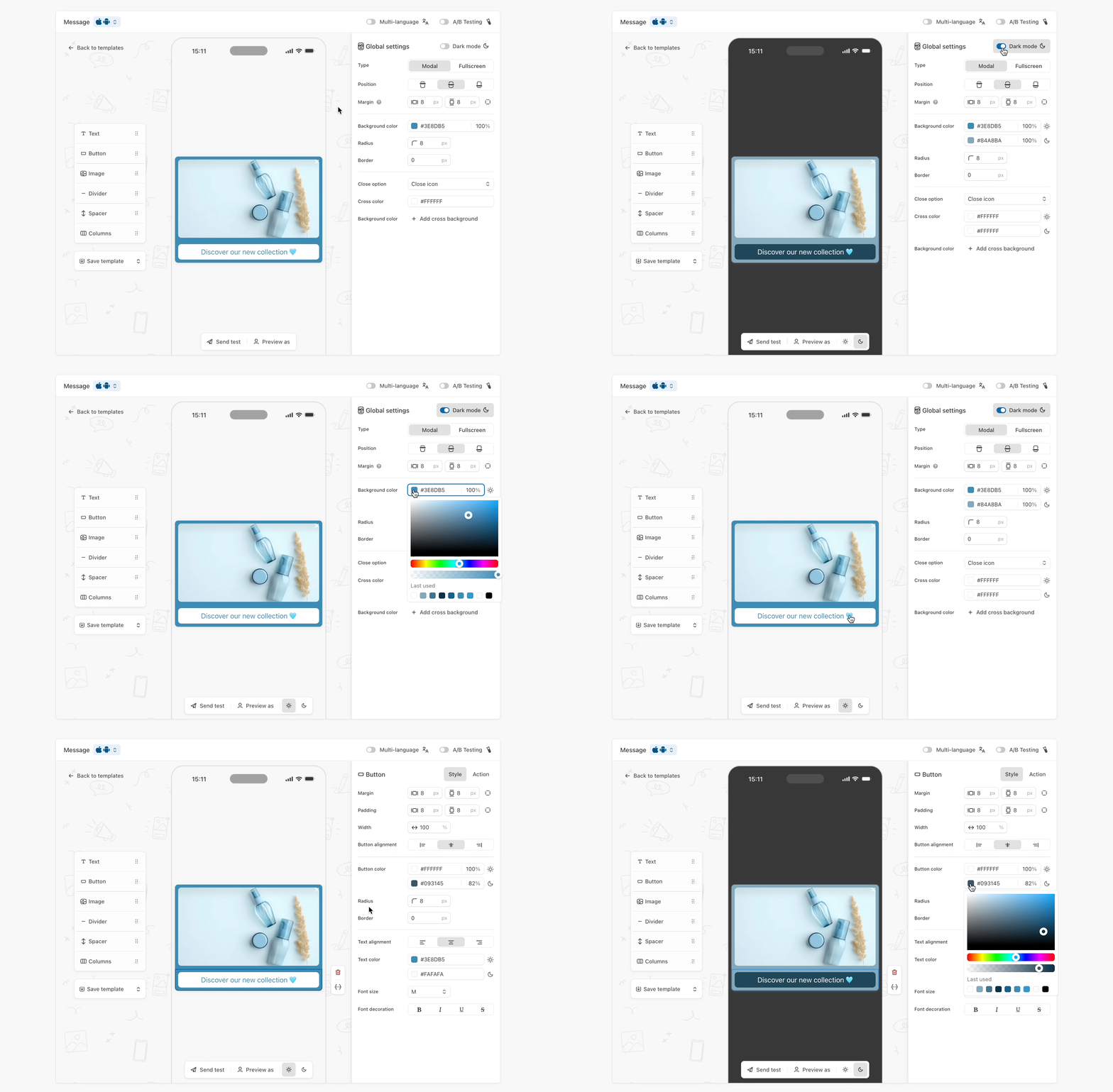
You can also configure a **dark mode version** for each In-App template to match user device settings:
With dark mode enabled, you can specify **separate colors for light and dark themes** and preview each mode directly in the In-App Composer.
**Add Text**
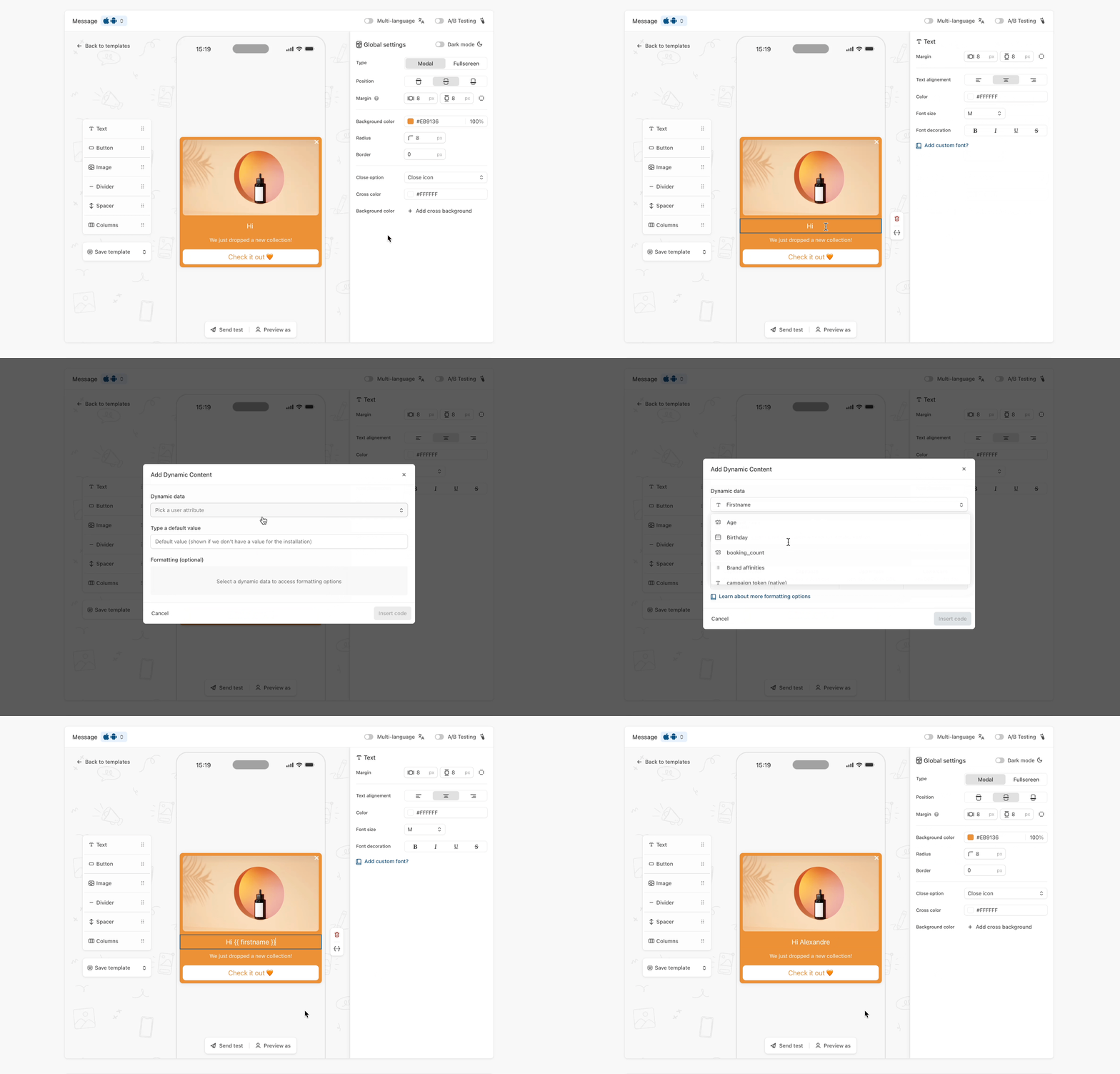
The Text block lets you include customizable text in your message.
You can personalize content dynamically based on user attributes. Customizations include: margin, alignment, color, font size, and decorations (bold, italic, underline, strikethrough).
{% hint style="info" %}
Text is essential to communicate your core message clearly, highlight key benefits, or create urgency (e.g., promotions, product updates). It ensures users understand what action they should take.
{% endhint %}
**Add call to action Button**
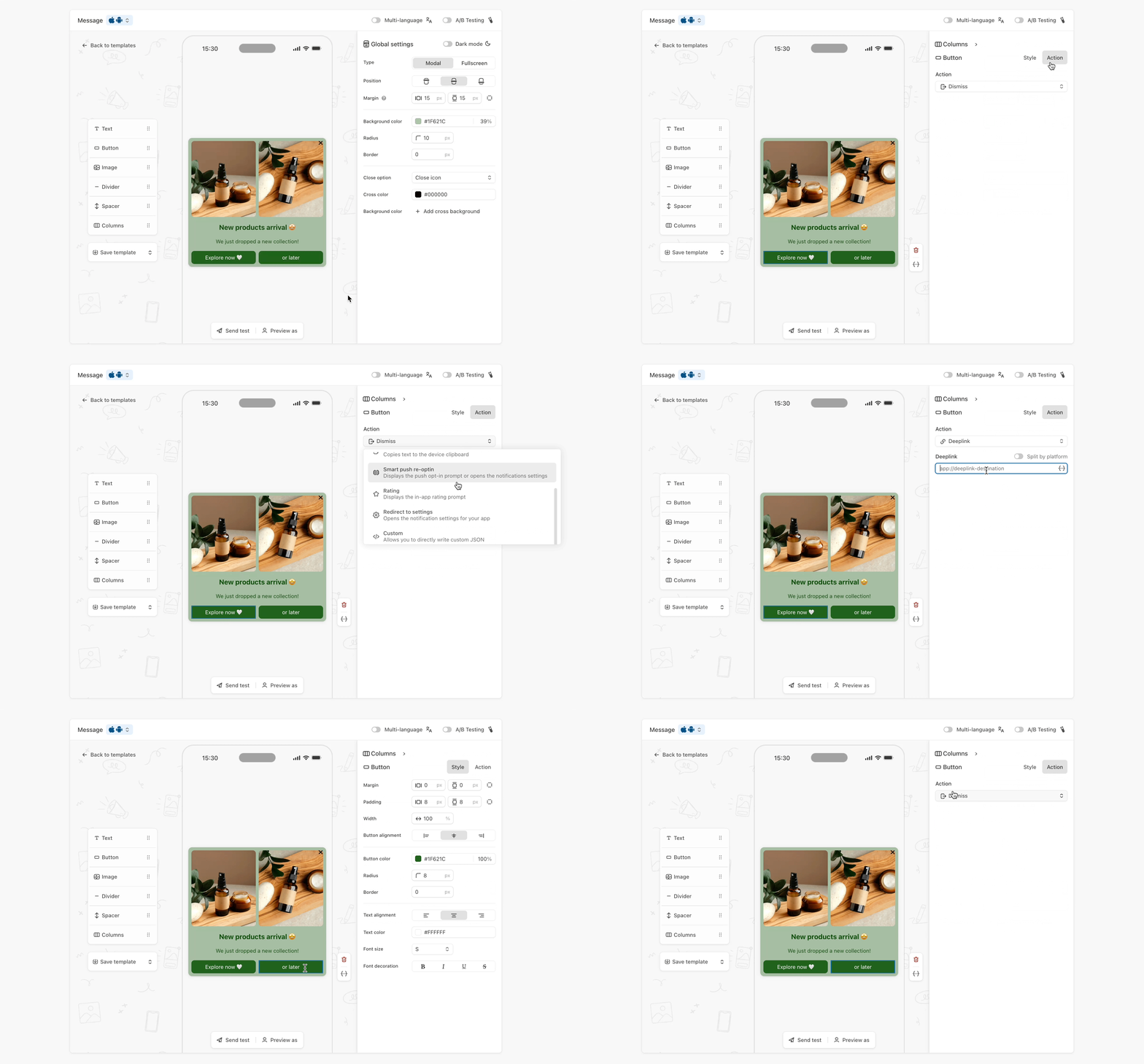
Buttons allow users to take specific actions in your message.
Each button can trigger [built-in actions](https://doc.batch.com/getting-started/features/customer-engagement-platform/message/in-app#button-actions) like:
* Dismiss
* Deeplink
* Copy to Clipboard
* Smart Push Re-optin
* App Rating
* Redirect to Settings
* or use a Custom action via custom JSON
You can customize margin, padding, width, alignment, color, radius, and border.
{% hint style="info" %}
Buttons drive conversions by turning interest into action. A well-placed CTA encourages users to explore features, claim offers, or engage with your app immediately.
{% endhint %}
**Illustrate your message with Images**
The Image block displays pictures within your message.
Images can trigger actions like buttons and support PNG/JPG formats up to 4MB. Height options: auto, fill space, or custom pixels. Sizing modes:
* Fill: scales to fill the block (may crop edges).
* Fit: ensures the full image is visible (may leave empty space).\
Pro tip: Place critical info in Text/Button blocks, and test on real devices.
{% hint style="info" %}
Images capture attention quickly and convey messages visually. They are perfect for showcasing products, branding, or promotions in a memorable way.
{% endhint %}
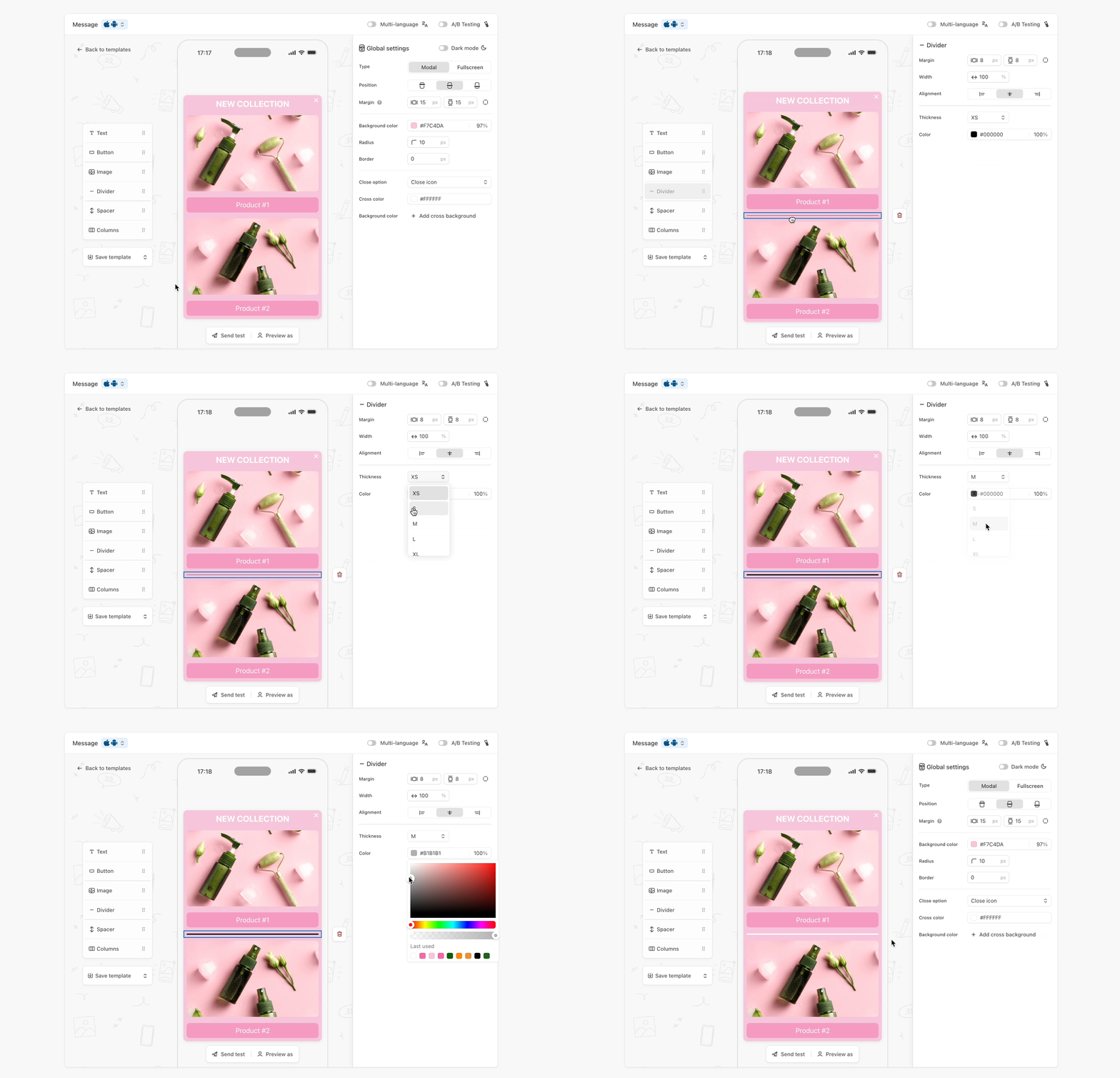
**Organize the message with Dividers**
Divider blocks add a horizontal line to separate content.
You can customize margin, width, alignment, thickness, and color
{% hint style="info" %}
Dividers help organize content visually, making your message easier to scan and increasing the likelihood users notice key CTAs or info.
{% endhint %}
**Set up Spacers**
[Spacer blocks](https://doc.batch.com/getting-started/features/customer-engagement-platform/content/composer#spacer) insert vertical space between content elements. Height can be fixed in pixels or set to Fill space (fullscreen only) to share remaining vertical space.
{% hint style="info" %}
Proper spacing improves readability and design clarity, ensuring users focus on the most important elements without feeling overwhelmed.
{% endhint %}
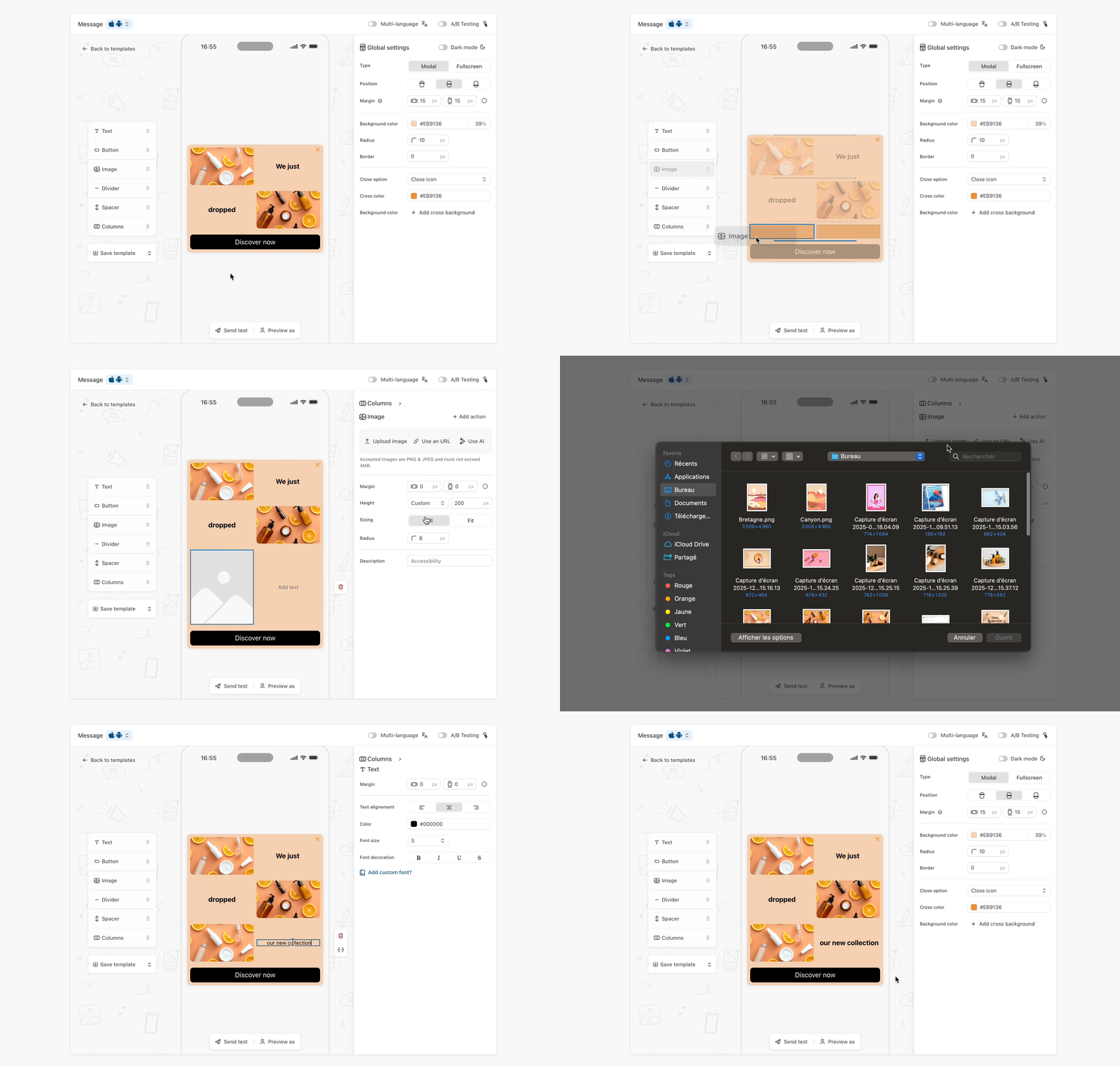
**Design with Columns**
Columns allow horizontal layout by creating up to 5 columns.
You can place Text, Button, or Image blocks inside columns. Customizations: number of columns, sizing (auto/custom percentages), spacing, padding, and vertical content alignment.
{% hint style="info" %}
Columns enable structured, eye-catching layouts that can highlight multiple offers, features, or images side by side, great for comparison or promoting multiple actions at once.
{% endhint %}
## Testing your In-App
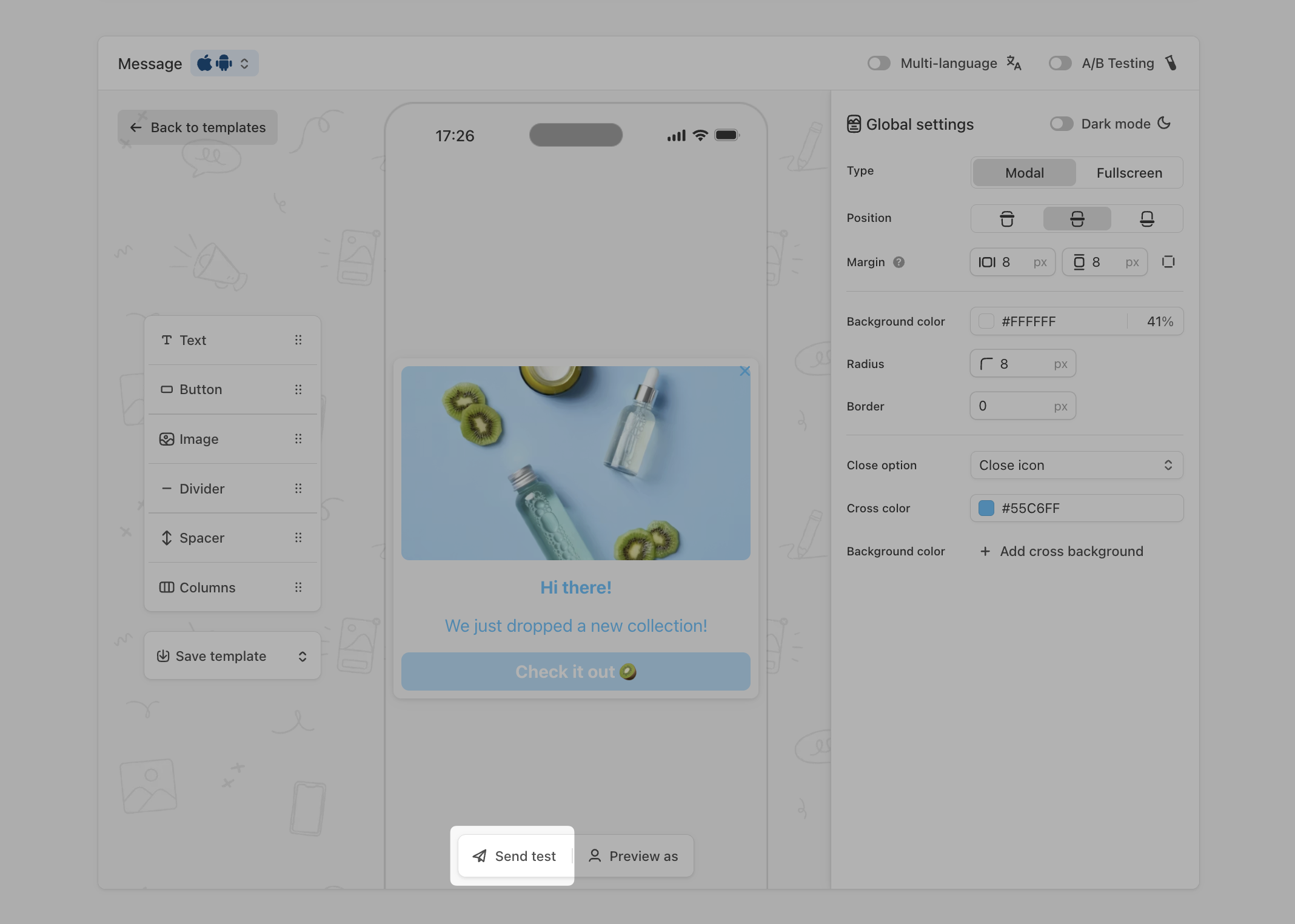
1. **Directly in your notification center**
Now that your In-App message is ready to be sent, you can test how it looks on your device!
Use the **Send test** button on the push message window and add your [Custom ID](https://doc.batch.com/getting-started/features/customer-engagement-platform/profiles/data-lifecycle#installation-id) or [Installation ID](https://doc.batch.com/getting-started/features/customer-engagement-platform/profiles/data-lifecycle#installation-id) and click on Send test:
{% hint style="info" %}
Note that when using the “Send test option”, the In-App message will render according to the test device's dark mode setting, not the mode selected in the composer preview.
{% endhint %}
A push notification is sent immediately, and clicking on it displays the test in-app once the application is opened ✨
💡 We recommend testing on various device types (iOS, Android, OS versions and screen sizes) to ensure your message displays correctly across all of them.
2. **Test your user data directly on Batch**
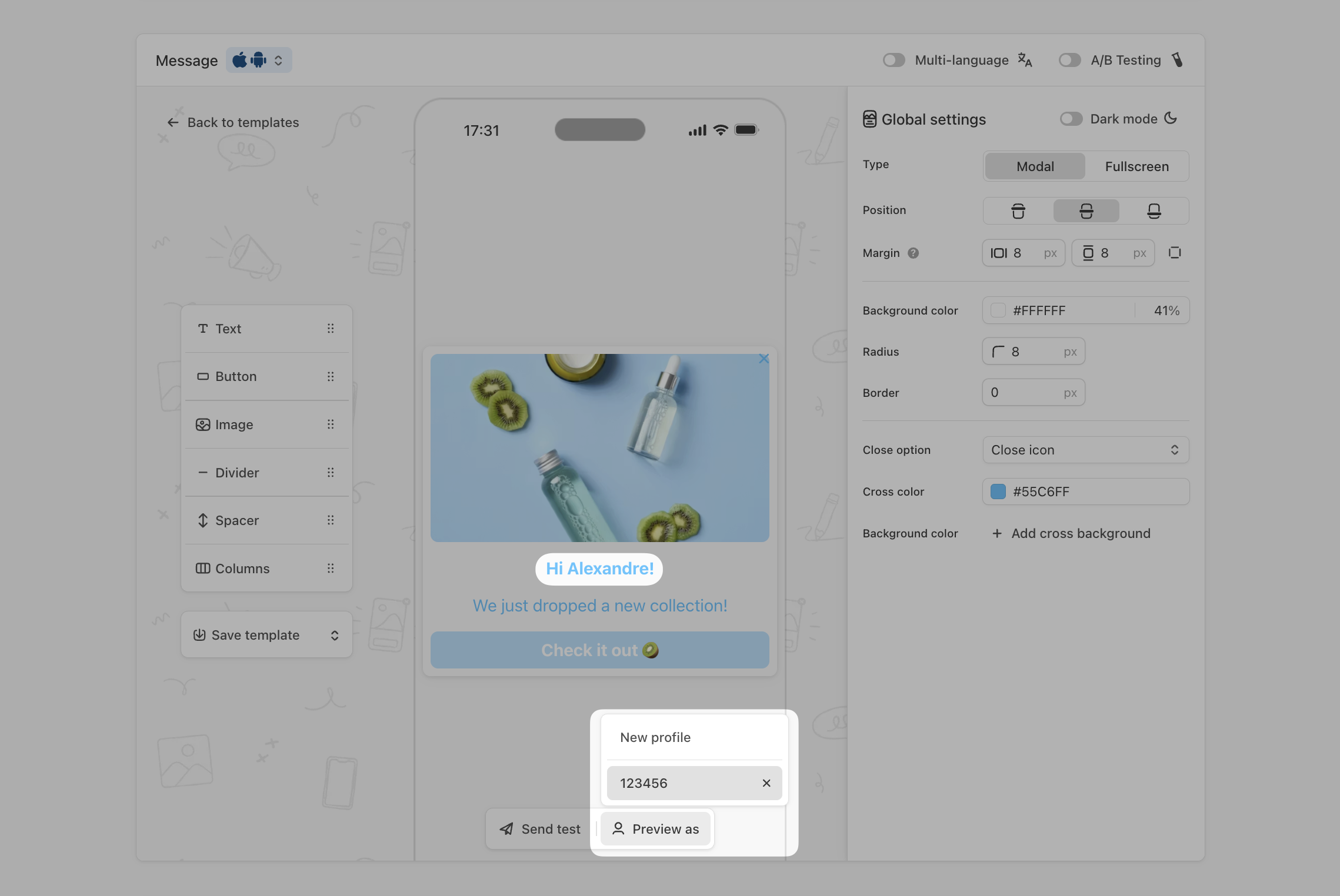
It is possible to preview the dynamic data of your In-App using the "Preview As" feature. To do so, use your [Custom user ID](https://doc.batch.com/getting-started/features/customer-engagement-platform/profiles/data-lifecycle) (or one of your users), then enter it in the dedicated field:
🚀 And that is it! With these steps, you are ready to launch personalized, real-time In-app automations that engage users exactly where they are: inside your app ✨
Click on the 'Save and run' button at the bottom of the form to activate it or save it as a draft and come back later.
***
## Advanced Settings
#### **Priority**
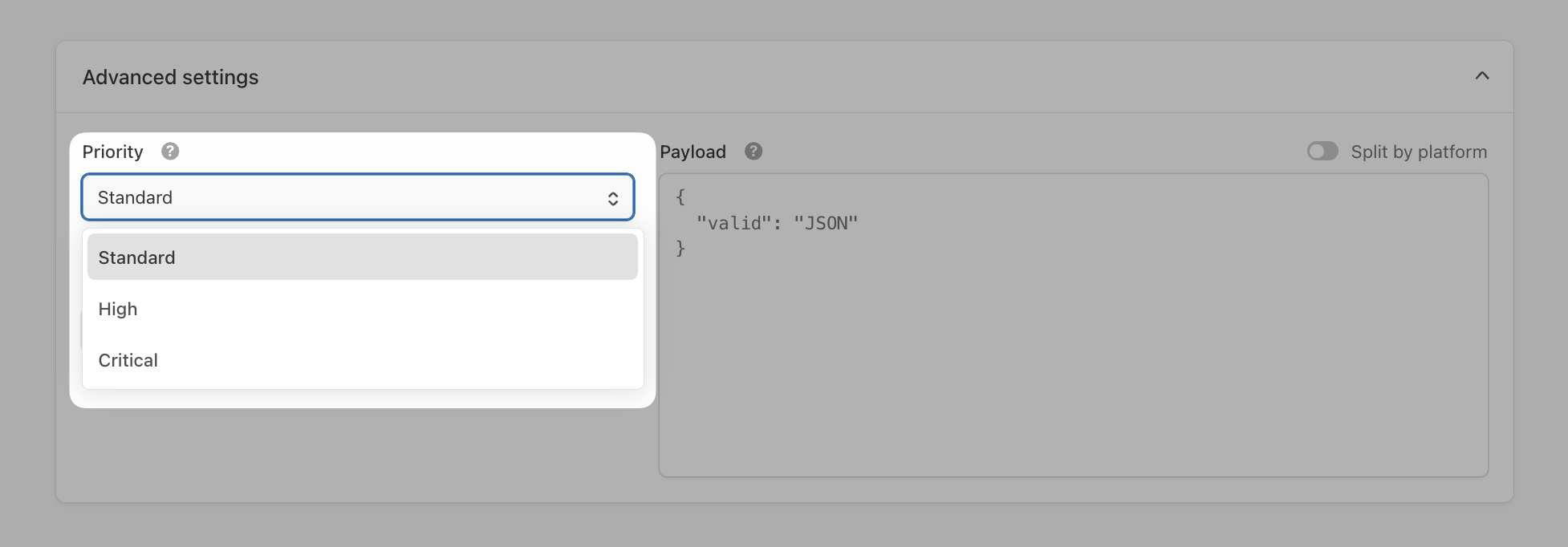
Set the priority of your In-App: **Standard, Important, or Critical**:
When multiple automations share the same trigger (and label), the one with the highest priority will be shown.
**Examples:**
* **Standard:** onboarding, app review.
* **Important:** temporary campaigns (subscriptions, re-opt-in).
* **Critical:** urgent alerts (downtime, app updates).
#### **Tracking ID**
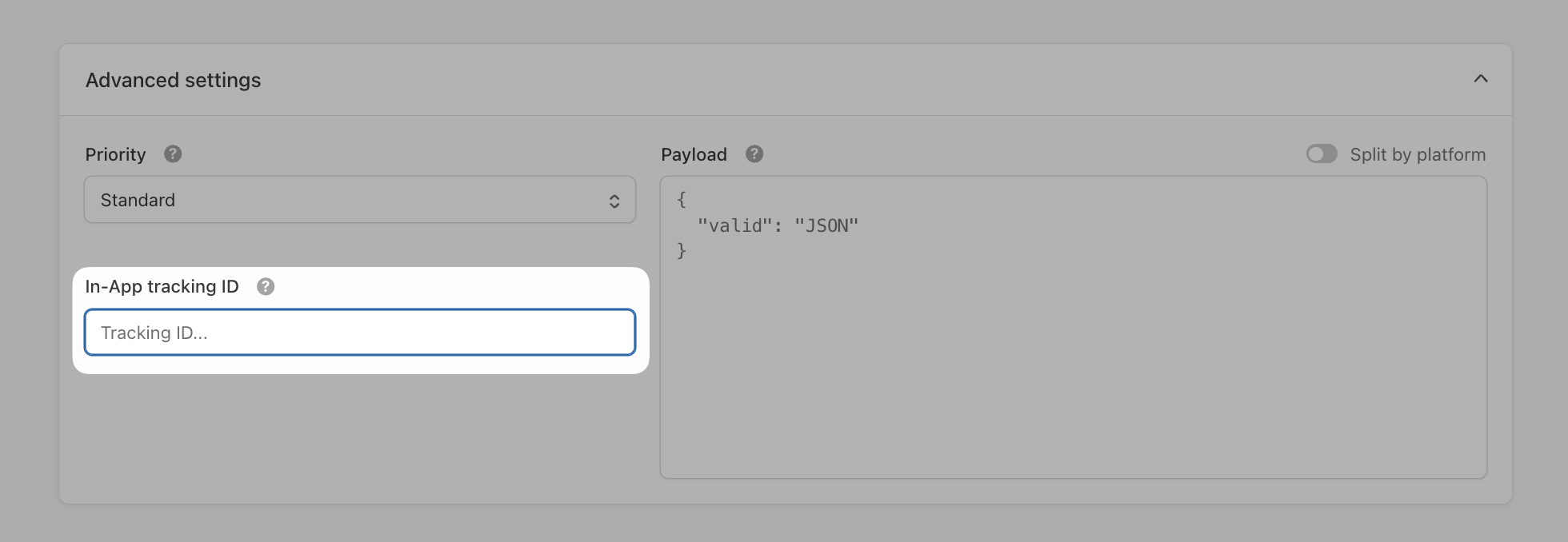
Optional field for apps with an analytics setup. Adds an extra **tracking dimension** for orchestration-level analysis:
#### **Payload**
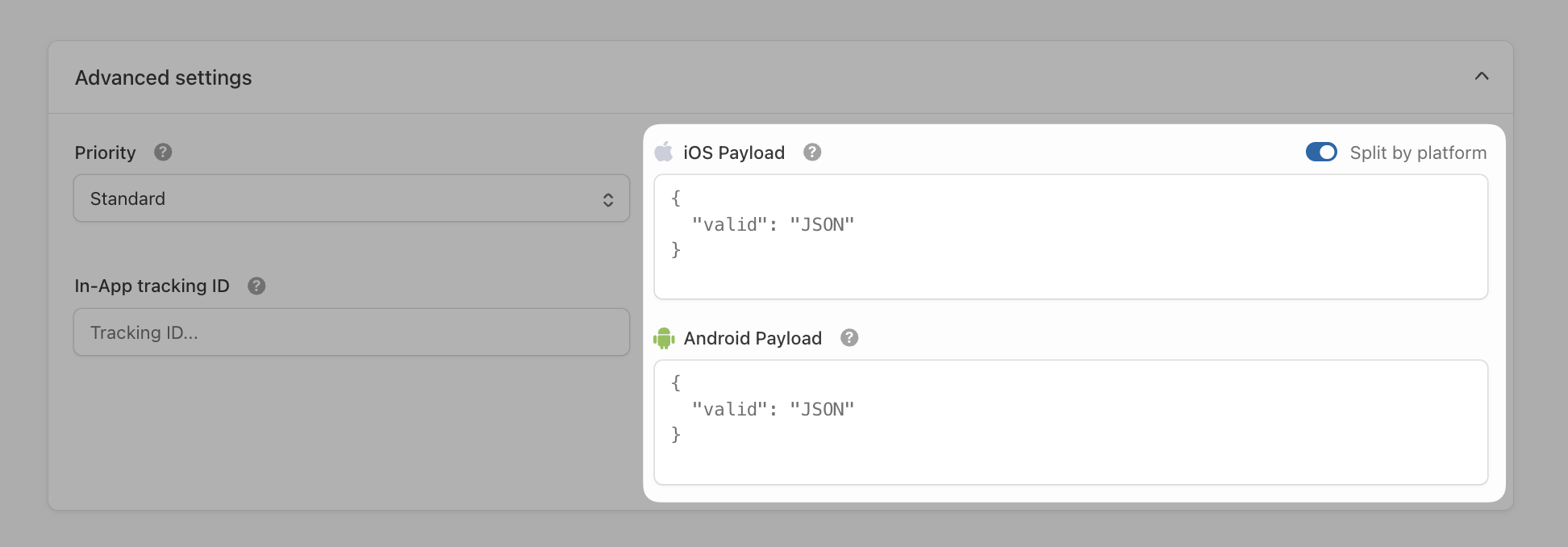
Optional JSON data your app can use when receiving the message.
* Must be an object.
* Avoid `com.batch` key.
**Use:** Send extra info to your In-App messages for custom behavior or analytics via SDK.
## **Managing an In-App Automation**
You can [modify](https://doc.batch.com/getting-started/features/customer-engagement-platform/orchestration/in-app-automations#managing-an-in-app-automation) or [stop](https://doc.batch.com/getting-started/features/customer-engagement-platform/orchestration/in-app-automations#managing-an-in-app-automation) an in-app automation 👈
---
# Agent Instructions
This documentation is published with GitBook. GitBook is the documentation platform designed so that both humans and AI agents can read, navigate, and reason over technical content effectively. Learn more at gitbook.com.
## Querying This Documentation
If you need additional information that is not directly available in this page, you can query the documentation by asking a question.
Perform an HTTP GET request on the following URL with the `ask` and `goal` query parameters:
```
GET https://doc.batch.com/getting-started/channels/in-app-1.md?ask=&goal=
```
`ask` is the immediate question: it should be specific, self-contained, and written in natural language.
`goal` is what the user is ultimately trying to achieve, the reason they need the answer. Sharing it helps GitBook give you a better, more relevant answer. A goal is most helpful when it describes the outcome the user wants rather than restating the question. For example, with `ask=how do I create an API token`, a goal like `automate deployments from our CI pipeline` lets GitBook tailor the answer to that use case.
The response will contain a direct answer to the question and relevant excerpts and sources from the documentation.
Use this mechanism when the answer is not explicitly present in the current page, you need clarification or additional context, or you want to retrieve related documentation sections.