> For the complete documentation index, see [llms.txt](https://doc.batch.com/llms.txt). Markdown versions of documentation pages are available by appending `.md` to page URLs; this page is available as [Markdown](https://doc.batch.com/getting-started/using-two-factor-authentication-2fa-to-secure-your-account.md).
# How to secure your account using two-factor authentication (2FA)?
2FA (Two-Factor Authentication) is the best way to secure your account from any intrusion.
Batch allows you and your team to [use 2FA](https://doc.batch.com/dashboard/settings/account-settings#two-factor-authentication-2fa) to fully secure your access to the dashboard with an additional security layer. But first, what is 2FA and how does it work?
## 2FA for Two-Factor Authentication
As its name suggests, 2FA allows you to add an **extra step in your authentication process** on a desktop website/app, via a code verification from your smartphone.
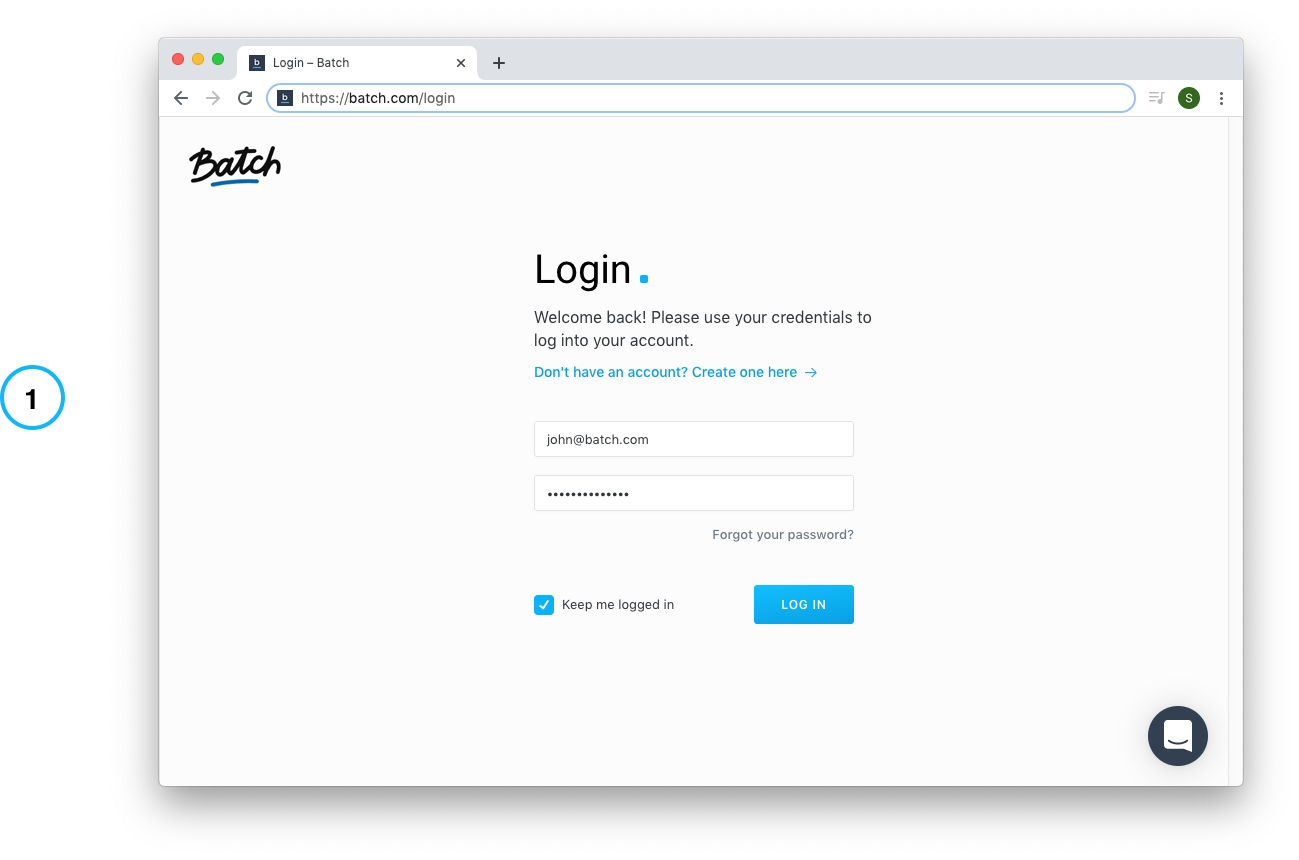
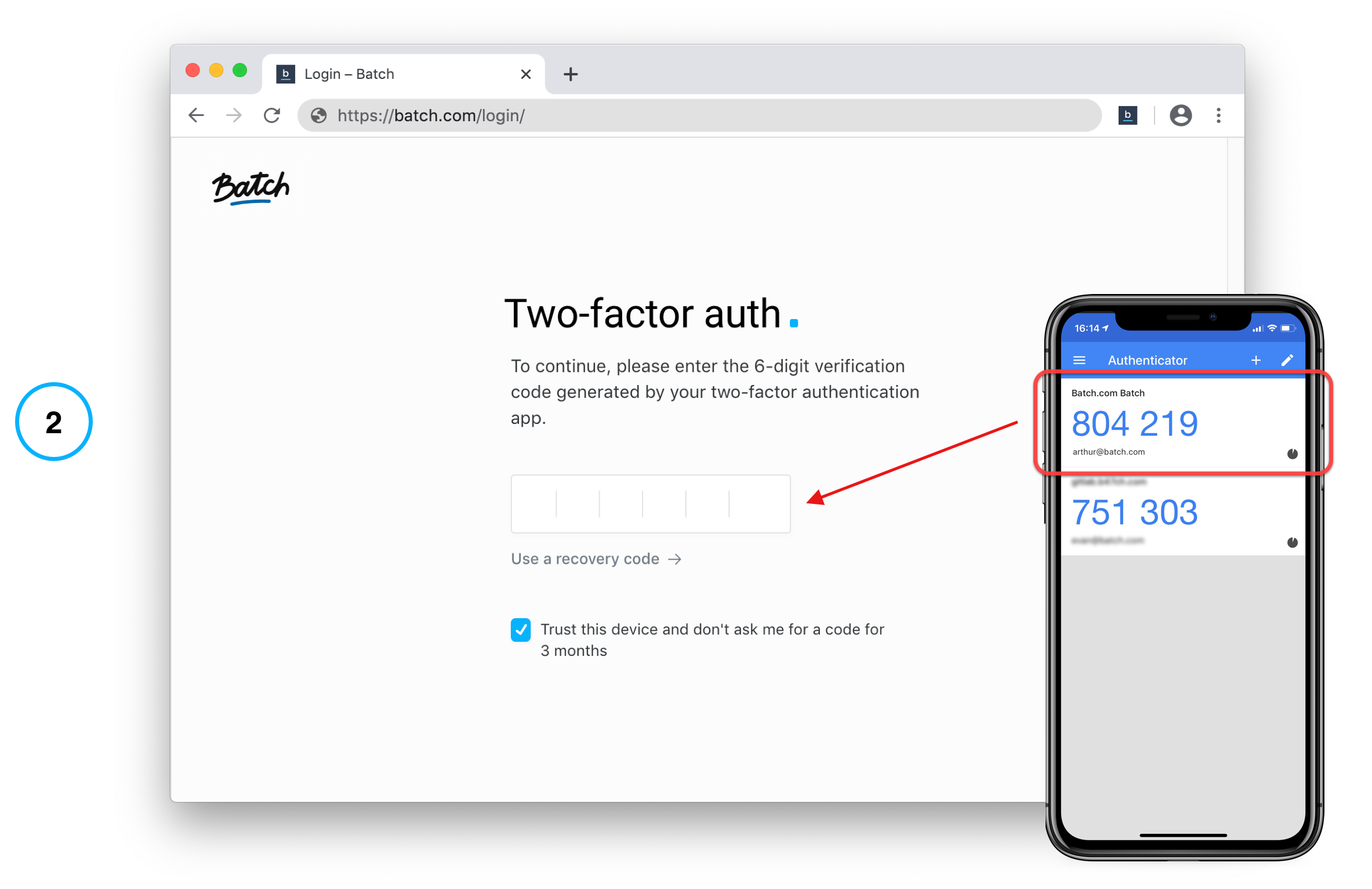
After having prompted your password as you would normally do, you will be asked to input a code fetched from a dedicated 2FA mobile app, **previously linked with the website/app you're logging into:**
### Step 1: Input your password
### Step 2: Type the 'Batch.com' code from the 2FA mobile app on Batch dashboard login menu
And now you're connected in a fully secure way!
## How to set up 2FA on Batch?
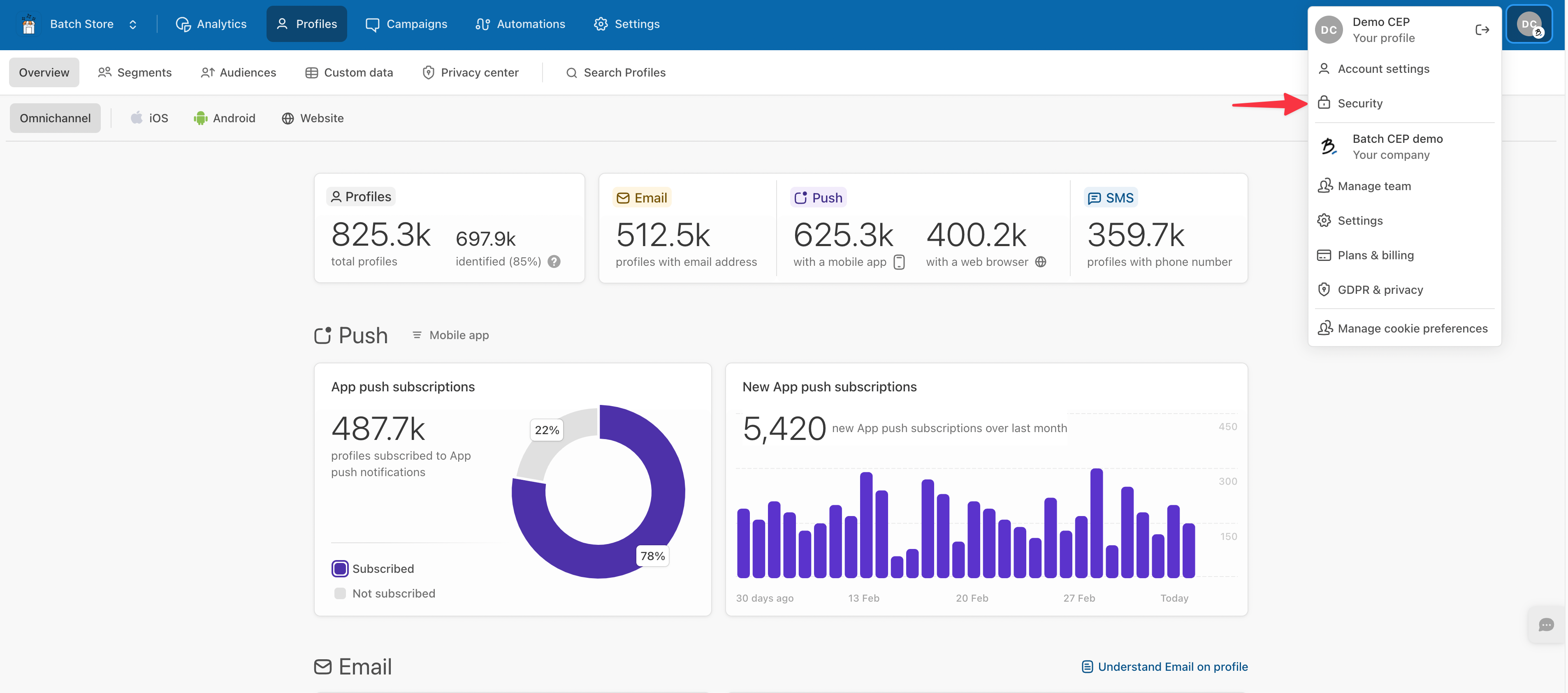
First, hop into your **Security** settings via the top right-hand corner menu by clicking on 'Security'.
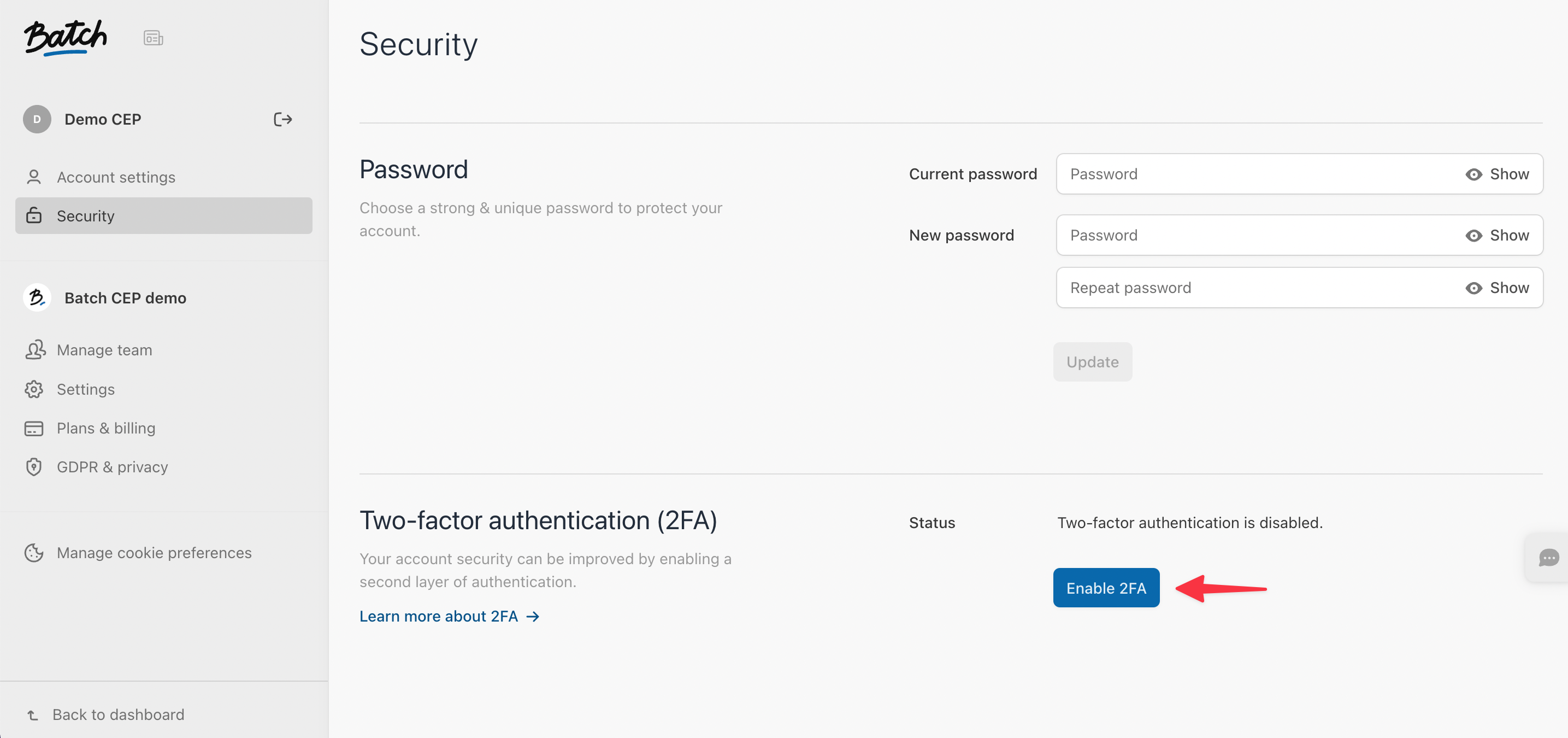
In the **Security tab**, click on 'Enable' under the Two-factor authentication section.
Then follow the given instructions: open your favorite 2FA Mobile app, add a new login, scan the given QR Code and type the code your 2FA app gives you in the Batch dashboard. You will find a list of apps you can use to set up 2FA below.
There you go, 2FA has been set up on your account! Last but not least, the **Team** section of the Account Manager gives your team Manager insights on who has already set up 2FA.
{% hint style="info" %}
If you're seeking a 2FA tool:
Authy is a good solution if you are looking for a simple 2FA authentication app that includes multiple backup options: [iOS](https://apps.apple.com/us/app/authy/id494168017)/[Android](https://play.google.com/store/apps/details?id=com.authy.authy\&hl=en).
You can also use one of these alternatives. The list is not exhaustive:
* Duo Mobile: [iOS](https://apps.apple.com/us/app/duo-mobile/id422663827)/[Android](https://play.google.com/store/apps/details?id=com.duosecurity.duomobile)
* Google Authenticator: [iOS](https://apps.apple.com/us/app/google-authenticator/id388497605)/[Android](https://play.google.com/store/apps/details?id=com.google.android.apps.authenticator2)
* Microsoft Authenticator: [iOS](https://apps.apple.com/us/app/microsoft-authenticator/id983156458)/[Android](https://play.google.com/store/apps/details?id=com.azure.authenticator)
{% endhint %}
---
# Agent Instructions
This documentation is published with GitBook. GitBook is the documentation platform designed so that both humans and AI agents can read, navigate, and reason over technical content effectively. Learn more at gitbook.com.
## Querying This Documentation
If you need additional information that is not directly available in this page, you can query the documentation by asking a question.
Perform an HTTP GET request on the following URL with the `ask` and `goal` query parameters:
```
GET https://doc.batch.com/getting-started/using-two-factor-authentication-2fa-to-secure-your-account.md?ask=&goal=
```
`ask` is the immediate question: it should be specific, self-contained, and written in natural language.
`goal` is what the user is ultimately trying to achieve, the reason they need the answer. Sharing it helps GitBook give you a better, more relevant answer. A goal is most helpful when it describes the outcome the user wants rather than restating the question. For example, with `ask=how do I create an API token`, a goal like `automate deployments from our CI pipeline` lets GitBook tailor the answer to that use case.
The response will contain a direct answer to the question and relevant excerpts and sources from the documentation.
Use this mechanism when the answer is not explicitly present in the current page, you need clarification or additional context, or you want to retrieve related documentation sections.