> For the complete documentation index, see [llms.txt](https://doc.batch.com/llms.txt). Markdown versions of documentation pages are available by appending `.md` to page URLs; this page is available as [Markdown](https://doc.batch.com/guides-and-best-practices/message/email/templates-and-modules-management/integrating-an-external-email-template-builder-or-a-cms-with-batch.md).
# Integrating an External Email Template Builder or a CMS with Batch
Easily sync third‑party email template builders with Batch’s dashboard using Batch APIs.
Batch allows customers to create email templates using two different approaches:
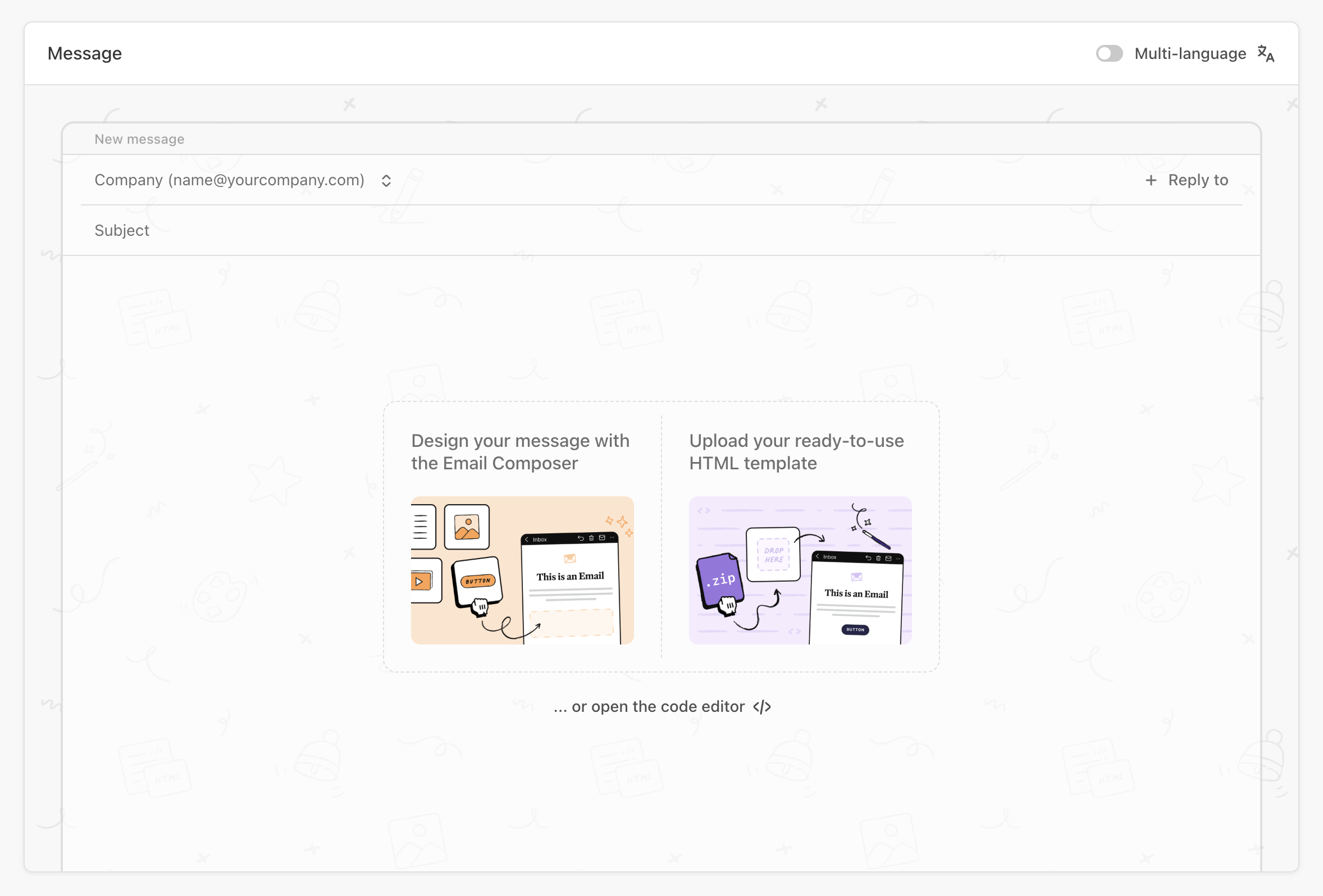
* **Built‑in email composer**: Batch includes its own email composer that meets both basic and advanced email‑creation needs.
* **Third-party template builder**: Customers can also bring any templates built with a third-party template builder or created within a Content Management System (CMS) into Batch. Customers can either upload the template manually through the dashboard or integrate it programmatically via the API.
Integrating a third-party template builder or CMS with Batch via API makes external templates instantly available inside the Batch interface, saving time to CRM teams and eliminating manual steps.
This guide walks through a typical template-builder‑to‑Batch integration using the API.
## Overview
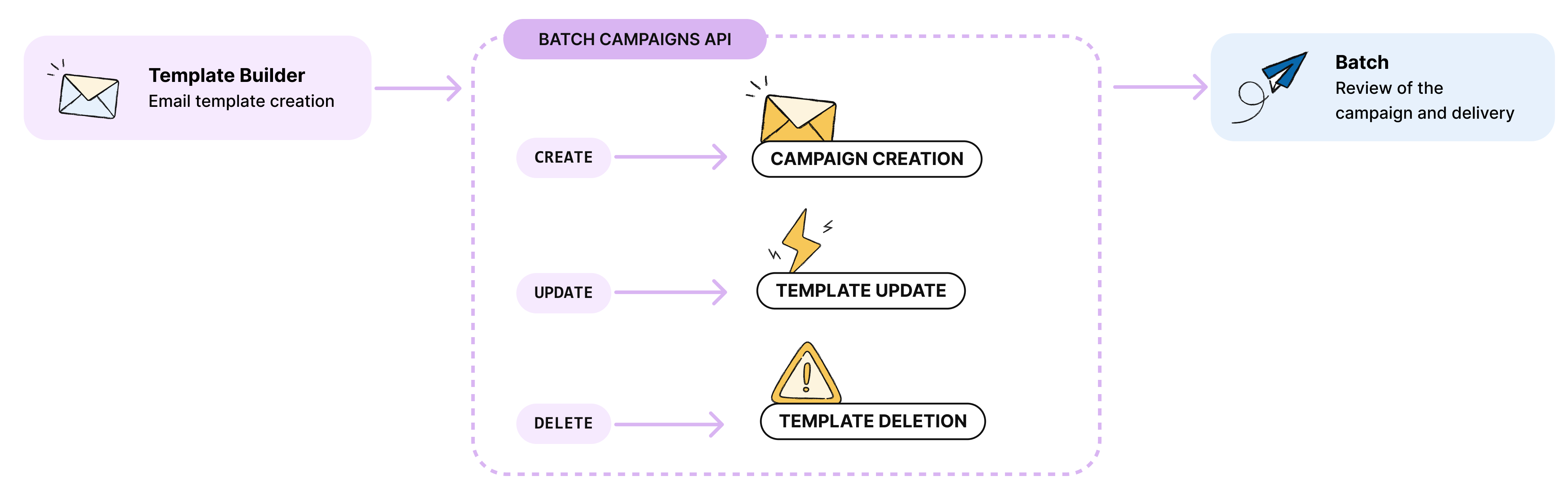
[Batch Campaigns API](https://doc.batch.com/developer/api/cep/campaigns/create) allows third-party template builder solutions to export templates to Batch:
Here is how it works:
{% stepper %}
{% step %}
**Template Creation**
Users create a template in the third-party template builder.
{% endstep %}
{% step %}
**Template Export**
1. Users request export to Batch (via button in the third-party template builder, automated process, etc.).
2. The template builder calls Batch Campaigns API, passing the the HTML content to Batch.
3. A campaign is created in draft mode on the Batch dashboard, for a specific Batch project.
4. Later, the third-party template builder can update an existing draft campaigns to avoid duplicates or the use of outdated templates on Batch dashboard.
{% endstep %}
{% step %}
**Campaign Review**
On Batch dashboard, users can edit the campaign details (name, targeting, subject, sender), review it, and send the email to the targeted audience.
{% endstep %}
{% endstepper %}
## Prerequisites
Make sure you have the following information before starting the integration:
Essential Keys
There are two keys you should have before starting your development:
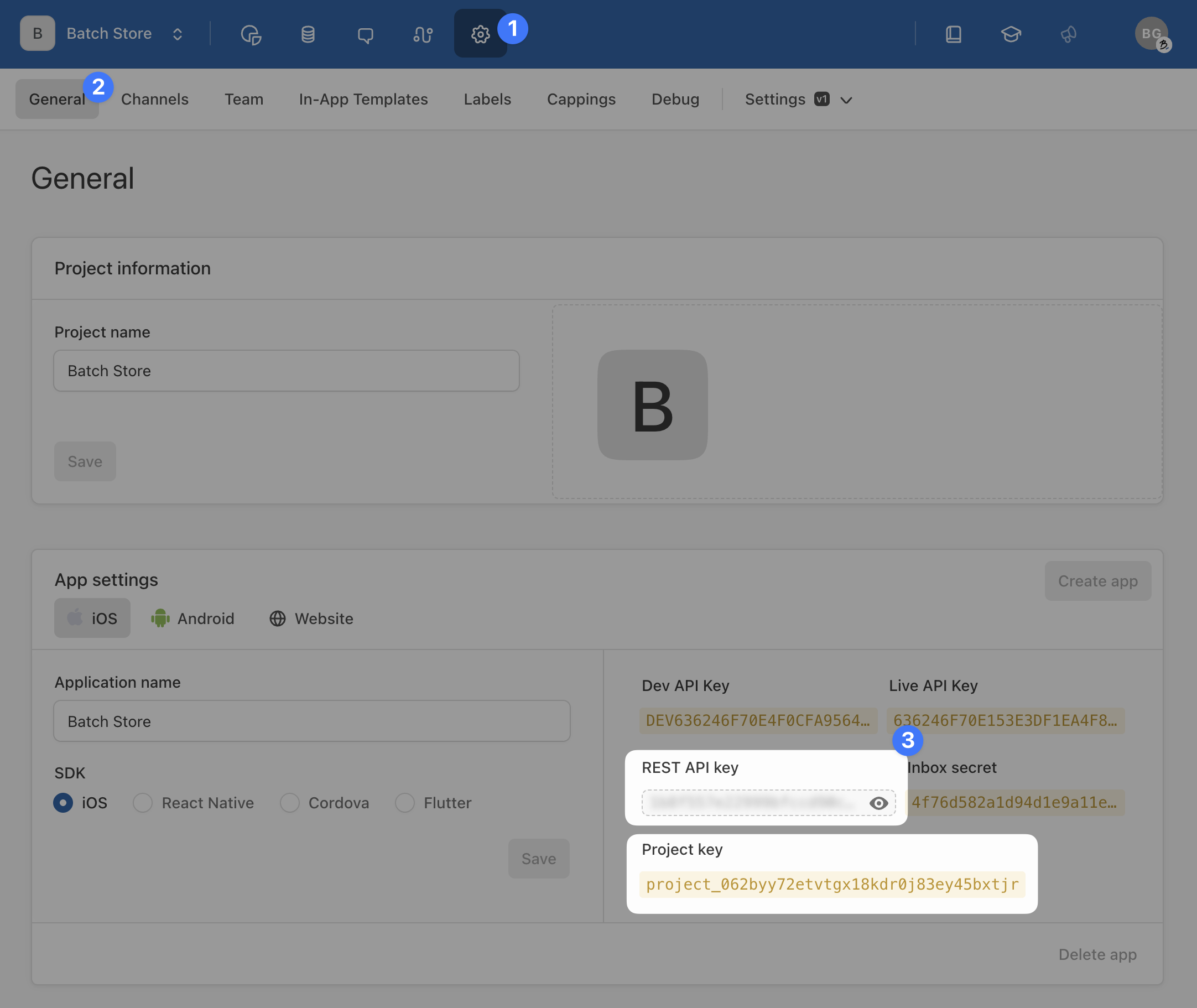
* **REST key**: Authorizes API calls for a company on Batch.
* **Project key**: Identifies the target Batch project where the template will be created. Make sure you get the project key of the staging project to run your first tests, and the project key of the production project.
Both keys can be found in Batch dashboard → Settings → General:
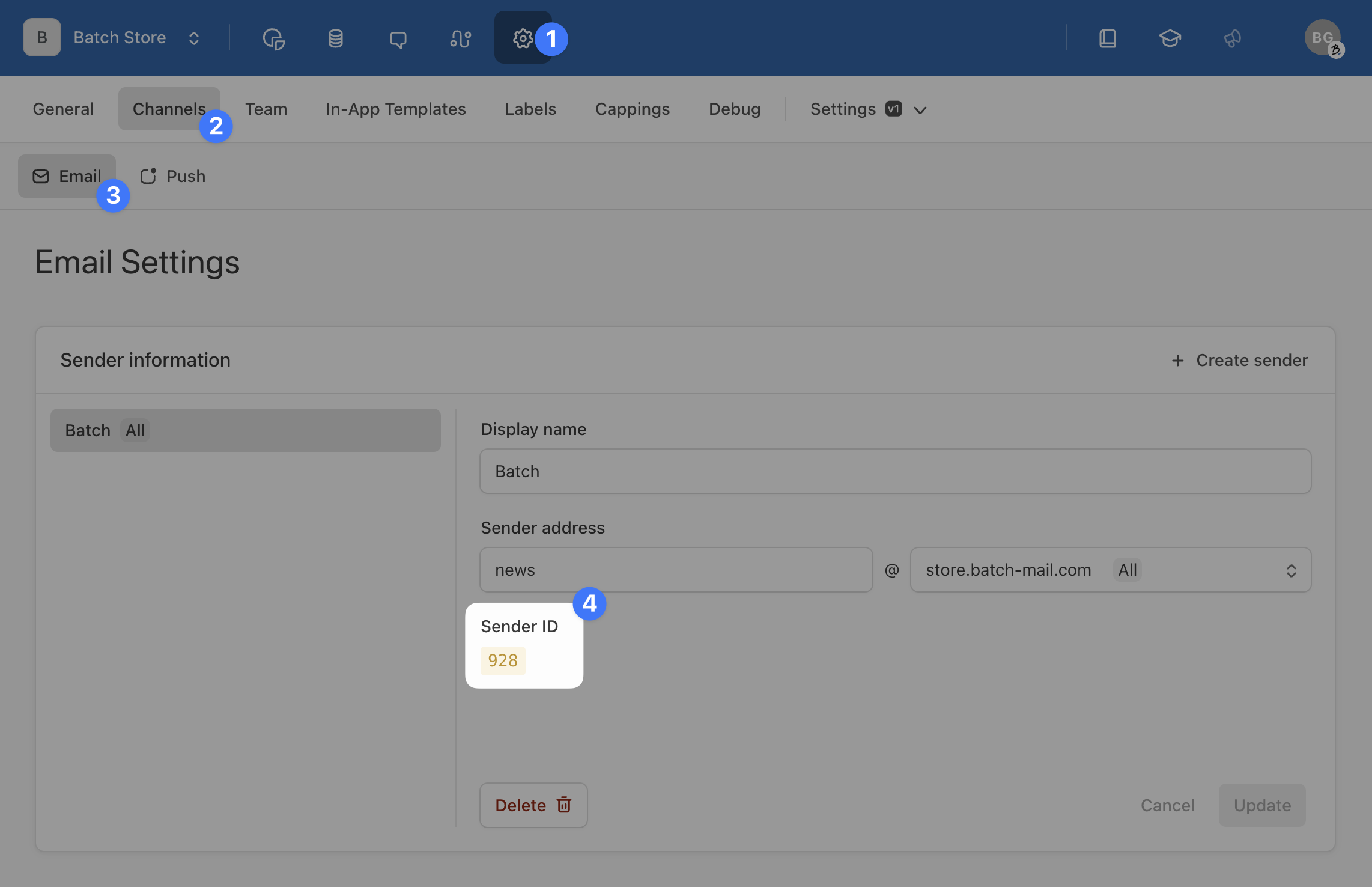
Sender Identity ID
ID of sender, which is a combination of display name + sending email address. Found in Settings → Channels → Email.
## Exporting a Template to Batch
In order to export a template to Batch, you will need to create a campaign using the [Campaigns API](https://doc.batch.com/developer/api/cep/campaigns/create). The campaign will serve as a container for your HTML template.
#### Getting Started
Here are several recommendations before you start sending a template to Batch:
Template Status & Naming Convention
**For third-party template builder** integrations:
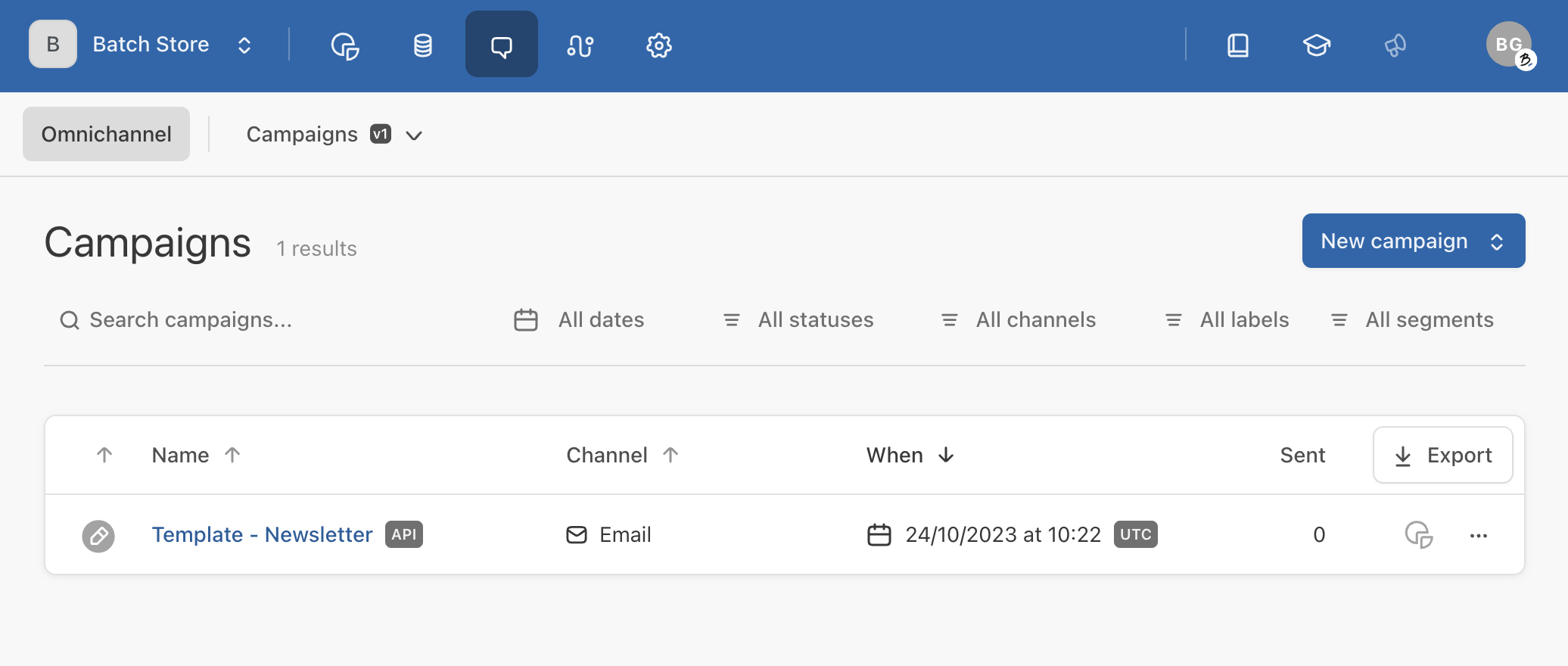
* **Status**: Always create campaigns with a **`DRAFT`** status. This ensures the template isn’t sent to the user base before a CRM manager reviews it (e.g., targeting, scheduling, etc.).
* **Name**: Prefix the campaign name so it’s clearly identified as a template rather than a ready‑to‑schedule campaign for the CRM team (e.g., “Template - \[Template name]”).
**For CMS integrations**, you can create campaigns with a **`RUNNING`** status:
* You can create campaigns with a **`RUNNING`** status. This schedules the campaign for immediate or future delivery. It’s the default use case for most media companies that need to send newsletters created in‑house.
* In this case, make sure the campaign has a descriptive name and includes targeting parameters that match your audience (e.g., profiles subscribed only to “politics” news). Otherwise, Batch will target all opt‑in profiles.
Multilingual Support
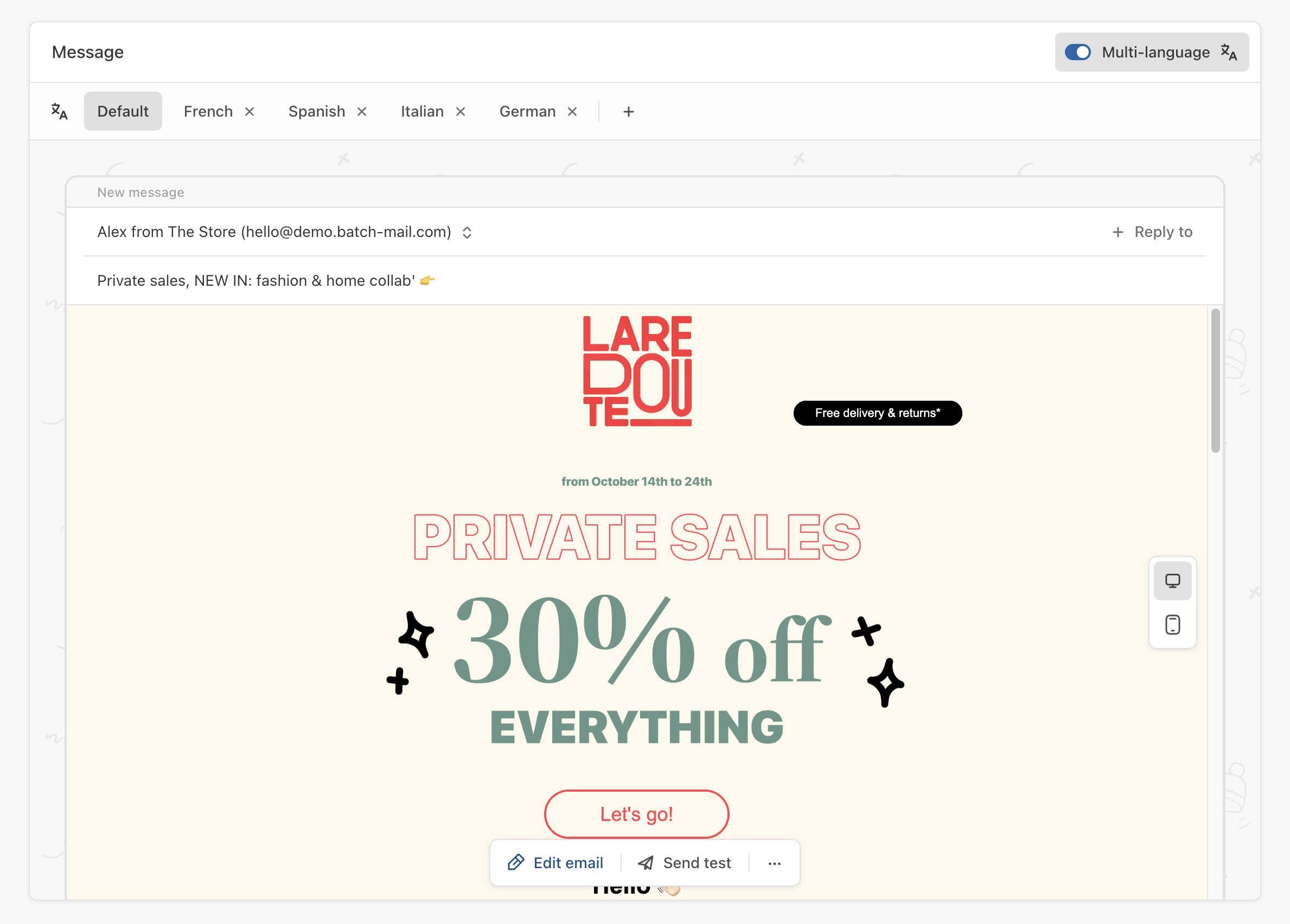
A single campaign can contain multiple localized email templates with different HTML files.
#### Endpoint & Body
In order to create a campaign containing a template, you will need to call a POST endpoint [as documented here](https://doc.batch.com/developer/api/cep/campaigns/create). Be sure you use the most recent version of the API:
```http
POST https://api.batch.com/2.12/campaigns/create
```
Here are the minimum parameters needed in the body of your API call:
* **`name`**: Campaign name. For third-party template builder integrations, we recommend to prefix it like "Template - \[Template name]")
* **`state`**: Must be `"DRAFT"` to avoid accidental sends
* **`when`**: Past date recommended (e.g., `"2023-10-24T10:22:00Z"`)
* **`subject`**: Email subject line
* **`sender_identity_id`**: Sender ID from the dashboard.
* **`html`**: Escaped HTML content from template builder
#### Examples
{% tabs %}
{% tab title="Basic Template Example" %}
```json
{
"name": "Campaign name",
"state": "DRAFT",
"when": {
"local_time": false,
"start_time": "2023-10-24T10:22:00Z"
},
"messages": [
{
"channel_type": "email",
"subject": "Email subject",
"sender_identity_id": "4012",
"html": "Escaped HTML content here"
}
]
}
```
{% endtab %}
{% tab title="Multi Language Template Example" %}
```json
{
"name": "Campaign name",
"state": "DRAFT",
"when": {
"local_time": false,
"start_time": "2023-10-24T10:22:00Z"
},
"messages": [
{
"channel_type": "email",
"subject": "Email subject",
"sender_identity_id": "4012",
"html": "Escaped HTML content here",
"languages" : [
{
"language" : "en",
"subject" : "Email subject",
"sender_identity_id" : "4012",
"html": "Escaped HTML content here"
},
{
"language" : "fr",
"subject" : "Email subject",
"sender_identity_id" : "4034",
"html": "Escaped HTML content here"
}
]
}
]
}
```
{% endtab %}
{% endtabs %}
#### Success
If your API call is successful, the API will return a 201 response containing the ID of the newly created campaign.
```json
{
"id": "orchestration_0664hyh918hr1gnzka9py5t62nrc0e1q"
}
```
{% hint style="info" %}
Make sure your save that campaign ID, as it will be needed to update or delete that campaign later.
{% endhint %}
## Updating an Existing Template
The Campaigns API also lets you update the HTML of an existing template that is still in draft mode.
This is useful when the template has been edited several times in a third‑party template builder. Updating the campaign directly in Batch prevents the buildup of outdated “campaigns” that could be mistakenly used by a CRM team.
#### Endpoint & Body
In order to update a campaign, you will need to use a dedicated endpoint [documented here](https://doc.batch.com/developer/api/cep/campaigns/update):
```http
POST https://api.batch.com/2.12/campaigns/update
```
The body of your API call needs to contain:
* The ID of the campaign you want to edit ([see here](#success)).
* The updated campaign content.
#### Example
```json
{
"id": "orchestration_0664hyh918hr1gnzka9py5t62nrc0e1q",
"campaign": {
"name": "Campaign name",
"state": "DRAFT",
"when": {
"local_time": false,
"start_time": "2024-01-24T10:22:00Z"
},
"messages": [
{
"channel_type": "email",
"subject": "Campaign subject",
"sender_identity_id": "4012",
"html": "Updated escaped HTML content"
}
]
}
}
```
## Getting the List of Existing Campaigns
Use the [List Orchestrations endpoint](https://doc.batch.com/developer/api/cep/orchestrations/list) to retrieve all orchestrations on your account and find the ID of the one whose template you want to update.
## Deleting an Existing Template
#### Endpoint & Body
Simply mention the ID of the campaign in the body of your API call, as described in [the documentation](https://doc.batch.com/developer/api/cep/campaigns/delete).
```http
POST https://api.batch.com/2.12/campaigns/delete
```
#### Example
```json
{
"id": "orchestration_0664hyh918hr1gnzka9py5t62nrc0e1f"
}
```
---
# Agent Instructions
This documentation is published with GitBook. GitBook is the documentation platform designed so that both humans and AI agents can read, navigate, and reason over technical content effectively. Learn more at gitbook.com.
## Querying This Documentation
If you need additional information that is not directly available in this page, you can query the documentation dynamically by asking a question.
Perform an HTTP GET request on the current page URL with the `ask` query parameter, and the optional `goal` query parameter:
```
GET https://doc.batch.com/guides-and-best-practices/message/email/templates-and-modules-management/integrating-an-external-email-template-builder-or-a-cms-with-batch.md?ask=&goal=
```
`ask` is the immediate question: it should be specific, self-contained, and written in natural language.
`goal` is optional and describes the broader end goal you are ultimately trying to accomplish on behalf of the user. GitBook uses it to tailor the answer towards what is most useful for that goal.
The response will contain a direct answer to the question and relevant excerpts and sources from the documentation.
Use this mechanism when the answer is not explicitly present in the current page, you need clarification or additional context, or you want to retrieve related documentation sections.