How to trigger a WhatsApp automation - WAX
This guide explains how to connect Batch to WAX, a WhatsApp messaging platform, using Batch’s Universal Channel feature.
You will create one API-triggered flow in WAX, add your WAX API key into Batch, and finally configure a Universal step that sends the request.
Step 1 — Create an API-triggered automation in WAX
Start in WAX. You need a WhatsApp automation that begins when it receives an API request — this is what Batch will trigger.
What to do
Open Automations in WAX
Create a new automation
Choose "Incoming Webhook" as the trigger
You can add the WhatsApp template now or add it later

This panel also displays the destination URL, API key name, and JSON example you will use later.
Step 2 — Add your WAX API key into Batch
Batch needs your WAX API key to authenticate each time it sends a trigger request.
In WAX
Copy the hidden Value (the "Bearer Token" value) from the Trigger panel, just next the Authorization field.

In Batch
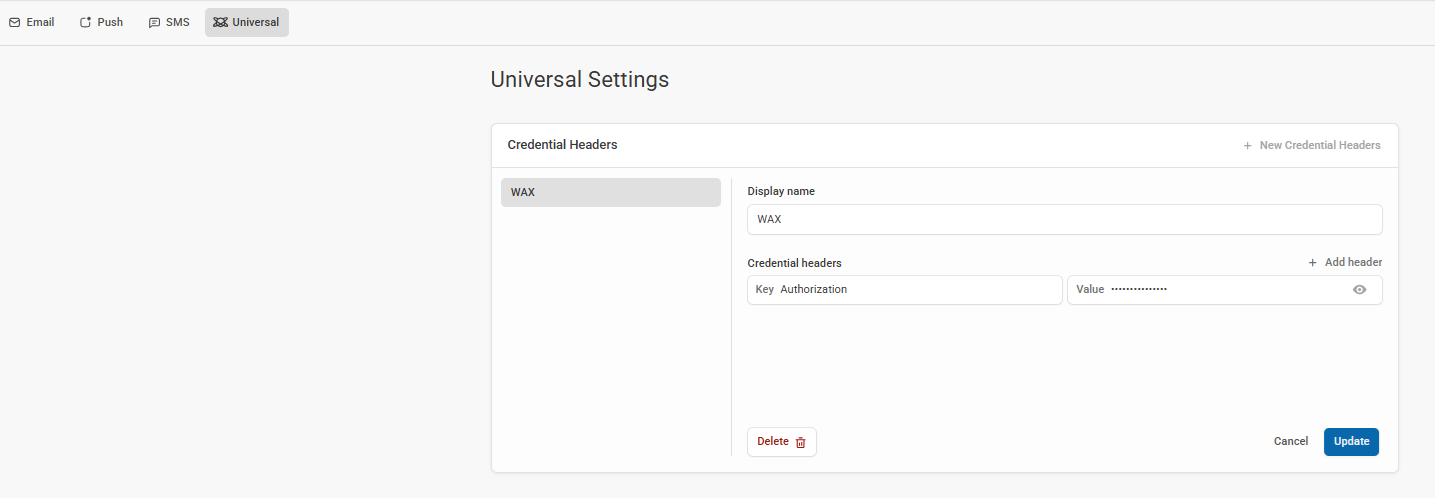
Go to Settings → Channels → Universal
Click New Credential Headers
Choose a name (e.g., “WAX”)
Key →
AuthorizationValue → paste the key from WAX
Save

Note: If you create multiple automations in WAX, they will all use the same API key. You only need to add the credential once in Batch.
Step 3 — Configure the Universal step in Batch
In this step, you will add the Universal step in your Batch automation and configure it to trigger the WAX automation you created in Step 1.
Add the Universal Step
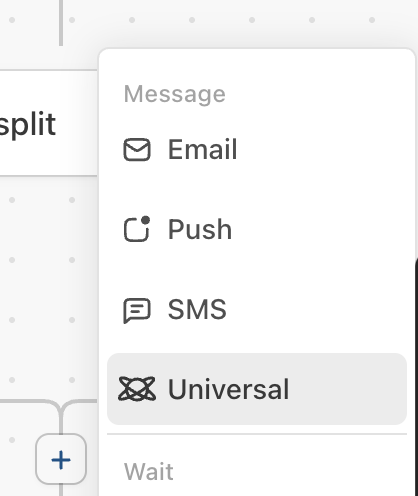
Open the Batch automation where you want to trigger WhatsApp
Click the + button
Select Universal
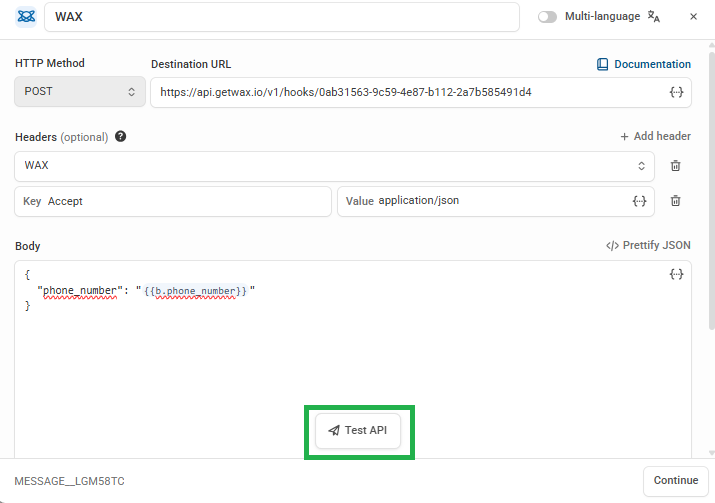
This opens the Universal step configuration screen.

Configure the WAX request
Fill in the fields using the information from WAX:
1. Destination URL
Paste the URL shown in WAX’s API trigger (example: https://api.getwax.io/v1/hooks/0ab31563-9c59-4e87-b112-2a7b582491d4 )
3. Headers
Choose the credential header you created earlier (e.g., WAX)
Add another header :
"Key" :
Accept"Value" :
application/json
4. JSON Body
Start with the phone number:
{
"phone": "{{b.phone_number}}"
}
Step 4 — Test the connection
Once your Universal Step is configured, you can test it directly from Batch to make sure everything is working properly.
How to test
In the Universal Step, click Test API.
If your JSON body includes personalization (e.g.,
{{b.phone_number}}), choose a test profile so Batch can fill in real data.Click to send the test request.

What the test does
Batch performs the exact same API call it will make when the automation is live.
WAX receives the request and triggers the corresponding WhatsApp automation for the selected profile.
What Batch validates
Batch will display whether the request was successfully delivered to WAX or if something needs fixing (e.g., wrong URL, missing key, invalid JSON).
Note: Batch can only confirm that the trigger was correctly called. It does not have visibility on what happens inside WAX afterward (e.g., whether the message was sent or failed).
Step 5 — Activate your Batch automation
When the test is successful, you can turn your Batch automation live.
To activate
Review your workflow, including the Universal step.
Run your automation
Once live
Every time a profile moves through this step in your automation, Batch will send the API request to WAX.
WAX will then run the WhatsApp automation linked to the URL you configured.
Additional Universal steps
If you want to trigger multiple WhatsApp scenarios (e.g., a follow-up message, or different WAX automations), you can add more Universal Steps within the same Batch automation or in a new one by following these steps again (Step 2 can be skipped).
Last updated