> For the complete documentation index, see [llms.txt](https://doc.batch.com/llms.txt). Markdown versions of documentation pages are available by appending `.md` to page URLs; this page is available as [Markdown](https://doc.batch.com/integrations/universal-channel/how-to-trigger-a-whatsapp-automation-simio.md).
# How to trigger a WhatsApp automation - Simio
This guide explains how to connect Batch to Simio, a WhatsApp messaging platform, using Batch’s Universal Channel feature.
You will create one API-triggered flow in Simio, add your Simio API key into Batch, and finally configure a Universal step that sends the request.
{% hint style="info" %}
**Note:** If you have an existing Simio connection, you can skip step 2. This step must be done only once.
{% endhint %}
{% stepper %}
{% step %}
## **Step 1 — Create an API-triggered automation in Simio**
Start in Simio.\
You need a WhatsApp automation that begins when it receives an API request — this is what Batch will trigger.
#### **What to do**
1. Open **Automations** in Simio
2. Create a new automation
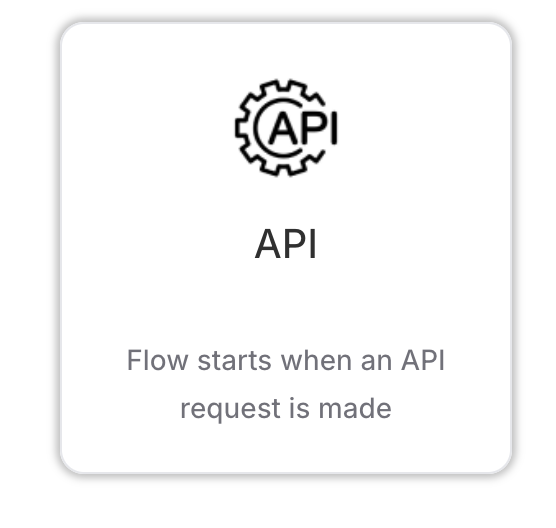
3. Choose **API** as the trigger
4. Save your automation
5. You can write the WhatsApp message now or add it later
This panel also displays the destination URL, API key name, and JSON example you will use later.
{% endstep %}
{% step %}
## **Step 2 — Add your Simio API key into Batch**
Batch needs your Simio API key to authenticate each time it sends a trigger request.
#### **In Simio**
Copy the hidden Value (your actual API key) from the API trigger panel, just below the `SIMIO-API-KEY` field.
**In Batch**
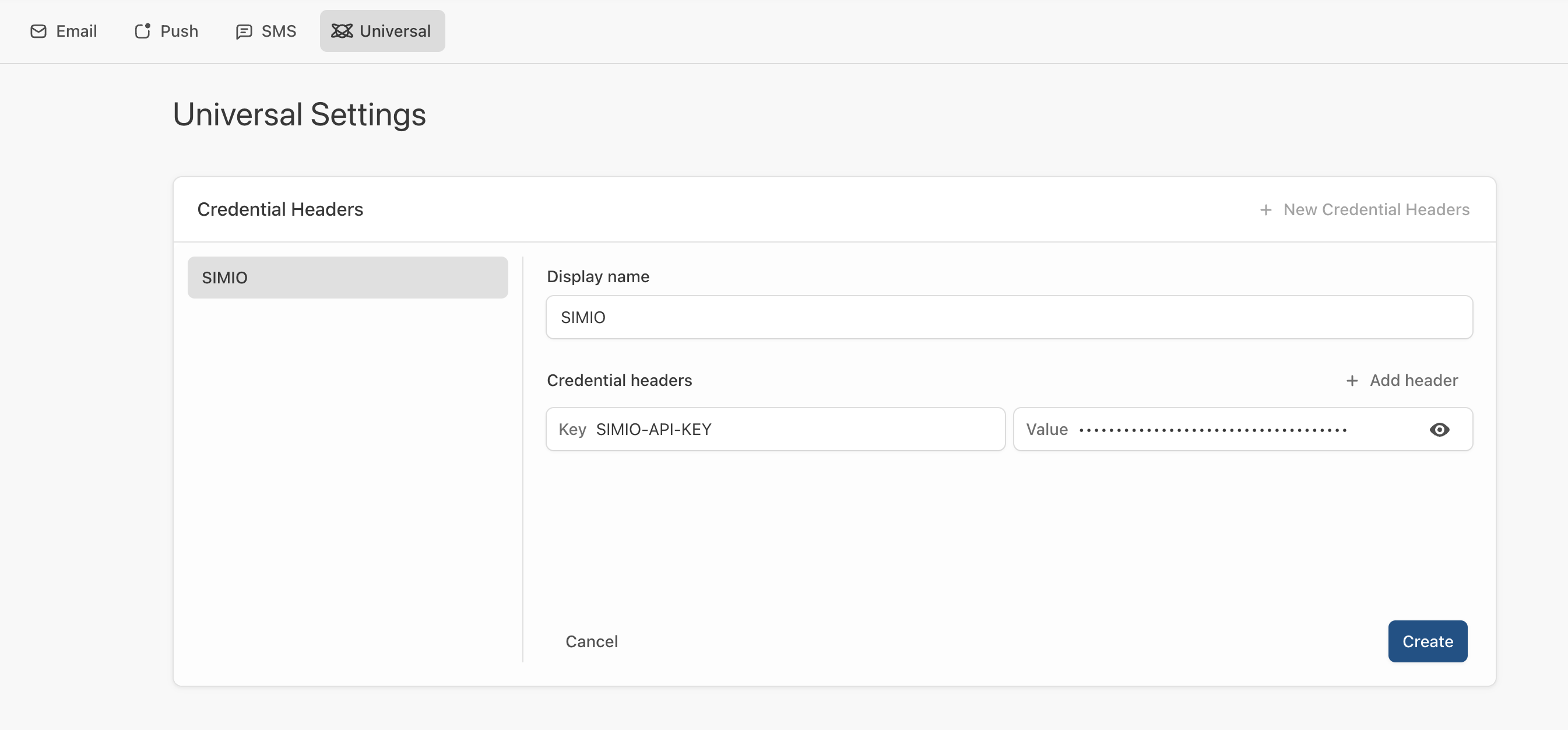
1. Go to **Settings → Channels → Universal**
2. Click **New Credential Headers**
3. Choose a name (e.g., “SIMIO”)
4. Key → `SIMIO-API-KEY`
5. Value → paste the key from Simio
6. Save
> **Note:**\
> If you create multiple automations in Simio, they will all use the same API key.\
> You only need to add the credential once in Batch.
> {% endstep %}
{% step %}
## **Step 3 — Configure the Universal step in Batch**
In this step, you will add the Universal step in your Batch automation and configure it to trigger the Simio automation you created in Step 1.
#### **Add the Universal Step**
1. Open the Batch automation where you want to trigger WhatsApp
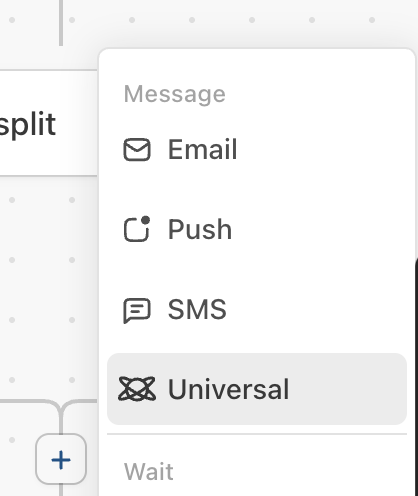
2. Click the **+** button
3. Select **Universal**
This opens the Universal step configuration screen.
***
#### **Configure the Simio request**
Fill in the fields using the information from Simio:
**1. Destination URL**
Paste the URL shown in Simio’s API trigger (example: `https://app.getsimio.com/api/campaign/9753`)
**3. Headers**
Choose the credential header you created earlier (e.g., **SIMIO**)
**4. JSON Body**
Start with the phone number:
```json
{
"phone": "{{b.phone_number}}"
}
```
{% endstep %}
{% step %}
## **Step 4 — Test the connection**
Once your Universal Step is configured, you can test it directly from Batch to make sure everything is working properly.
#### **How to test**
1. In the Universal Step, click **Test API**.
2. If your JSON body includes personalization (e.g., `{{b.phone_number}}`), choose a **test profile** so Batch can fill in real data.
3. Click to send the test request.
#### **What the test does**
* Batch performs the exact same API call it will make when the automation is live.
* Simio receives the request and triggers the corresponding WhatsApp automation for the selected profile.
#### **What Batch validates**
Batch will display whether the request was **successfully delivered** to Simio or if something needs fixing (e.g., wrong URL, missing key, invalid JSON).
> **Note:** Batch can only confirm that the trigger was correctly called. It does not have visibility on what happens inside Simio afterward (e.g., whether the message was sent or failed).
> {% endstep %}
{% step %}
## **Step 5 — Activate your Batch automation**
When the test is successful, you can turn your Batch automation live.
#### **To activate**
1. Review your workflow, including the Universal step.
2. Run your automation
#### **Once live**
* Every time a profile moves through this step in your automation, Batch will send the API request to Simio.
* Simio will then run the WhatsApp automation linked to the URL you configured.
{% endstep %}
{% endstepper %}
#### **Additional Universal steps**
If you want to trigger multiple WhatsApp scenarios (e.g., a follow-up message, or different Simio automations), you can add more Universal Steps within the same Batch automation or in a new one by following these steps again (Step 2 can be skipped).
---
# Agent Instructions
This documentation is published with GitBook. GitBook is the documentation platform designed so that both humans and AI agents can read, navigate, and reason over technical content effectively. Learn more at gitbook.com.
## Querying This Documentation
If you need additional information that is not directly available in this page, you can query the documentation by asking a question.
Perform an HTTP GET request on the following URL with the `ask` and `goal` query parameters:
```
GET https://doc.batch.com/integrations/universal-channel/how-to-trigger-a-whatsapp-automation-simio.md?ask=&goal=
```
`ask` is the immediate question: it should be specific, self-contained, and written in natural language.
`goal` is what the user is ultimately trying to achieve, the reason they need the answer. Sharing it helps GitBook give you a better, more relevant answer. A goal is most helpful when it describes the outcome the user wants rather than restating the question. For example, with `ask=how do I create an API token`, a goal like `automate deployments from our CI pipeline` lets GitBook tailor the answer to that use case.
The response will contain a direct answer to the question and relevant excerpts and sources from the documentation.
Use this mechanism when the answer is not explicitly present in the current page, you need clarification or additional context, or you want to retrieve related documentation sections.