> For the complete documentation index, see [llms.txt](https://doc.batch.com/llms.txt). Markdown versions of documentation pages are available by appending `.md` to page URLs; this page is available as [Markdown](https://doc.batch.com/guides-and-best-practices/message/email/link-and-tracking-settings/how-to-handle-link-tracking-in-emails.md).
# How to handle link tracking in emails?
Batch provides a highly flexible way of tracking clicks on links. Here are the three available options for this feature.
Batch provides a flexible way to manage links in emails, combining click tracking and link enrichment to help you understand how recipients interact with your messages.
## Link enrichment with URL parameters (UTM)
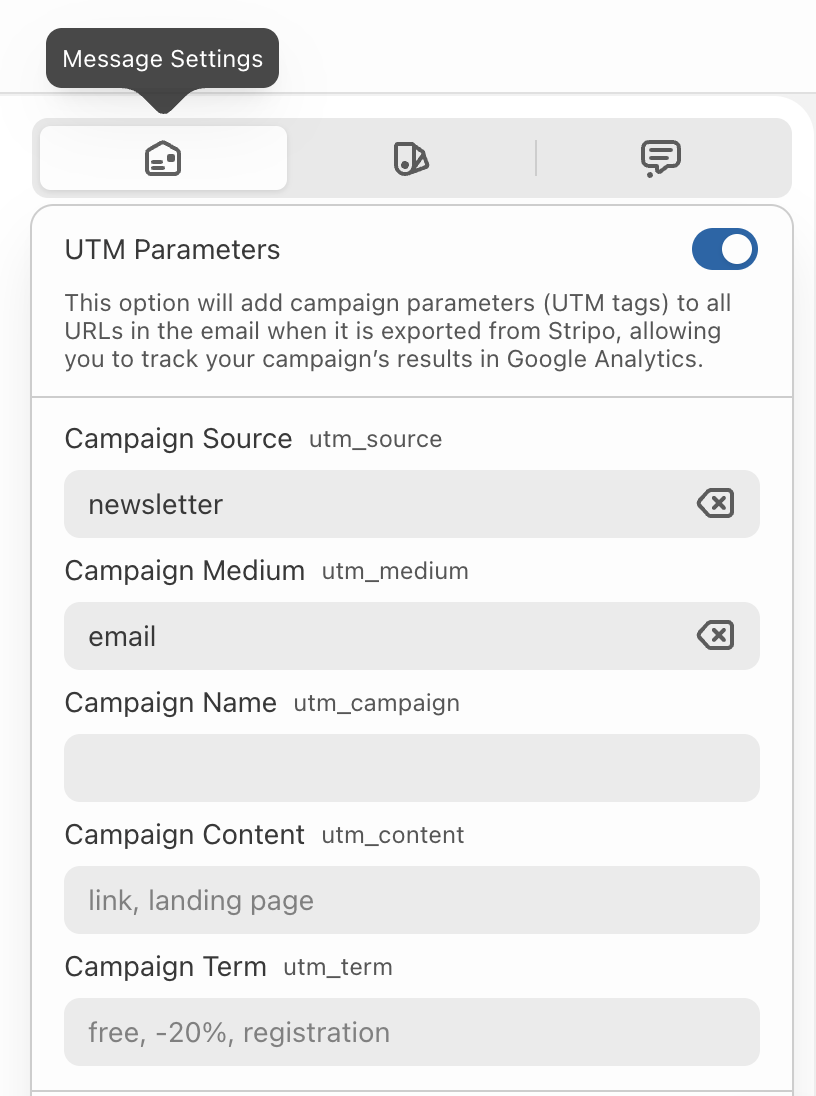
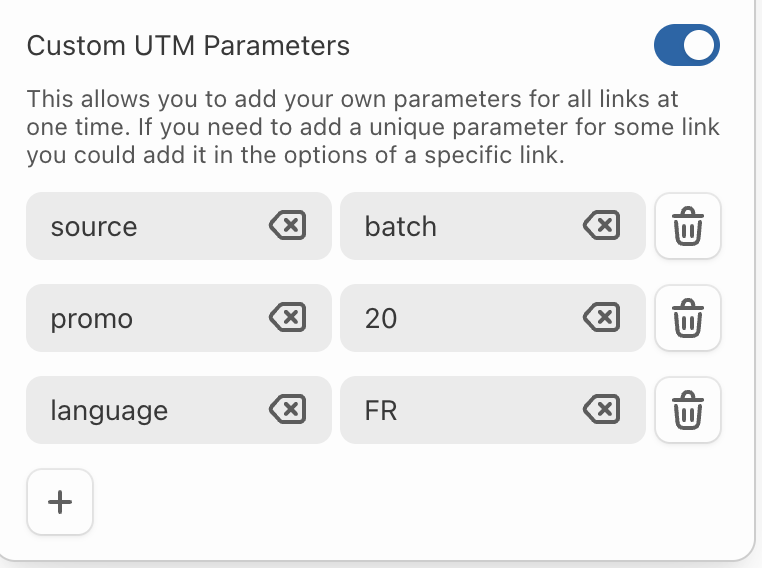
Batch allows you to define URL parameters at the email level. These parameters can be used either as standard UTM parameters or as fully custom query parameters (with any key and value), and are automatically appended to every link in the email.
utm parameters
custom parameters
URL parameters are configured once from the email composer, in the **Message settings** tab, and then applied to all links included in the email content (text links, buttons, etc.), except for the Batch unsubscribe link (`{{emailComposerUnsubscribeLink()}}`).
All URL parameters defined at the email level are applied consistently to every link in the message. If you need to add a parameter that is specific to a single link, it can be added directly in that link's.
UTM parameters work with personalization attributes as long as the attribute content contains only valid characters, without spaces, special symbols, or accents.
**Valid characters for URL parameter values using Personalization:**
* **Letters:** a–z, A–Z
* **Numbers:** 0–9
* **Safe characters:** `-` (dash), `_` (underscore), `.` (dot), `~` (tilde)
Characters such as spaces, special symbols (`?`, `=`, `&`, `#`), or non-ASCII characters should be properly URL-encoded before being used in personalization attributes.
## Click tracking modes
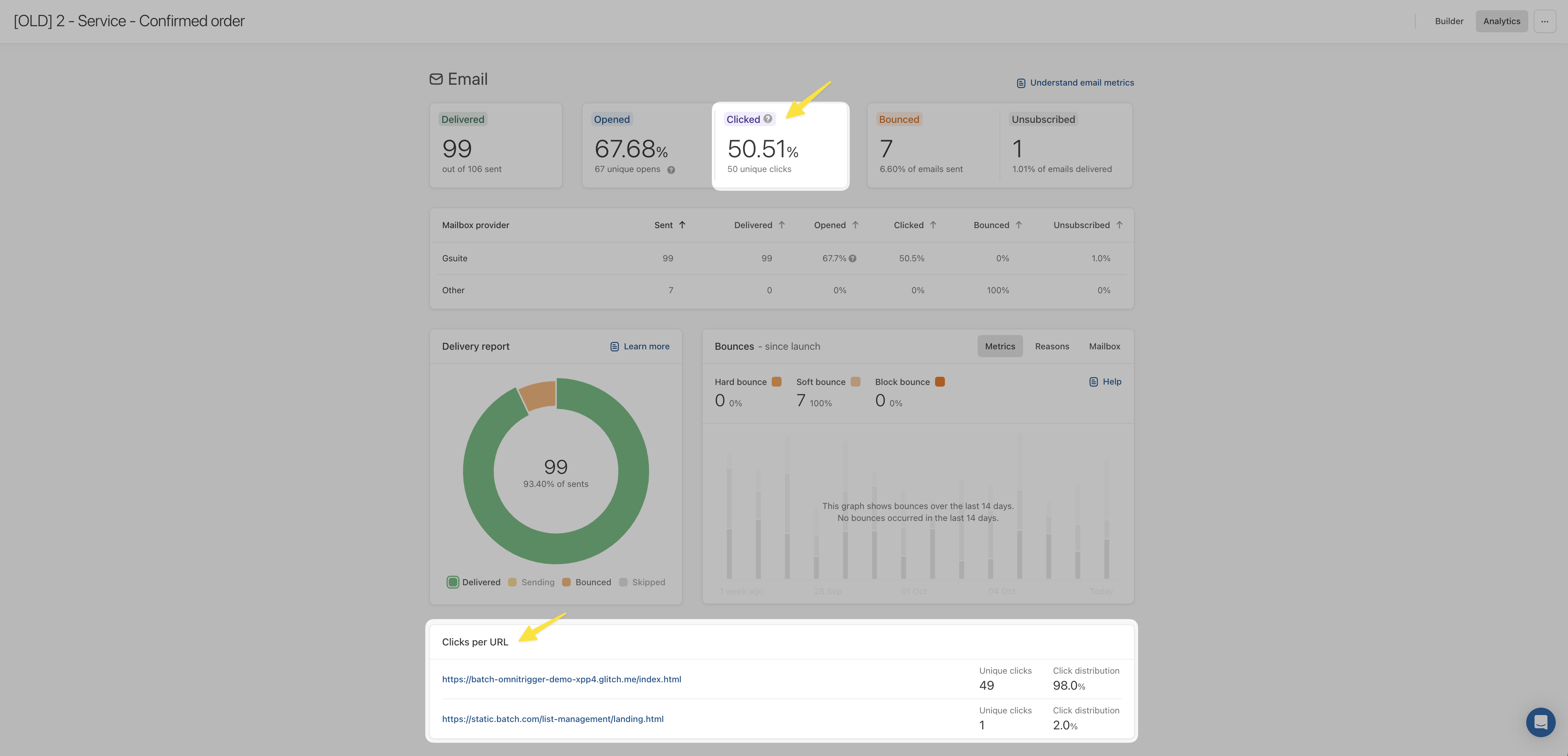
These allow you to **track generic indicators** (e.g. click-through rate), but also to see the number of **clicks on each of the links** in your e-mails, so you can understand which part of your message converts best and optimize your content (e.g. clicks concentrated on the unsubscribe link or the buy button).
On the **Dashboard**, you can see both the generic clicks indicator and the list of links for each of your email campaign/automation analytics👇
Batch offers different ways to track clicks, depending on your use case. These options define how clicks are counted and displayed in analytics.
* Track clicks **separately**, per URL.
* **Group clicks** on similar links under a "link name".
* **Disable the click** **tracking** for one or several URLs.
{% hint style="success" %}
These 3 options are here to cater to different scenarios and needs, giving you the flexibility you require to accurately understand and interpret your data.
{% endhint %}
### Default click tracking
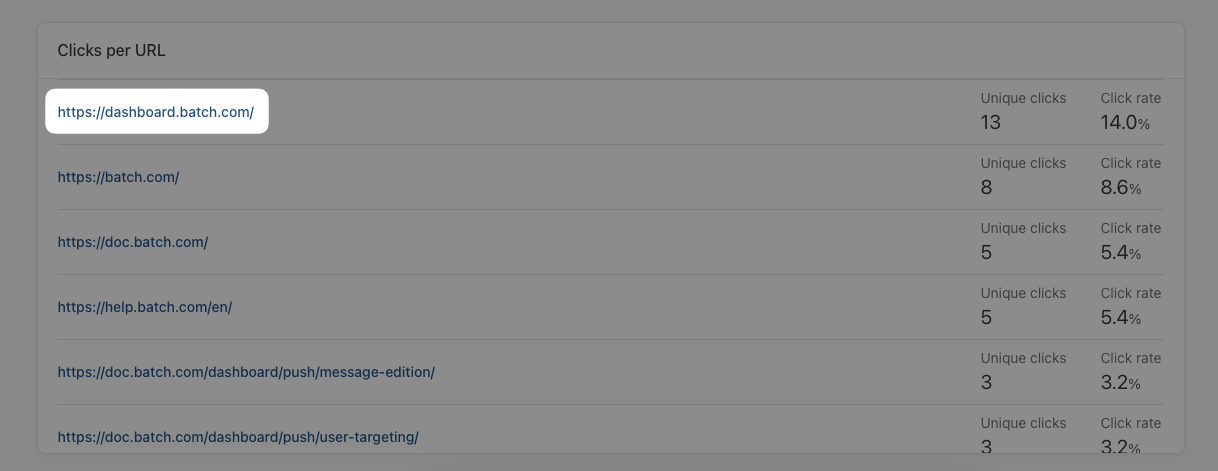
By default, Batch will track clicks on all of the URLs of your email. The raw clicked URL will be displayed in the campaigns analytics 👇
{% hint style="warning" %}
While easy to use, this method is not suited for **personalized links** that contain personal/sensitive data, or e-mails that contain links unique for each user (e.g. a single-use promocode, a password reset token, etc). These URLs would be exposed in the campaign analytics.
{% endhint %}
### Grouped link tracking
Allows you to group the click tracking behind a "**link name**" defined on your end while editing the email template (e.g. "**social\_networks**" for your social network links in the footer of your email) 👇
It is suitable for **personalized links** to avoid having too many raw personalized links in the stats or links that don't have enough value to be tracked individually.
Here are several cases where using a link name tracking is useful:
* **Privacy & Double opt-in automations**: Attaching a link name to URLs in your email (e.g. `validation_url`) is the best solution if you don't want to expose raw personalized URL in the campaigns analytics, but still want to track clicks on these links.
* **Deduplication of URLs with personalization**: A single link with a personalization variable that changes for each user (e.g. [https://website.com/?promocode={{unique\_code}}](https://website.com/?promocode=)) will result in hundreds/thousands of different links tracked for the same URL in the template. Using a link name “`redeem_link`” to track all of the clicks on that link in the template is a better option.
* **Grouping of similar links**: You can group similar links to gain visibility on the type of links clicked by users.
* **Tracking the same link separately:**
* **Why**? If you have the same URL several times in your email, Batch will attribute all of the clicks to a single URL in the campaign analytics. While this is great to have a synthetic view on which URLs were clicked, this can be an issue if you want to know from where the clicks are coming from (e.g. from the URL in the header, or from the same URL in the body of the email).
* **How**? Use a different link name for the same URL, according to where the URL is placed (e.g. `mylink_body`) and use a different one for the same link, placed in the footer (e.g. `mylink_footer`). In the campaign analytics, you will be able to measure the distribution of clicks on that specific link, based on where it is placed in the email.
To attach a link name to a URL in your email, simply add a `data-msys-linkname="NAME"` parameter to the `` html tag of the link:
```
My link
```
Replace `NAME` with the link name you want to use. Link names have a maximum length of **63 characters** and are truncated if they exceed the limit.
### Disabled click tracking
Allows you to disable link tracking completely if you want to avoid showing links with personal/sensitive data (e.g. a password reset token, etc) in Batch analytics, or if your links are unique for each users and you don't want to have thousands different entries in the analytics or for any technical reasons (e.g. universal link support).
Lastly, you may need to disable click tracking on a specific link, and this option is suitable for cases where **no click is to be tracked**.
It applies to these two cases mainly:
* **Privacy** & confidential links
* **Universal links**
To implement this, you only need to add a `data-msys-clicktrack="0"` parameter to the `` html tag of the link:
```
My link
```
{% hint style="warning" %}
Link tracking cannot be disabled for a whole template, the option is only available at each level.
{% endhint %}
---
# Agent Instructions
This documentation is published with GitBook. GitBook is the documentation platform designed so that both humans and AI agents can read, navigate, and reason over technical content effectively. Learn more at gitbook.com.
## Querying This Documentation
If you need additional information that is not directly available in this page, you can query the documentation by asking a question.
Perform an HTTP GET request on the following URL with the `ask` and `goal` query parameters:
```
GET https://doc.batch.com/guides-and-best-practices/message/email/link-and-tracking-settings/how-to-handle-link-tracking-in-emails.md?ask=&goal=
```
`ask` is the immediate question: it should be specific, self-contained, and written in natural language.
`goal` is what the user is ultimately trying to achieve, the reason they need the answer. Sharing it helps GitBook give you a better, more relevant answer. A goal is most helpful when it describes the outcome the user wants rather than restating the question. For example, with `ask=how do I create an API token`, a goal like `automate deployments from our CI pipeline` lets GitBook tailor the answer to that use case.
The response will contain a direct answer to the question and relevant excerpts and sources from the documentation.
Use this mechanism when the answer is not explicitly present in the current page, you need clarification or additional context, or you want to retrieve related documentation sections.