> For the complete documentation index, see [llms.txt](https://doc.batch.com/llms.txt). Markdown versions of documentation pages are available by appending `.md` to page URLs; this page is available as [Markdown](https://doc.batch.com/guides-and-best-practices/message/email/design-and-layout/how-to-create-an-email-banner.md).
# How to create an email banner?
Learn how to create email banners using our Email Composer.
Banners are the first element your reader will see at the opening of your email. They introduce your brand and set the tone of the e-mail, which is why it's so important to make them as impactful as possible.
## Insert your banner in the Email Composer
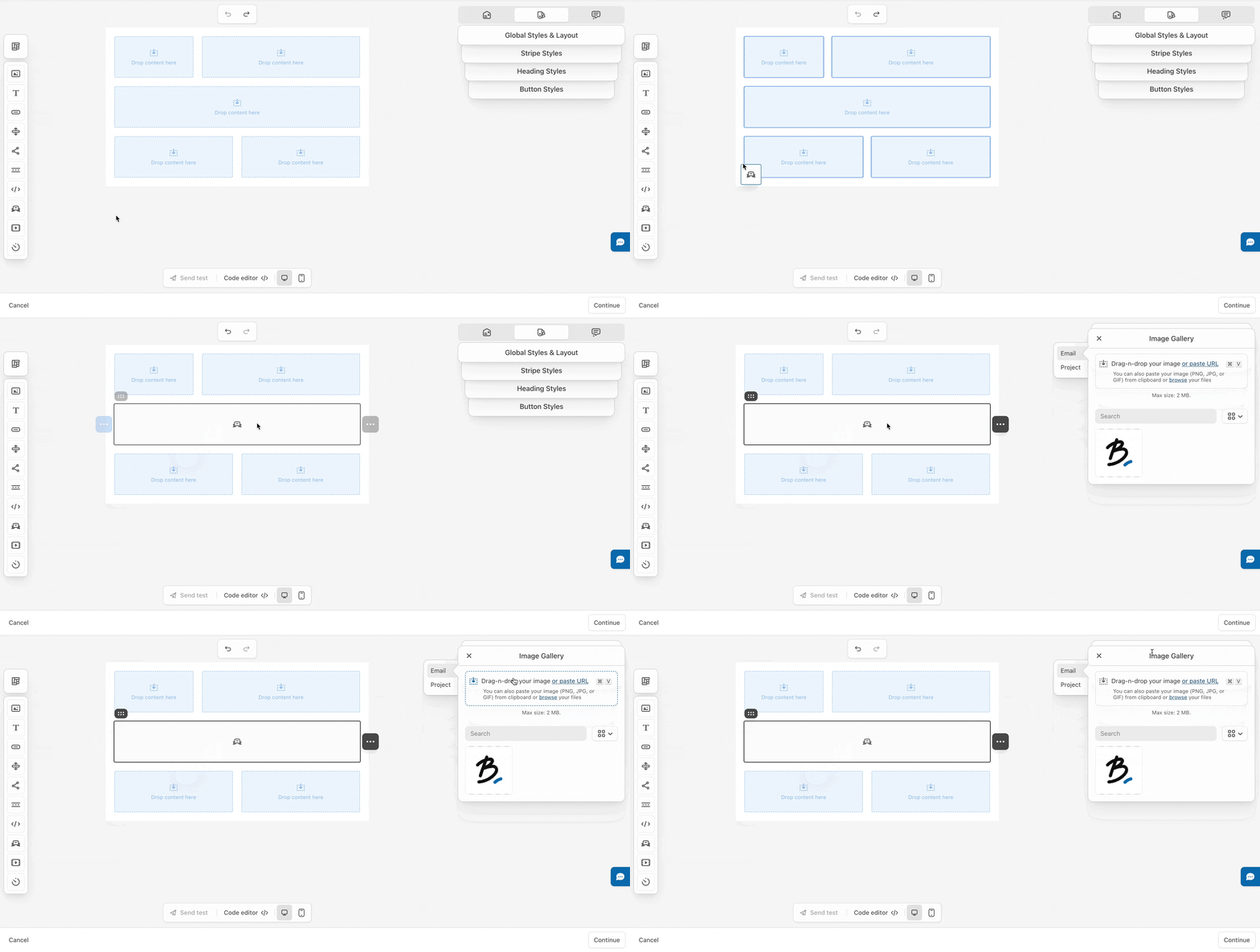
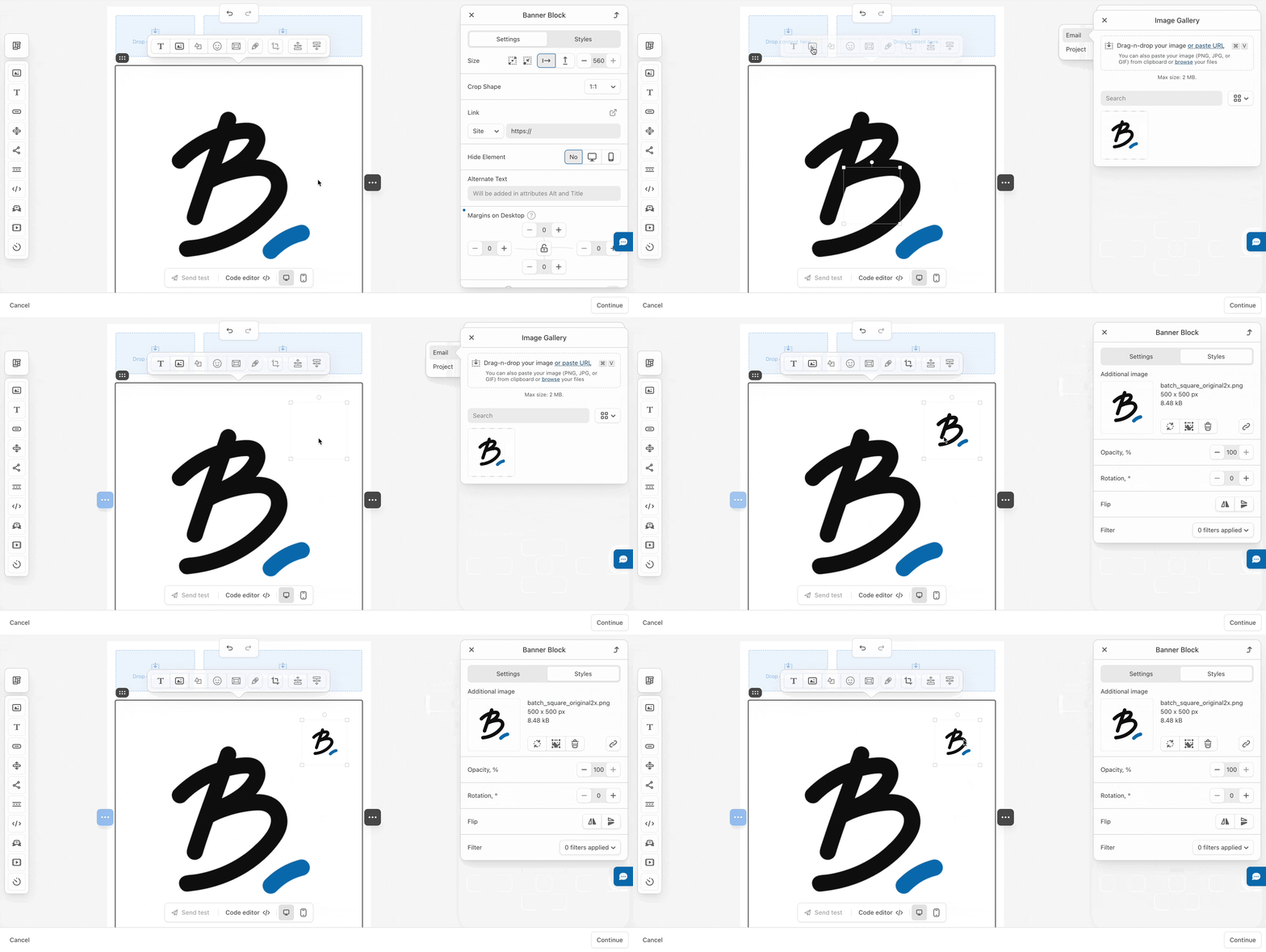
To add a banner, simply drag and drop the **Banner Block** in a structure, where you want it to be.
Click on that **Block**, and select the **Image** you want to use:
There are 2 ways to add your image:
* **Upload an image from your computer**
You can then **drag and drop** the image you want to use for your campaign or upload it from your computer by clicking the arrow and selecting the image of your choice on your files.
* **Paste a URL from an external link**
You can use an image URL link that you host on your end. Click **or** **Paste URL** and enter the URL to your image.
## Personalization
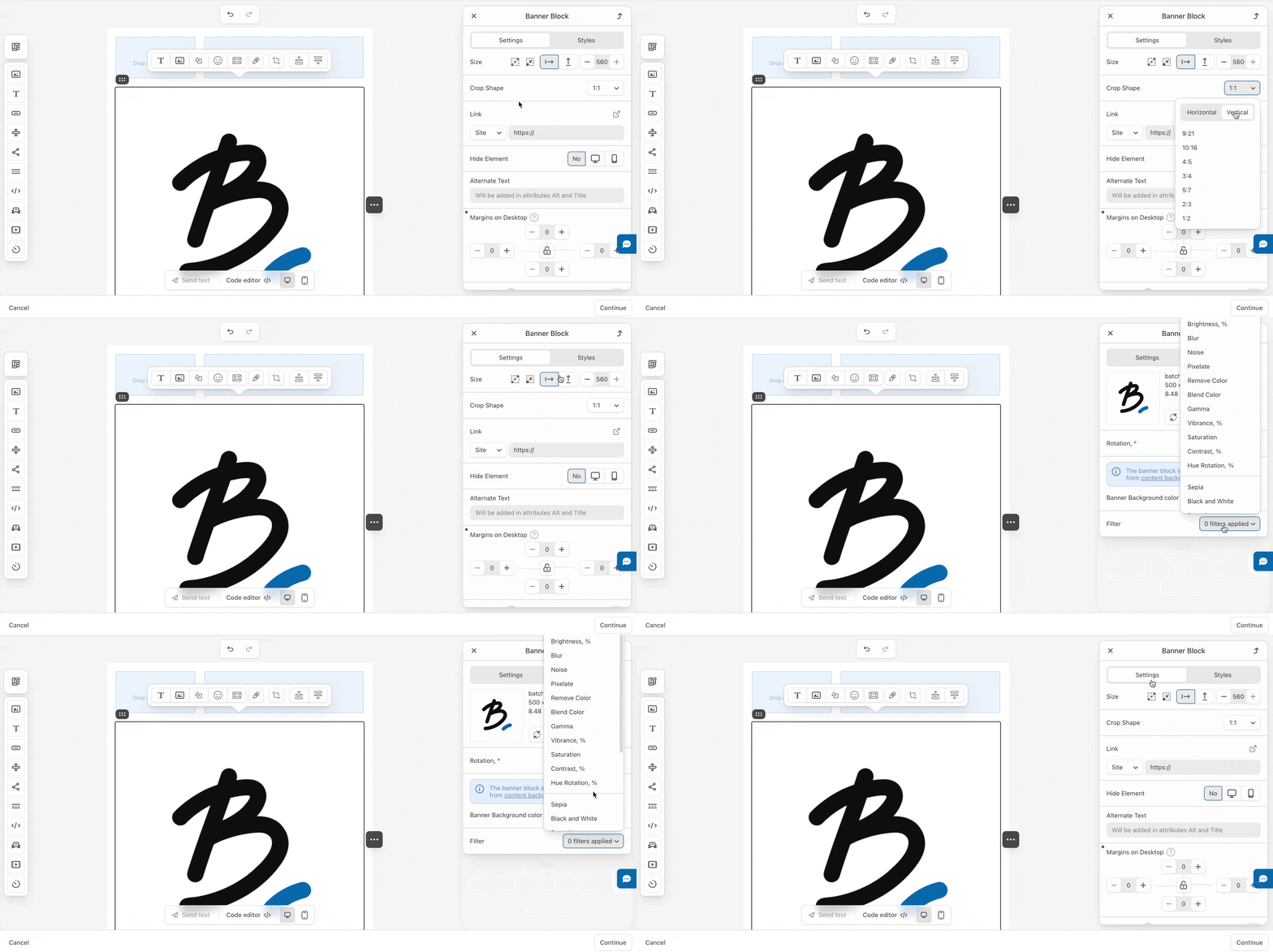
Once your image is selected, you can apply different effects to it. Indeed, you can:
* Choose the orientation (vertical, square, horizontal)
* Adjust the height of the picture
* Apply different filters to your visual
{% hint style="warning" %}
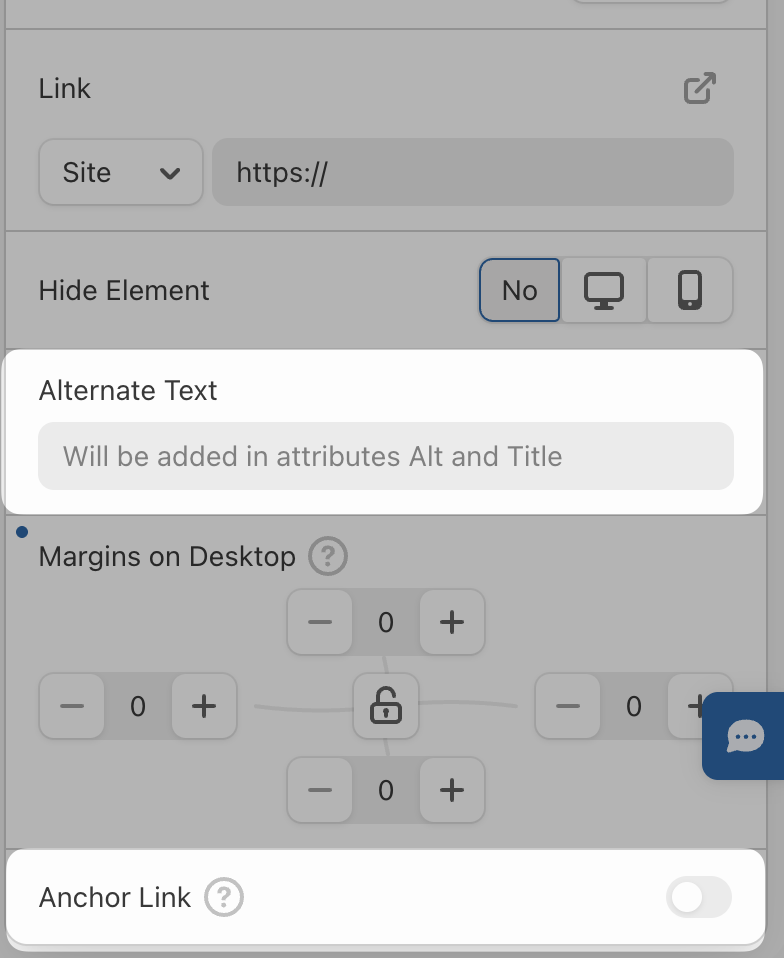
You can also add content to your banner, such as a **deeplink**, an **anchor link** or an **alternate text**.
* **Anchor link**: web page element that links to another location on the same page. They are typically used for long or text-heavy pages so that visitors can jump to a specific part of the page without having to scroll as much.
* **Alternate** **text**: also called "Alt text", is a textual description for non-text content that explains the presence or function of an image on a webpage.
{% endhint %}
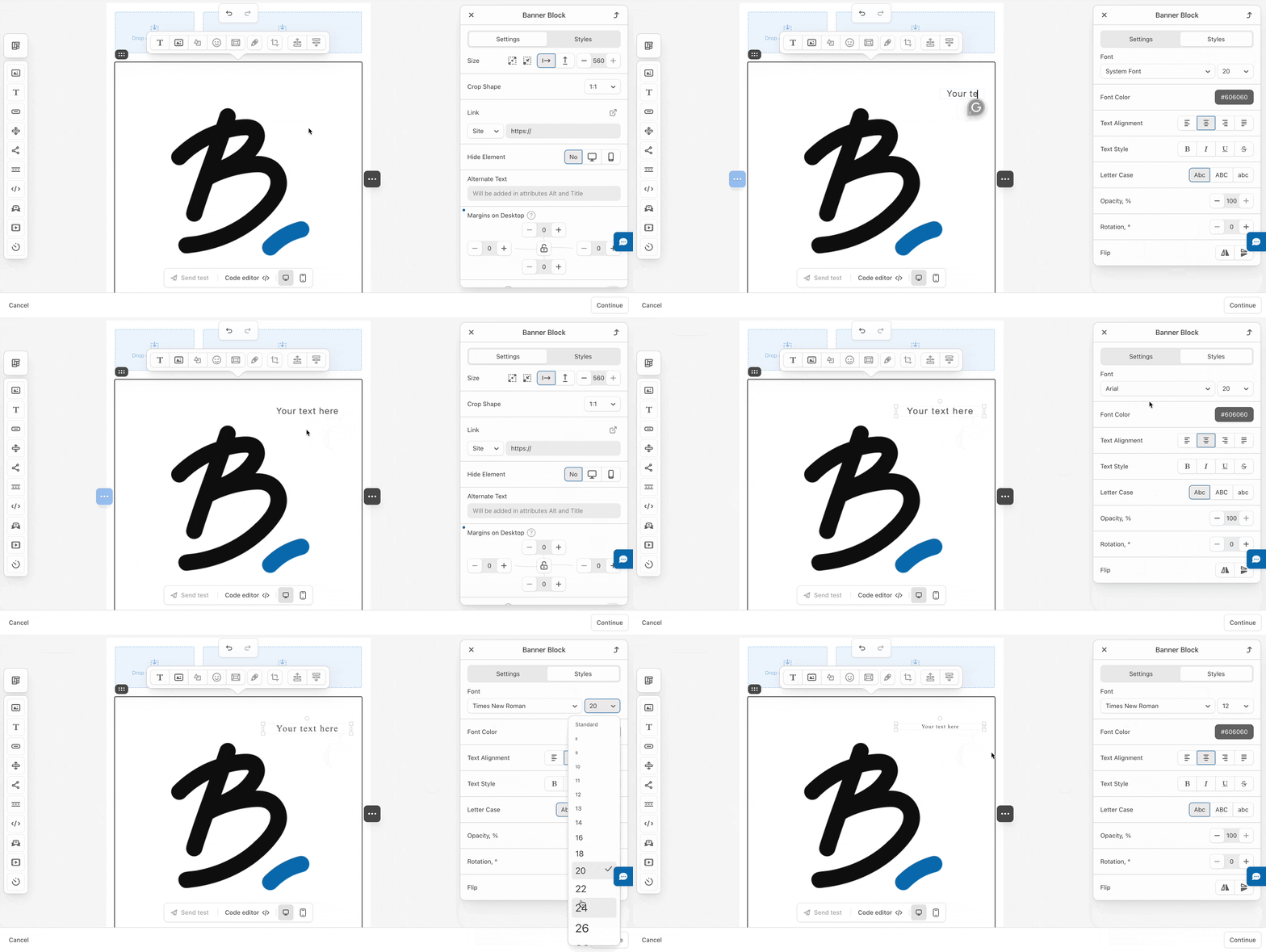
Then, if you want to place **text** on the banner image, click on the "**T**" button when selecting the banner block. Draw your text zone, and then replace the caption with yours. You can set the **font size**, **color,** and **type**:
Finally, you can **add images to your banner** and place them where they suit you:
{% hint style="warning" %}
You can perform all the editing steps **in the order of your choice!** :sparkles:
{% endhint %}
---
# Agent Instructions
This documentation is published with GitBook. GitBook is the documentation platform designed so that both humans and AI agents can read, navigate, and reason over technical content effectively. Learn more at gitbook.com.
## Querying This Documentation
If you need additional information that is not directly available in this page, you can query the documentation by asking a question.
Perform an HTTP GET request on the following URL with the `ask` and `goal` query parameters:
```
GET https://doc.batch.com/guides-and-best-practices/message/email/design-and-layout/how-to-create-an-email-banner.md?ask=&goal=
```
`ask` is the immediate question: it should be specific, self-contained, and written in natural language.
`goal` is what the user is ultimately trying to achieve, the reason they need the answer. Sharing it helps GitBook give you a better, more relevant answer. A goal is most helpful when it describes the outcome the user wants rather than restating the question. For example, with `ask=how do I create an API token`, a goal like `automate deployments from our CI pipeline` lets GitBook tailor the answer to that use case.
The response will contain a direct answer to the question and relevant excerpts and sources from the documentation.
Use this mechanism when the answer is not explicitly present in the current page, you need clarification or additional context, or you want to retrieve related documentation sections.