> For the complete documentation index, see [llms.txt](https://doc.batch.com/llms.txt). Markdown versions of documentation pages are available by appending `.md` to page URLs; this page is available as [Markdown](https://doc.batch.com/getting-started/other/implementation-guides/mep-to-cep-migration/how-to-switch-from-the-transactional-api-to-the-profile-api.md).
# How to switch from the Transactional API to the Profile API?
As part of the [migration from the Batch MEP to the CEP](https://doc.batch.com/getting-started/other/implementation-guides/how-to-get-ready-to-migrate-from-the-batch-mep-to-the-cep), you might want to switch from the [Transactional API](/developer/api/mep/transactional.md) (or its variant, the Partner API) to a more user-friendly option: sending custom events via the [Profile API](/developer/api/cep/profiles.md) and scheduling your Trigger Push Automations directly from the Automation Builder.
{% hint style="info" %}
This option is not applicable yet if you are targeting **Installation IDs** with the [Transactional API](/developer/api/mep/transactional.md). It will be available soon.
{% endhint %}
## Step-by-step
{% stepper %}
{% step %}
### Audit your current usage of the Transactional API
Establish the list of your running Transactional API calls. You can refer to the [Analytics > Notifications > Transactional](/getting-started/features/mobile-engagement-platform/analytics/notifications.md#detailed-stats) tab on the Batch dashboard to get the list of messages sent via the Transactional API over a specific time period.
{% endstep %}
{% step %}
### \[Back-end] Prepare your calls to the Profile API
* Associate each Transactional message with a new Custom Event:
* Event name: For consistency, you can use the "Group ID" of your current Transactional API call.
* Additional data: If your transactional message contains personalization, associate the personalization values [as attributes of these events](/developer/api/cep/profiles/update.md#the-attributes-object).
* Get ready to send these events via the [Profile API](/developer/api/cep/profiles.md) each time you were calling the Transactional API.
{% endstep %}
{% step %}
### \[Dashboard] Prepare your Trigger Automations
* [Create one trigger automation](/getting-started/features/customer-engagement-platform/orchestration/trigger-automations.md) for each transactional message using the Batch Automation Builder. The trigger event must be the one defined in step 2.
* Activate these automations.
{% endstep %}
{% step %}
### \[Back-end] Switch from the Transactional API to the Profile API
Once the automations are running on the dashboard, stop calling the Transactional API and start sending the custom events via the Profile API so that the automations created in step 3 are triggered.
{% endstep %}
{% endstepper %}
## Example: Order shipped 📦
Let's apply the above steps to an example:
{% stepper %}
{% step %}
### Audit your current usage of the Transactional API
You currently notify clients when their order has been shipped. To do so, you call the [Transactional API](/developer/api/mep/transactional.md) with a payload that looks like this:
{% endstep %}
{% step %}
### \[Back-end] Prepare your calls to the Profile API
* You prepare your calls to the Profile API by associating your transactional message with a new Custom Event:
* Event name: You choose to call it `order_shipped`, just as the group ID of your call to the [Transactional API](/developer/api/mep/transactional.md).
* Additional data: For personalization purposes, this use case requires the order ID and the parcel tracking link. So you add 2 [attributes](/developer/api/cep/profiles/update.md#the-attributes-object) to the new event: `id` (String) and `parcel_tracking_link` (URL).
* Here is how the payload you will include in your [Profile API](/developer/api/cep/profiles.md) call will look like:
{% endstep %}
{% step %}
### \[Dashboard] Prepare your Trigger Automations
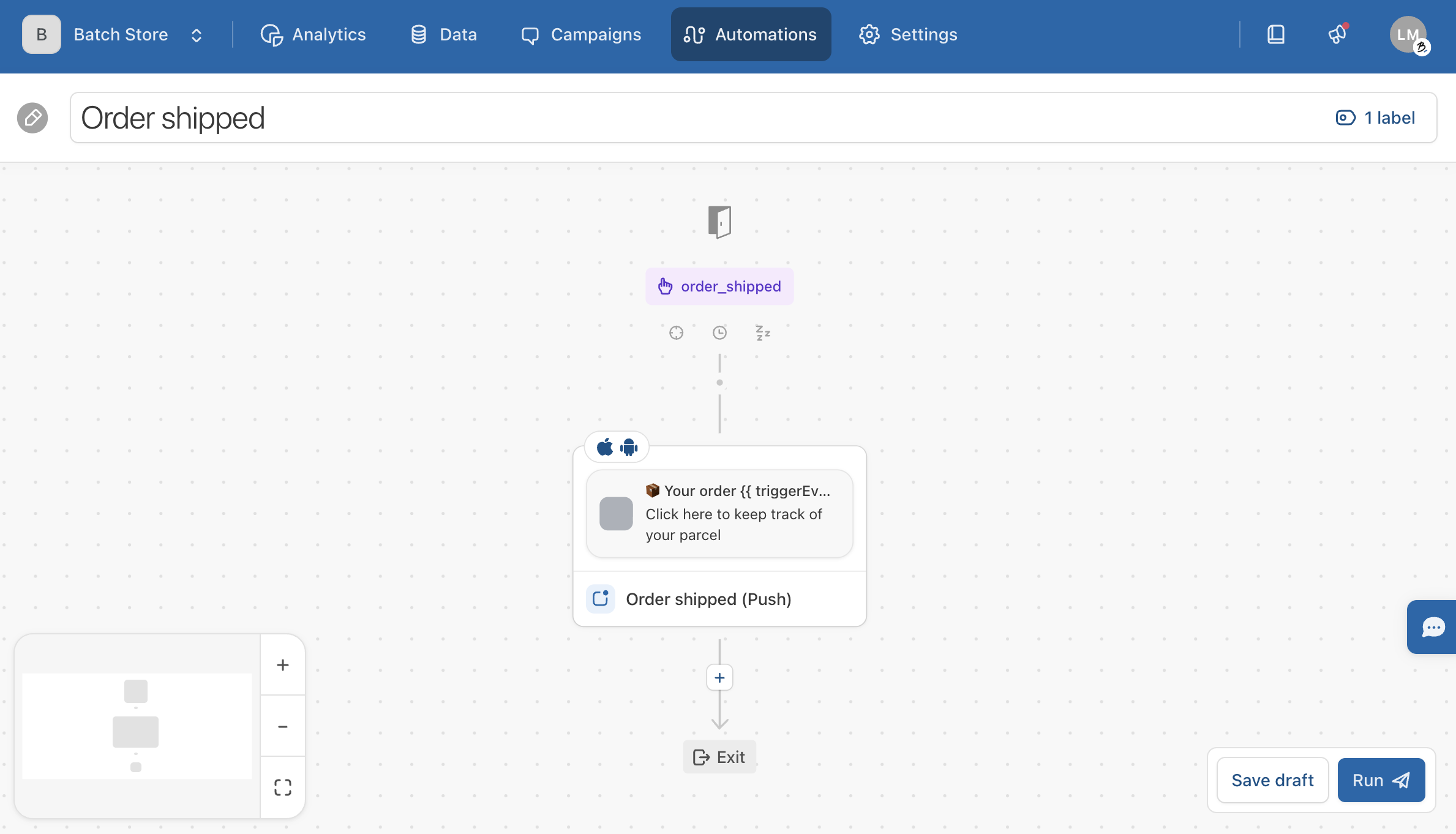
* You [create a dedicated trigger automation](/getting-started/features/customer-engagement-platform/orchestration/trigger-automations.md) for this use case:
You add the personalization values from the trigger event `order_shipped` in the title (`id`) and the deeplink (`parcel_tracking_link`) fields of your message, using the **{...}** buttons:
* Then you activate this automation ("Run" button).
{% endstep %}
{% step %}
### \[Back-end] Switch from the Transactional API to the Profile API
Now that the automation is running on the dashboard, you stop calling the Transactional API and start sending the custom event `order_shipped` via the Profile API so that the automation created in step 3 is triggered.
{% endstep %}
{% endstepper %}
[^1]: Custom User ID
[^2]: Order ID
[^3]: Parcel tracking link
---
# Agent Instructions
This documentation is published with GitBook. GitBook is the documentation platform designed so that both humans and AI agents can read, navigate, and reason over technical content effectively. Learn more at gitbook.com.
## Querying This Documentation
If you need additional information that is not directly available in this page, you can query the documentation by asking a question.
Perform an HTTP GET request on the following URL with the `ask` and `goal` query parameters:
```
GET https://doc.batch.com/getting-started/other/implementation-guides/mep-to-cep-migration/how-to-switch-from-the-transactional-api-to-the-profile-api.md?ask=&goal=
```
`ask` is the immediate question: it should be specific, self-contained, and written in natural language.
`goal` is what the user is ultimately trying to achieve, the reason they need the answer. Sharing it helps GitBook give you a better, more relevant answer. A goal is most helpful when it describes the outcome the user wants rather than restating the question. For example, with `ask=how do I create an API token`, a goal like `automate deployments from our CI pipeline` lets GitBook tailor the answer to that use case.
The response will contain a direct answer to the question and relevant excerpts and sources from the documentation.
Use this mechanism when the answer is not explicitly present in the current page, you need clarification or additional context, or you want to retrieve related documentation sections.