> For the complete documentation index, see [llms.txt](https://doc.batch.com/llms.txt). Markdown versions of documentation pages are available by appending `.md` to page URLs; this page is available as [Markdown](https://doc.batch.com/getting-started/other/implementation-guides/how-to-send-a-transactional-email-with-batch.md).
# How to send a transactional email with Batch?
Need help creating your first transactional email automation? Here are useful insights and steps to follow.
## A bit of context first
### Transactional what?
Transactional emails contain information about **an action a recipient has taken**, unlike marketing e-mails that intend to drive the recipient towards an action you want them to take.
They take the form of **1-to-1 automated** and **personalized** scenarios, usually linked to account activity or a commercial transaction, like a password reset request or an order validation.
### What about delivrability?
Some specific rules apply to transactional emails:
* They **do not require** a marketing opt-in status;
* They are sent in **real time**;
* They have a **higher criticality** than other scenarios, and tend to generate **higher engagement rates** as well.
With Batch, each email sending purpose is **isolated** for deliverability reasons.
Transactional emails are sent from a dedicated subdomain (e.g. *service.domain.com*) and a specialized IP / IP pool with an excellent reputation.
This protects the deliverability of transactional emails from other types of scenarios sent with Batch (newsletters, marketing automation, etc.).
### Management on the Batch dashboard
To satisfy the need of brands and media to no longer have silos between marketing and transactional emails, we have chosen to handle them in a coordinated manner on the Batch platform.
This has several advantages:
* **Technical simplicity:** you have a single endpoint for all server-side data operations: our [Profile API](https://doc.batch.com/developer/api/cep/profiles/update). In the case of a transactional scenario, it allows you to track an event enriched with additional data for message personalization purposes. This single event can be used across different types of scenarios and different channels, streamlining API calls and data flows and considerably simplifying technical implementations.
* **Integrated tracking:** delivery and engagement indicators are tracked in a centralized way on the Batch dashboard. You can consolidate information related to a recipient, such as scenarios received, opened and clicked.
* **Operational team autonomy:** business teams can modify templates or carry out A/B testing independently. This frees up the bandwidth of technical teams to concentrate on other tasks.
## Technical implementation
When a transactional trigger is detected in your back-end, call the [Profile API](https://doc.batch.com/developer/api/cep/profiles/update) to **track a user event** for the given recipient, via its Custom user ID.
Attach to the event any data you need to **personalize** the email as event attributes.
In case of highly personalized emails such as order confirmations, you can use attributes objects to structure your data.
For example, in case of an order tracking email, track a *`parcel_sent`* event when the order has just left the warehouse.
Here is an example of how the payload could look like:
```
[
{
"identifiers": {
"custom_id": "johndoe123"
},
"events": [
{
"name": "parcel_sent",
"attributes": {
"carrier_name": "DHL Express France",
"collection_point": "E-mobile Paris 3",
"date(delivery_date)": "2024-02-12T10:10:10",
"url(tracking_link)": "www.dhl.com/suivi/456",
"order_id": 456
}
}
]
}
]
```
And that's it! The rest is done on the dashboard.
{% hint style="info" %}
💡 In addition to email, the trigger event can be used to trigger a message on **any channel** operated by Batch, thanks to our centralized data model.
{% endhint %}
## How to setup the email from the Batch dashboard?
Go to the Batch dashboard, **Automations → New automation → Omnichannel**.
### Set up entrance
Click on *'**Select trigger**'* and choose the event that will trigger the email:
Select trigger in automation
### Target opt-out users
Click on '**Add targeting**' and select '**Transactional** Profiles don't need to be subscribed to receive messages'.
Transactional emails do not need a marketing opt-in status.
### Compose your email
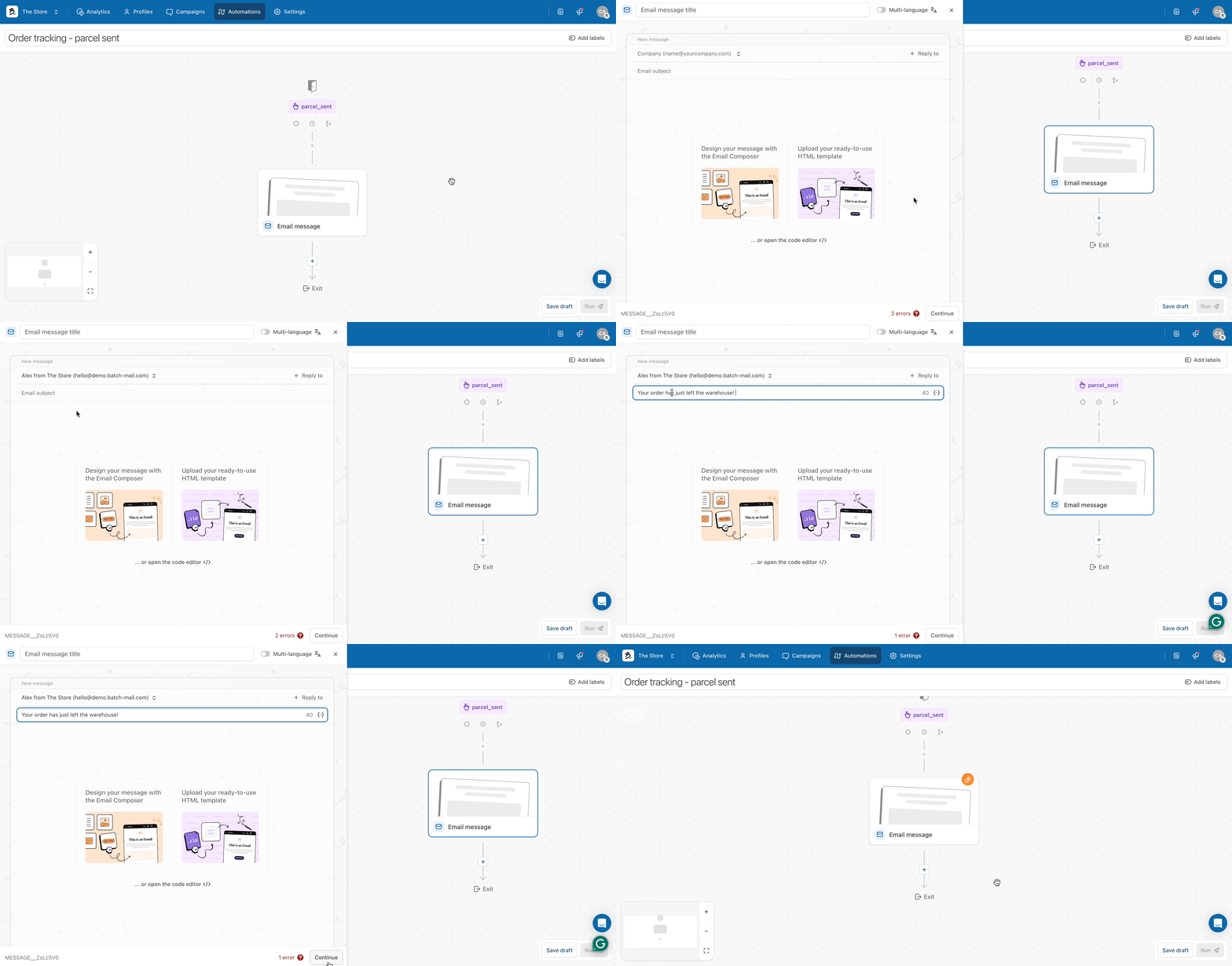
1. **Add your sender**
Click the message block and select a sender associated with your transactional sending subdomain.
2. **Define the subject of your email**
You can add dynamic personalization by clicking on the brackets {...} if needed.
3. **Compose your email**
Last but not least, there are 2 ways to create the body of your email:
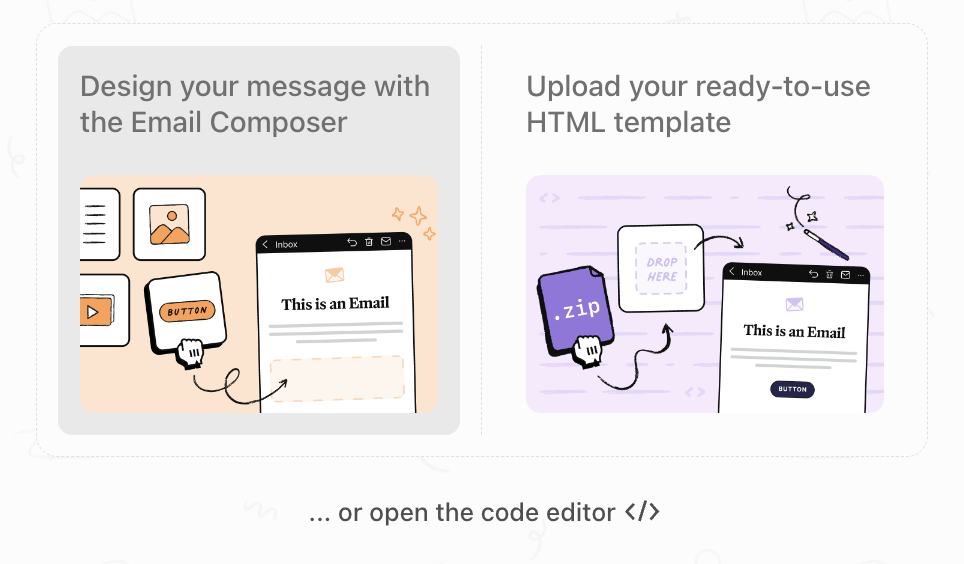
1. **Design your message with our Email Composer.**
Design an email template with the email composer
Batch allows you to create an email from scratch via our Email Composer.
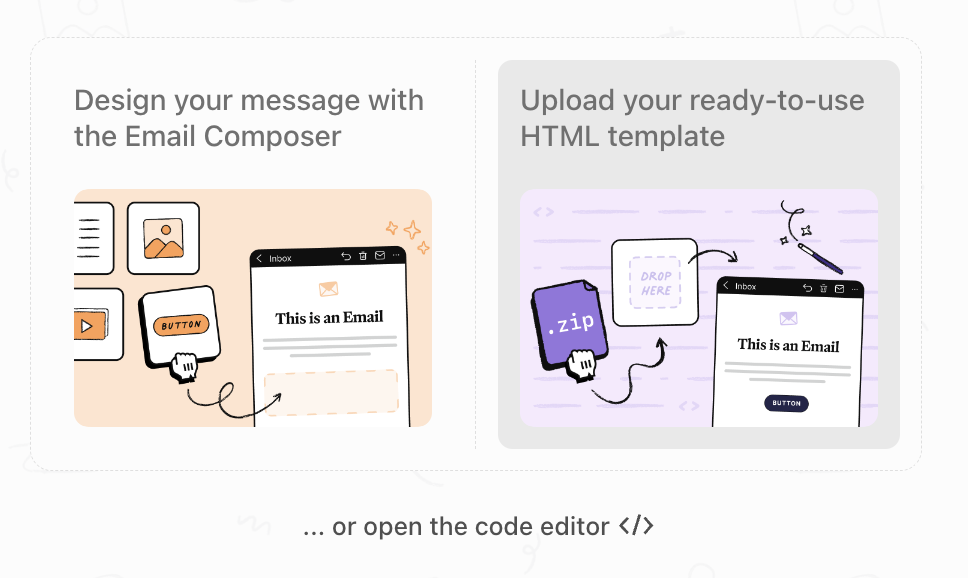
2. **Upload your HTML template.**
Upload an HTML template
If you have a template ready to be used, you can upload it here!
Do not forget to add your dynamic variables coming from the event!
Set an email sender and an object
### Saving your automation
Click on the '**Save and run**' button at the bottom of the form to activate it or save it as a draft and come back later.
Your email is now ready to be sent! 🎉 (in real-time as soon as the trigger event is captured by Batch, from your sending subdomain dedicated to transactional emails).
---
# Agent Instructions
This documentation is published with GitBook. GitBook is the documentation platform designed so that both humans and AI agents can read, navigate, and reason over technical content effectively. Learn more at gitbook.com.
## Querying This Documentation
If you need additional information that is not directly available in this page, you can query the documentation by asking a question.
Perform an HTTP GET request on the following URL with the `ask` and `goal` query parameters:
```
GET https://doc.batch.com/getting-started/other/implementation-guides/how-to-send-a-transactional-email-with-batch.md?ask=&goal=
```
`ask` is the immediate question: it should be specific, self-contained, and written in natural language.
`goal` is what the user is ultimately trying to achieve, the reason they need the answer. Sharing it helps GitBook give you a better, more relevant answer. A goal is most helpful when it describes the outcome the user wants rather than restating the question. For example, with `ask=how do I create an API token`, a goal like `automate deployments from our CI pipeline` lets GitBook tailor the answer to that use case.
The response will contain a direct answer to the question and relevant excerpts and sources from the documentation.
Use this mechanism when the answer is not explicitly present in the current page, you need clarification or additional context, or you want to retrieve related documentation sections.