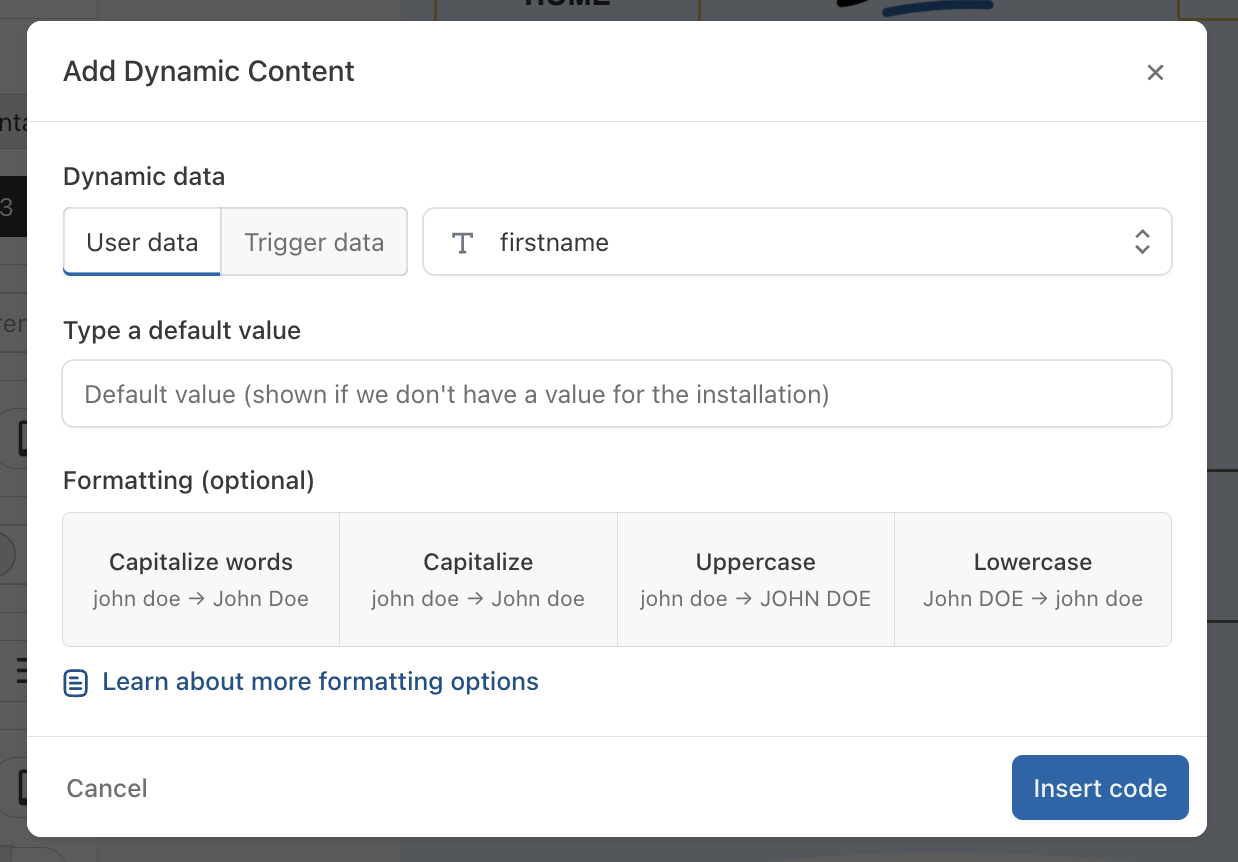
) }}` expression.
#### Example:
Take the following Audience API Update call:
```json
{
"name": "EXAMPLE",
"ids": [
{
"action": "add",
"id": "CUSTOM-ID-1",
"attributes": {
"account_level": 20
}
}
]
}
```
The following message:
```
Congratulations, you have reached level {{ audienceAttribute('EXAMPLE', 'account_level') }}!
```
will result in:
```
Congratulations, you have reached level 20!
```
### Native attributes
Some Batch native attributes can be used with Personalization to refer to Batch internal data.
To access a native attribute, use the following syntax: `{{ b.your_native_attribute }}`\
The following is a non-exhaustive list of Batch Profiles native attributes:
* `campaign_token`
* `creation_date`
* `custom_id`
* `email`
* `email_domain`
* `has_custom_id`
* `install_date`
* `is_email_optin`
* `is_push_optin`
* `is_sms_optin`
* `language`
* `last_activity_date`
* `last_email_click`
* `last_email_click_marketing`
* `last_email_marketing_click`
* `last_email_marketing_open`
* `last_email_open`
* `last_email_transactional_click`
* `last_email_transactional_open`
* `last_visit_date`
* `phone_number`
* `region`
* `timezone`
## Referencing catalog data
To reference the attributes of a catalog item, use the `lookup` function with the catalog name and an item ID. The item ID can come from a **profile attribute**, a **trigger event attribute**, or a **static value**.
#### Fetching a catalog item
**From an attribute** (profile or trigger event):
```
{% set $vehicle = lookup('vehicle_catalog', favorite_vehicle_id) %}
{{ $vehicle.brand }} {{ $vehicle.model }} — {{ $vehicle.color }}
```
```
{% set $product = lookup('products', trigger_event.product_id) %}
{{ $product.name }}
```
**From a static value**, useful for editorial content that doesn't depend on the profile:
```
{% set $featured = lookup('daily_picks', 'featured_1') %}
{{ $featured.title }}
{{ $featured.subtitle }}
```
#### Chained lookups
A `lookup` can return an attribute that serves as the item ID for a second `lookup` in a different catalog:
```
{% set $schedule = lookup('weekly_schedule', 'monday_prime') %}
{% set $show = lookup('shows', $schedule.show_id) %}
{{ $schedule.air_time }}
{{ $show.title }}
{{ $show.synopsis }}
```
Here, the `weekly_schedule` catalog contains a `show_id` field that references an item in the `shows` catalog.
## Formatting attributes
You can apply formatting options to attributes to ensure they are displayed in the most relevant way. Formatting should be applied based on the attribute type.
### Transformations with arguments
You may have noticed some transformations take arguments. When this is the case, there is two way to give the arguments:
* Using a named argument as such: `join(separator=',')`
* Directly giving the value as such: `join(',')`
In the following reference we will denote arguments that can be given unnamed as such: `argName?: type` where the `?` indicates the argument is optional.
### General transformations
formatDate
**Input type**\
date
**Arguments**
* `pattern`: string or (`dateStyle`: string, `timeStyle`: string)
**Optional arguments**
* `timezone`: string, `locale`: string
**Return type**\
string
**Description**\
Formats a date using either the pattern provided or the combined `dateStyle`/`timeStyle`.\
Ex: `{{ installation_date|formatDate(pattern: 'yyyy-MM-dd') }}` will result in **2025-01-01**
Ex: `{{ installation_date|formatDate(dateStyle: 'LONG', timeStyle: 'SHORT') }}` will result in **Wednesday, January 1, 2025 12:00 AM**
The `timezone` argument allows you to format the date into a specific timezone.\
Ex: `{{ installation_date|formatDate(dateStyle: 'SHORT', timeStyle: 'LONG', timezone: 'Europe/Paris') }}` will result in **1/1/25 9:00:00 AM CET**
The `locale` argument allows you to format the date using a specific locale. A locale controls region-specific behavior when formatting a date. For example, with the US locale, the time will be suffixed with **AM** or **PM**, but not with the UK locale.\
Ex: `{{ installation_date|formatDate(dateStyle: 'SHORT', timeStyle: 'LONG', locale: 'UK') }}` will result in **01/01/25 09:00:00 CET**
### Transformations for numbers only
abs
**Input type**\
number or duration
**Return type**\
integer
**Description**\
Returns the absolute value of a number, duration, or distance.
**Example**\
`{{ -13|abs }}` will result in **13**
round
**Input type**\
number or duration or distance
**Return type**\
integer
**Description**\
Returns the closest `integer` of a number, duration, or distance, rounding up.
**Examples**\
`{{ 46.8|round }}` will result in **47**\
`{{ 46.3|round }}` will result in **46**
ceil
**Input type**\
number or duration or distance
**Return type**\
integer
**Description**\
Returns the closest `integer` that is greater than the number, duration, or distance.
**Example**\
`{{ 46.2|ceil }}` will result in **47**
floor
**Input type**\
number or duration or distance
**Return type**\
integer
**Description**\
Returns the closest `integer` that is lower than the number, duration, or distance.
**Example**\
`{{ 46.8|floor }}` will result in **46**
formatNumber
**Input type**\
number
**Arguments**\
*none*
**Optional arguments**
* `decimals`: number
* `locale`: string
**Return type**\
string
**Description**\
Formats a number.
For a `weight` float attribute of value `26.5` and a user using a US locale:\
Ex: `{{ weight|formatNumber }}` will result in **26.5**
The `decimals` argument allows you to control how many decimals should be printed:\
Ex: `{{ weight|formatNumber(decimals: 2) }}` will result in **26.50**
The `locale` argument allows you to format the number using a specific locale. A locale controls region-specific behavior when formatting numbers, such as setting the appropriate decimal separator. By default, the user's locale will be used.\
Ex: `{{ weight|formatNumber(locale: 'fr', decimals: 2) }}` will result in **26,50**
formatCurrency
**Input type**\
number
**Arguments**\
*none*
**Optional arguments**
* `decimals`: number
* `locale`: string
* `symbol`: string
**Return type**\
string
**Description**\
Formats a number as currency.
For a `price` float attribute of value `2406.5` and a user using a US locale:\
Ex: `{{ price|formatCurrency }}` will result in **¤ 2,406.50**
The `symbol` argument controls the currency symbol:\
Ex: `{{ price|formatCurrency(symbol: '$') }}` will result in **$ 2,406.50**
The `decimals` argument allows you to control how many decimals should be printed:\
Ex: `{{ price|formatCurrency(symbol: '$', decimals: 3) }}` will result in **$ 2,406.500**
The `locale` argument allows you to format the number using a specific locale. A locale controls region-specific behavior when formatting numbers, such as setting the appropriate decimal separator.
*Note: The locale has no impact on the currency symbol. By default, the user's locale will be used.*
Ex: `{{ price|formatCurrency(symbol: '$', locale: 'fr') }}` will result in **2 406,50 $**\
Ex: `{{ price|formatCurrency(symbol: '€', locale: 'fr') }}` will result in **2 406,50 €**
### Transformations for strings only
lower
**Input type**\
string
**Return type**\
string
**Description**\
Converts a string to lowercase.
**Example**\
`{{ 'VINCENT'|lower }}` will result in **vincent**
upper
**Input type**\
string
**Return type**\
string
**Description**\
Converts a string to uppercase.
**Example**\
`{{ 'vincent'|upper }}` will result in **VINCENT**
capitalize
**Input type**\
string
**Return type**\
string
**Description**\
Converts the first letter to uppercase and all other letters to lowercase.
**Example**\
`{{ 'john Smith'|capitalize }}` will result in **John smith**
title
**Input type**\
string
**Return type**\
string
**Description**\
Converts the first letter of each word to uppercase and all other letters to lowercase.
**Example**\
`{{ 'johN smith'|title }}` will result in **John Smith**
append
**Input type**\
string
**Arguments**
* `text?`: string
**Return type**\
string
**Description**\
Appends the text to the value.
**Example**\
`{{ 'john'|append(' smith') }}` will result in **john smith**
prepend
**Input type**\
string
**Arguments**
* `text?`: string
**Return type**\
string
**Description**\
Prepends the text to the value.
**Example**\
`{{ 'john'|prepend('smith ') }}` will result in **smith john**
length
**Input type**\
string
**Return type**\
integer
**Description**\
Returns the length of the string
**Example**\
`{{ 'john'|length }}` will result in **4**
trim
**Input type**\
string
**Arguments**\
*none*
**Optional arguments**
* `nullIfEmpty`: boolean
**Return type**\
string
**Description**\
Removes leading and trailing spaces from a string.\
If `nullIfEmpty` is set to `true`, the function will return `None` instead of an empty string when all characters are trimmed.
**Examples**
`{{ " hello world "|trim }}` will result in **"hello world"**
replace
**Input type**\
string
**Arguments**
* `search`: string
* `replacement`: string
**Return type**\
string
**Description**\
Returns the string with every occurrence of the `search` substring replaced by the `replacement` substring. If the `search` substring is not found, the string is returned unchanged.
**Example**\
`{{ 'Mister Smith'|replace('Mister', 'Mr.') }}` will result in **Mr. Smith**\
`{{ product_ref|replace('_', ' ') }}` will result in **spring jacket** (for a `product_ref` attribute of value `spring_jacket`)
### Transformations for arrays of strings only (previously tag collections)
join
**Input type**\
array of strings
**Arguments**
* `separator?`: string
**Return type**\
string
**Description**\
Returns a string which is the concatenation of all tag values separated by the provided separator.
**Example**\
`{{ interests|join(' ') }}` will result in **sports politics music**\
(for someone with `["sports", "politics", "music"]` in their `interests` tag collection)
at
**Input type**\
array of strings
**Arguments**
* `index`: integer
**Return type**\
string
**Description**\
Returns the tag value at the given index. Index `0` is the first element. Negative indexes count from the end of the array: `-1` is the last element, `-2` the second to last, and so on.
**Example**\
`{{ interests|at(1) }}` will result in **politics**\
(for someone with `["sports", "politics", "music"]` in their `interests` tag collection)
first
**Input type**\
array of strings
**Return type**\
string
**Description**\
Returns the first tag value. Equivalent to `|at(0)`.
**Example**\
`{{ interests|first }}` will result in **sports**\
(for someone with `["sports", "politics", "music"]` in their `interests` tag collection)
last
**Input type**\
array of strings
**Return type**\
string
**Description**\
Returns the last tag value. Equivalent to `|at(-1)`.
**Example**\
`{{ interests|last }}` will result in **music**\
(for someone with `["sports", "politics", "music"]` in their `interests` tag collection)
contains
**Input type**\
array of strings
**Arguments**
* `element?`: string
**Return type**\
boolean
**Description**\
Returns `true` if the tag collection contains the given argument.
**Example**\
`{{ interests|contains('politics') }}` will result in **true**\
(for someone with `["sports", "politics", "music"]` in their `interests` array of strings)
### Transformations for arrays of objects and arrays of strings only
count
**Input type**
array of strings or array of objects
**Return type**\
int
**Description**\
Returns the number of elements in the array.
**Example**\
With fruits equals to `['apple', 'banana', 'cherry']` `{{ fruits|count }}` will result in **3**
#### Chaining transformations
It is possible to chain transformations to produce more complex results, however you need to make sure the input and output types are compatible between transformations.
For example, you can't call `formatDate` on a number or even a string, the type has to be a date. Look at the table above to know what transformations are compatible.
Here is a valid example of chaining multiple transformations:
```
Your next exam is on {{ exams|last|date|formatDate('yyyy-MM-dd') }}
```
Given a user with this array of strings `exams`: `["2025-10-09T14:53:54Z", "2025-10-11T16:53:54Z"]` the example evalutes to:
```
Your next exam is on 2025-10-11
```
As you can see we take the `last` value of the array which returns a `string`, then pass that to `date` which parses it and returns a `date` type. Finally we pass that to `formatDate`.
## Conditions
Conditions allow you to display specific parts of your message only to profiles that meet certain criteria.
Conditions must be enclosed within `{% ... %}` and follow this syntax:
```
{% if condition %}
Content to display if the condition is met.
{% endif %}
```
You can add alternative conditions using `else if`, allowing different content to be displayed based on multiple conditions. Additionally, you can use `else` to define a default fallback when none of the previous conditions are met.
```
{% if condition1 %}
Content if condition1 is met.
{% else if condition2 %}
Content if condition2 is met (only if condition1 is not met).
{% else %}
Default content if none of the conditions are met.
{% endif %}
```
**Example:**
Suppose you want to congratulate a user based on how far he is into your game.
You could write something like this:
{% if current_level > 3 %}
Good job on beating level 3! You're now halfway through the game, keep pushing!
{% else if current_level > 5 %}
Almost there! One more level and you beat the game!
{% else if current_level == 6 %}
Amazing! You've beat the game! Go take a look at the amazing perks you unlocked!
{% endif %}
Now depending on the value of the user's `current_level` attribute, the message will be one of the 3 possibilities.
### Comparison
Conditions can be based on the presence of an attribute.\
**Example:**
```
{% if not birthday %}
It looks like we don’t have your birthday on record! If you’d like to receive a surprise, don’t forget to add it.
{% endif %}
```
Alternatively, conditions can be based on comparisons using various operators:
```
{% if loyalty_status == 'VIP' %}
...
{% endif %}
```
**Note:** String values should always be enclosed in single quotes.
#### Operators
* `==` compares two values for equality
* `!=` compares two values for inequality
* `>` returns true if the left hand side is greater than the right hand side
* `>=` returns true if the left hand side is greater than or equal to the right hand side
* `<` returns true if the left hand side is lower than the right hand side
* `<=` returns true if the left hand side is lower than or equal to the right hand side
#### Combining comparisons
As in any programming languages, you can combine comparisons easily:
* `and` returns true if both the left hand side and the right and side are true
* `or` returns true if either the left hand side is true or the right hand side is true
* `not` negates a statement
* `(` and `)` to group expressions.
#### Handling strings containing only spaces in conditions
Strings consisting only of spaces (e.g., `" "`) are not inherently empty and will evaluate as `true` in `if` conditions.
To treat such values as empty, use `trim(nullIfEmpty: true)`, which converts them to `None`:
```
Hello {% if firstname|trim(nullIfEmpty:true) != None %} {{ firstname }} {% endif %}!
```
**Speaks function**
To customize contents according to the profile's language, you can use the **speaks** function.\
It accepts one or more languages as parameters, and returns true if the profile's language matches one of them.
{% if speaks('fr') %}
Bonjour !
{% else %}
Hello!
{% endif %}
## Loops
Loops allow iterating over a list of values, such as displaying a list of products a user has purchased. The `for` loop enables structured iteration over arrays:
{% for $interest in interests %}
  - {{ $interest }}
{% endfor %}
If `interests` contains `["sports", "music", "travel"]`, the output will be:
```
- sports
- music
- travel
```
#### **Handling Arrays of Objects**
An **array of objects** is a list where each element is an object. Arrays of objects can be nested up to three levels deep, meaning an object inside an array can contain another array of objects, and so on.
**Data in arrays of objects must be accessed using a `for` loop.** It is not possible to reference a specific object within the array directly. Instead, the loop iterates over all objects in the array. \
For an array of objects **product\_list** such as:
```json
[
{
"name": "T-shirt",
"price": 25
},
{
"name": "Jeans",
"price": 45
},
{
"name": "Sneakers",
"price": 60
}
]
```
the corresponding syntax is:
```
{% for $product in product_list %}
Product: {{ $product.name }}, price: {{ $product.price }}$!
{% endfor %}
```
#### **Combining loops and conditions**
You can combine loops (`for`) and conditions (`if`) to dynamically personalize content based on multiple attributes.
For example, when working with Trigger Event attributes, you may need to iterate over a list of orders and, within each order, iterate over the products it contains. Additionally, conditions can be applied to display specific content based on attribute values.
```
{% for $order in trigger_event.orders %}
Order #{{ $order.id }} details:
{% for $product in $order.products %}
- {{ $product.name }} - {{ $product.price }} {{ $product.currency }}
{% endfor %}
{% if order.total_amount > 50 %}
Shipping is free for you!
{% endif %}
{% endfor %}
```
#### **Loop metadata**
Inside a `for` loop, the `$loop` variable gives you information about the current iteration:
* `$loop.index`: current iteration number, starting at 1
* `$loop.first`: `true` on the first iteration
* `$loop.last`: `true` on the last iteration
* `$loop.length`: total number of items in the array
**Example: adding a separator between items**
Using the `product_list` array from the previous example:
```
{% for $product in product_list %}
{{ $product.name }}{% if not $loop.last %}, {% endif %}
{% endfor %}
```
This evaluates to:
```
T-shirt, Jeans, Sneakers
```
**Example: line break every 3 items**
```
{% for $product in product_list %}
{{ $product.name }}{% if $loop.index % 3 == 0 %}
{% endif %}
{% endfor %}
```
This inserts an HTML line break after every third item.
**Note:**
* `$loop` is only available inside the loop body. Referencing it outside a loop results in an empty value.
* `$loop` is a reserved name and can't be used as a loop variable, so `{% for $loop in product_list %}` is not allowed.
* In nested loops, the inner `$loop` overwrites the parent one. Save the parent index first if you need both: `{% set $parent_index = $loop.index %}`.
### Whitespace handling
Statements (`{% ... %}`) always strips the trailing newlines, so there is no need to keep everything on the same line.
Example:
```
{% set $hour = now|formatDate('hh')|int %}
{% set $morning = $hour < 12 %}
{% set $evening = $hour > 19 %}
Good {% if $morning %}
morning
{% else if not $morning and not $evening %}
afternoon
{% else %}
evening
{% endif %}!
```
This evaluates to:
```
Good morning!
```
Depending on the current time it will change to `afternoon` or `evening`.
This behavior can be overridden, see [#whitespace-control](#whitespace-control "mention")for more information.
### Email block conditions
**Email block conditions**
For email messages, display conditions can be set directly on blocks and structures from the Email Composer without writing code syntax.
For advanced block-level logic, use Personalization language directly:
* `for` loops
* `customAudience`, `set`
* Nested or complex conditions
For detailed examples and use cases, see [How to add display conditions to your email](https://doc.batch.com/guides-and-best-practices/message/email/personalization-and-display-logic/how-to-add-display-conditions-to-your-email).
## Advanced transformations
#### Variables and arithmetic
Sometimes it might be handy to compute some value and keep a *reference* to it so you can reuse it multiple times inside your template.
It is mainly a quality of life improvement but still useful.
For example, suppose you want to compute an expiration date based on multiple user attributes and remind the user when their subscription will expire.
Given the following rules:
* premium users have 90-days subscription
* users subscribed to the newsletter have a 75-days subscription
* users younger than 25 and not premium have a 60-days subscription
* all other have a 50-days subscription
You could write something like this:
{% code overflow="wrap" %}
```
{% if premium %}
{% set $expiration_date = subscription_date + 90d %}
{% else if has_newsletter_subscription %}
{% set $expiration_date = subscription_date + 75d %}
{% else if age < 25 %}
{% set $expiration_date = subscription_date + 60d %}
{% else %}
{% set $expiration_date = subscription_date + 50d %}
{% endif %}
Hey {{ first_name ~ last_name }}, friendly reminder that your subscription will expire on {{ $expiration_date|formatDate('yyyy-MM-dd') }}
```
{% endcode %}
This evaluates to:
```
Hey John Smith, friendly reminder that your subscription will expire on 2026-01-03
```
Obviously the date will change based on what kind of subscription the user has.
There are a couple of new features here:
* Defining a variable with `set $variableName = `. A valid expression has to return a single value of any type.
* Arithmetic. You can do simple math inside a template. Conveniently, you can add also do arithmetic on a *date* by using a duration.
* Concatenation. You can concatenate multiple values into a single one using the `~` operator. I’m
### Data types
#### Standard
Standard types include:
* *string*. You can write a literal string by using a `'` character like this: `'This is a string'`. To use a `'` inside your string you need to double it like this: `'It''s great'`
* *integer*. You can write a literal integer like this: `230`.
* *float*. You can write a literal float like this: `20.30`
* *boolean*. A boolean is either `true` or `false`
#### Date
Date is a special type that can't be created by a literal. However they are produced in a couple of cases:
* if an attribute is a date (that is either a `NSDate` or a `java.util.Date` for iOS and Android respectively).
* by converting a UNIX timestamp (number of seconds since January 1, 1970): `{{ 1491814800|date|formatDate('yyyy-MM') }}`
* by using the keyword `now` which returns the date at the time of execution
#### Duration
Duration is a special integer with a time unit. Units can be:
* days: `40d`
* hours: `24h`
* minutes: `30m`
* seconds: `46s`
#### Distance
Distance is a special integer with a distance unit. It is also always positive. Units can be:
* meters: `5600m`
* kilometers: `83km`
#### Casting rules
You can cast values into different types by using a *casting operation*, provided the types are compatible. The casting operation looks like this:
```
{{ my_string_attribute|float|int }}
```
Casting looks exactly like a transformation but it simply converts the original value to the type if the rules allow it.
The rules of casting are as follows:
| from / to | string | int | float | bool | date | distance | duration |
| --------- | ------ | --- | ----- | ---- | ---- | -------- | -------- |
| string | | ✓ | ✓ | ✓ | ✓1 | ✓ | ✓ |
| int | ✓ | | ✓ | ✓ | ✓2 | ✓ | ✓ |
| float | ✓ | ✓ | | ✓ | X | ✓ | ✓ |
| bool | ✓ | ✓ | ✓ | | X | X | X |
| date | ✓ | ✓2 | X | X | | X | X |
| distance | ✓3 | ✓ | ✓ | ✓ | X | | X |
| duration | ✓4 | ✓ | ✓ | ✓ | X | X | |
**1** The string has to follow the pattern `yyyy-MM-dd'T'HH:mm:ss` or the resulting date will be empty.
**2** Casting from `date` to `integer` will return the UNIX timestamp in seconds. Casting from `integer` to `date` will treat the integer as a UNIX timestamp in seconds.
**3 Distance Rules**:
* casting from `string` to `distance` will treat the string as an integer representing the distance in meters.
* casting from `integer` to `distance` will treat the integer as the distance in meters.
* casting from `float` to `distance` will remove the decimal part and treat it as an integer representing the distance in meters.
* casting from `boolean` to `distance` will treat `false` as 0 and `true` as 1.
You can pass a conversion distance unit as a parameter to the `distance` transformation.
Valid distance units are detailed above.
Examples:
* `{{ '100'|distance }}` will result into the distance `100m`
* `{{ '12km'|distance('m') }}` will result into the distance `12000m`
* `{{ 2000|distance('km') }}` will result into the distance `2000km`
* `{{ 43.20440|distance }}` will result into the distance `43m`
* `{{ true|distance('km') }}` will result into the distance `1km` (not that you'd ever do that)
**4 Duration Rules**:
* casting from `string` to `duration` will treat the string as an integer representing the duration in days.
* casting from `integer` to `duration` will treat the integer as the duration in days.
* casting from `float` to `duration` will remove the decimal part and treat it as an integer representing the duration in days.
* casting from `boolean` to `duration` will treat `false` as 0 and `true` as 1.
You can pass a conversion duration unit as a parameter to the `duration` transformation.
Valid duration units are detailed above
Examples:
* `{{ '100'|duration }}` will result into the duration `100d`
* `{{ '100h'|duration }}` will result into the duration `100h`
* `{{ '48h'|duration('d') }}` will result into the duration `2d`
* `{{ 405|duration() }}` will result into the duration `405d`
* `{{ 43.409|duration('m') }}` will result into the duration `43m`
* `{{ true|duration('s') }}` will result into the duration `1s`
#### Math rules
Math operations on `integers` and `float`s work as you would expect:
```
{{ (10 + 2) / 2 - (5 * 20) }}
```
Will evaluate to:
```
-94
```
There are a couple of rules for operations on `date`s, `duration`s and `distance`s:
* adding or subtracting a `duration` from a `date` will return a new `date`.
* subtracting two `date`s will return a `duration`.
* all operations between a `duration` and a `number` are allowed and will return a `duration` in the original unit.
* all operations between a `distance` and a `number` are allowed and will return a `distance` in the original unit.
Some *unusual* operators are available for your convenience:
* `//` divides two numbers and returns the truncated integer result. Example: `{{ 20 // 7 }}` evaluates to `2`.
* `%` returns the remainder of the integer division of two numbers. Example: `{{ 11 % 7 }}` evaluates to `4`.
* `**` raises the left hand side to the power of the right hand size. Example: `{{ 2 ** 3 }}` evaluates to `8`.
### Type comparison rules
When comparing two values, they have to be of the same type otherwise it won't work.
The rules are as follows:
* A `string` can only be compared with another `string`
* A `date` can only be compared with another `date`
* A `duration` can be compared with another `duration` or a `number`. When comparing with a `number` it is treated as days; in other words `{{ $myDuration == 3 }}` is equivalent to `{{ $myDuration == 3d }}`.
* A `distance` can be compared with another `distance` or a `number`. When comparing with a `number` it is treated as meters; in other words `{{ $myDistance == 200 }}` is equivalent to `{{ $myDistance == 200m }}`
* A `number` can be compared with another `number` or a `boolean`.
**Example:**
```
{% set $isYoungAdult = age > 18 and age < 26 %}
{% set $hasEnoughBandwidth = has_fiber or (has_mobile and mobile_connection_type == '4g' %}
{% if $isYoungAdult and $hasEnoughBandwidth %}
Don't forget you can stream the match in 4k by subscribing!
{% else %}
Don't forget you can stream the match by subscribing!
{% endif %}
```
### Whitespace control override
If the default behaviour doesn't suit you, you can force the behaviour with the following syntax:
* `{{+ +}}` or `{%+ +%}` will force every whitespace to be kept
* `{{- -}}` or `{%- -%}` will force every whitespace to be stripped
You can mix and match of course: `{{+ ... -}}` is completely valid.
Example:
```
Hello {{- first_name }}!
```
Now that we forcefully remove the leading whitespace, with a `first_name` defined it evaluates to:
```
HelloVincent!
```
Another example:
```
Hello {{+ first_name }}!
```
Here we forcefully keep the leading whitespace, with no `first_name` defined it evaluates to:
```
Hello !
```
Note the space is kept.
---
# Agent Instructions
This documentation is published with GitBook. GitBook is the documentation platform designed so that both humans and AI agents can read, navigate, and reason over technical content effectively. Learn more at gitbook.com.
## Querying This Documentation
If you need additional information that is not directly available in this page, you can query the documentation by asking a question.
Perform an HTTP GET request on the following URL with the `ask` and `goal` query parameters:
```
GET https://doc.batch.com/getting-started/features/customer-engagement-platform/message/personalization.md?ask=&goal=
```
`ask` is the immediate question: it should be specific, self-contained, and written in natural language.
`goal` is what the user is ultimately trying to achieve, the reason they need the answer. Sharing it helps GitBook give you a better, more relevant answer. A goal is most helpful when it describes the outcome the user wants rather than restating the question. For example, with `ask=how do I create an API token`, a goal like `automate deployments from our CI pipeline` lets GitBook tailor the answer to that use case.
The response will contain a direct answer to the question and relevant excerpts and sources from the documentation.
Use this mechanism when the answer is not explicitly present in the current page, you need clarification or additional context, or you want to retrieve related documentation sections.