> For the complete documentation index, see [llms.txt](https://doc.batch.com/llms.txt). Markdown versions of documentation pages are available by appending `.md` to page URLs; this page is available as [Markdown](https://doc.batch.com/getting-started/channels/rcs-sms.md).
# RCS & SMS
**RCS and SMS** let you reach users directly in their phone’s messaging inbox, exactly when it matters. SMS delivers fast, concise messages that capture attention and drive action. RCS (Rich Communication Services) builds on that experience with a verified sender, your brand name and logo, longer messages, images, and interactive buttons.
Batch handles both in a single channel. This guide walks you through composing an RCS message, its SMS fallback, and a standalone SMS. For limits, billing, and detailed rules, see the [RCS & SMS feature reference](https://doc.batch.com/getting-started/features/customer-engagement-platform/message/rcs-sms.md).
{% hint style="info" %}
The RCS options described on this page appear once RCS is activated on your project. On a project with SMS only, the composer shows the SMS message alone. On a project with RCS only, the composer shows the RCS message alone.
{% endhint %}
## Choose how the message is sent
When both RCS and SMS are activated on your project, select the sending mode at the top of the composer: **RCS with SMS fallback**, **RCS**, or **SMS**.
See [Sending modes](https://doc.batch.com/getting-started/features/customer-engagement-platform/message/rcs-sms.md#sending-modes) for the behavior of each mode.
## Compose your RCS / SMS
Composing your message is the most important step. To make it effective:
* **Start strong**: use attention-grabbing words right from the first line.
* **Be clear and concise**: focus on one key idea, keep it short and easy to understand.
* **Add a direct call to action**: let users know exactly what to do next.
* **\[optional] Use a link or buttons**: keep your message clickable.
{% hint style="info" %}
You can [use emojis](https://doc.batch.com/getting-started/features/mobile-engagement-platform/push/message-edition#emoji-emoticons:~:text=this%20page.-,Emoji%20emoticons,-You%20can%20add) (sparingly) to add visual appeal 🌟
{% endhint %}
The composer counts the characters of the messages and besides the parts of the SMS. See [SMS parts and encoding](https://doc.batch.com/getting-started/features/customer-engagement-platform/message/rcs-sms.md#sms-parts-and-encoding) for details on SMS.
## Unsubscription instructions on marketing messages
On a marketing message, Batch appends the STOP mention to the SMS and to the SMS fallback. It does not append it to the RCS message.
See [Marketing vs Transactional messages](https://doc.batch.com/getting-started/features/customer-engagement-platform/message/rcs-sms.md#h_cc62889741) for details.
## Add personalization
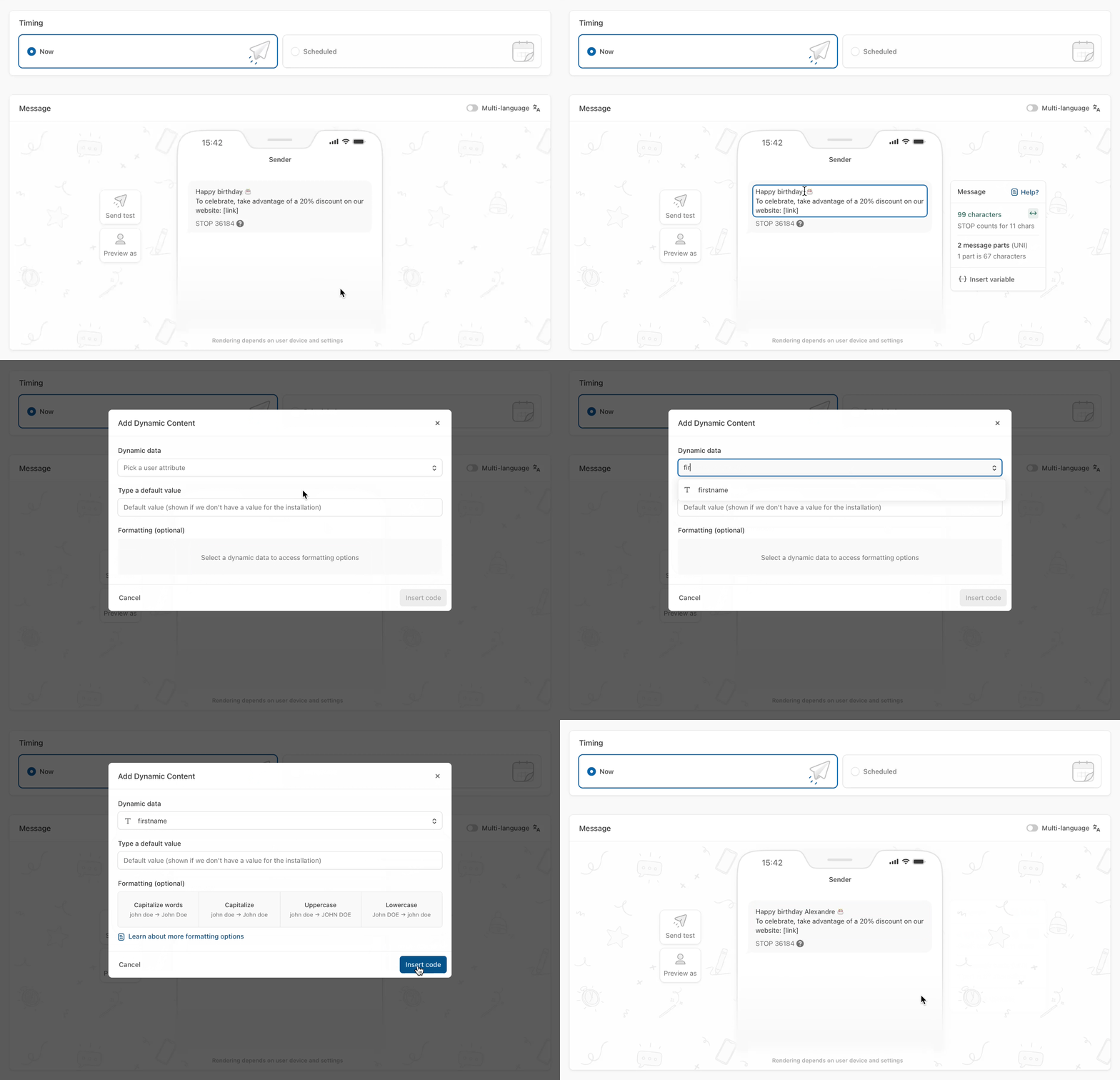
Personalization makes your message feel more relevant and creates a sense of direct communication with the user. Make your message personal by [inserting variables](https://doc.batch.com/getting-started/features/customer-engagement-platform/message/personalization).
Click the **{...}** **Insert variable** button and pick an attribute.
## Multi-language
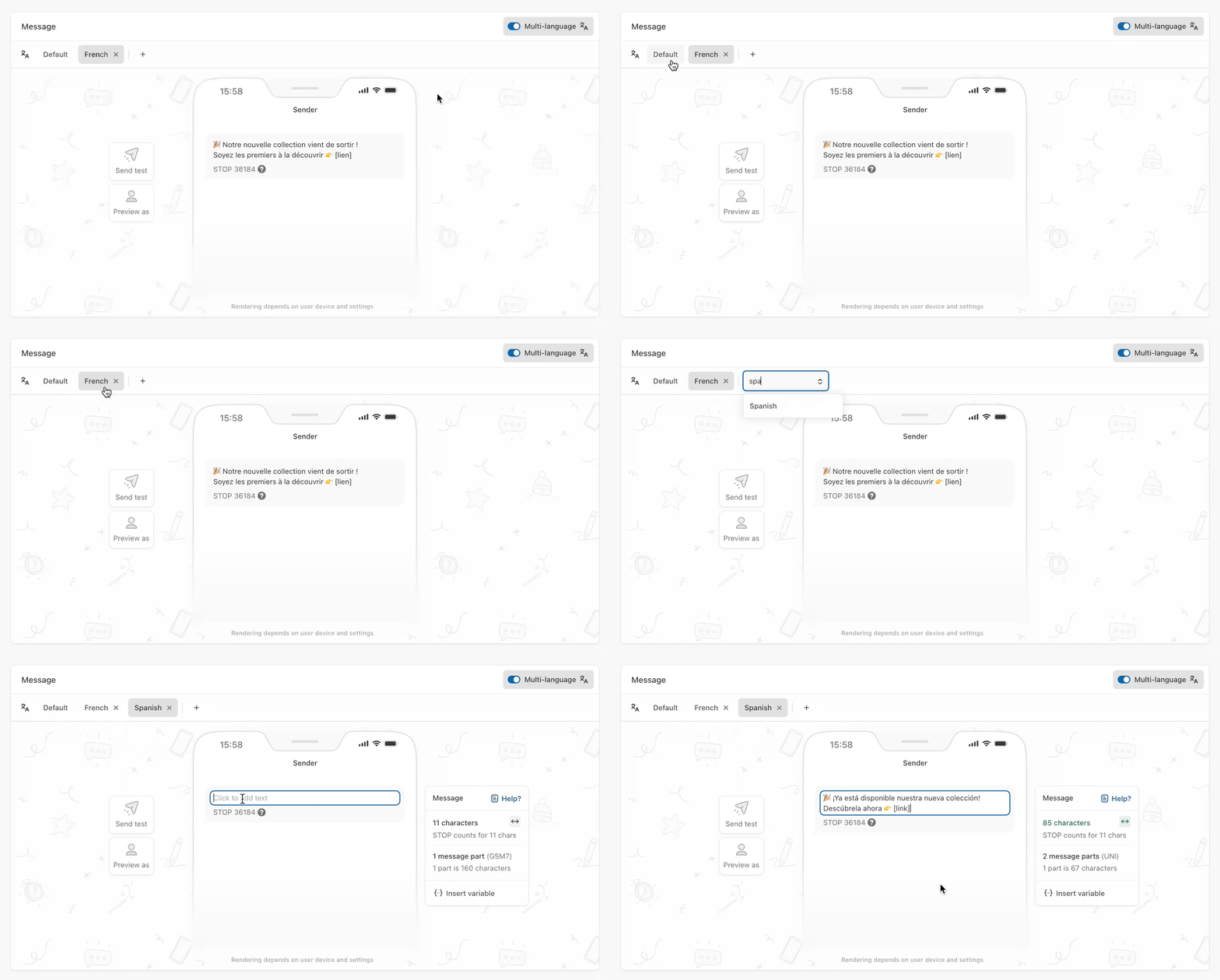
You can create multiple versions of a message, one for each language, by clicking [**Multi-language**](https://doc.batch.com/getting-started/features/customer-engagement-platform/message/overview#:~:text=SMS-,Multi%2DLanguage%20Selection,-Composition), ensuring that profiles receive the message in their own language.
{% hint style="info" %}
A default version will be sent to profiles that do not have a message already specified in their language.
{% endhint %}
## Test your message
### Send a test to your phone
Click **Send test** in the composer and enter your phone number.
Batch sends the test according to the sending mode:
* **RCS with SMS fallback**: you receive two messages, the RCS and the SMS fallback.
* **RCS**: you receive the RCS message.
* **SMS**: you receive the SMS.
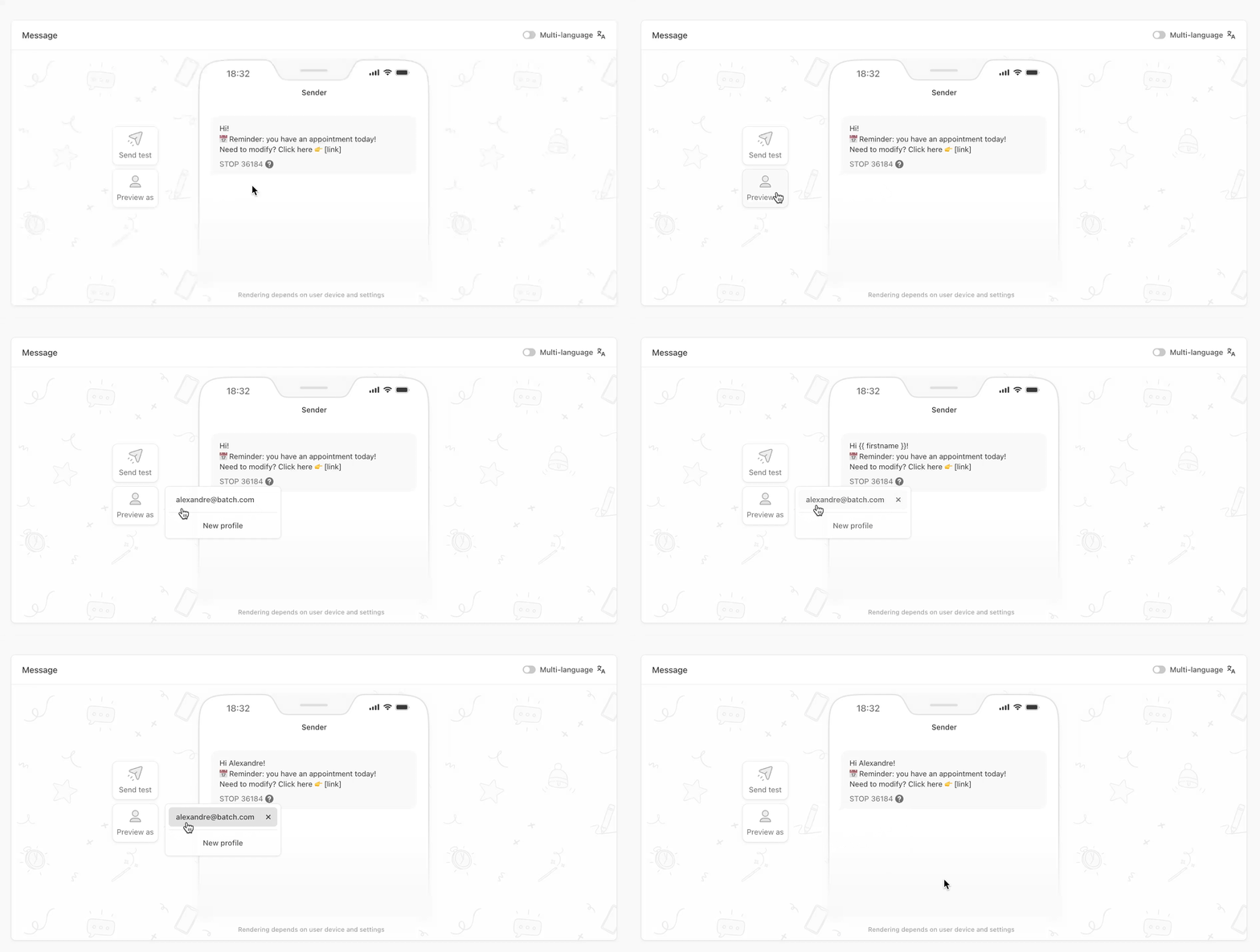
### Preview the message with user data
Use the **Preview As** feature to preview the dynamic data of your message. Enter your custom user ID (or the ID of one of your users) in the dedicated field:
Your message is now ready. Click **Save and run** at the bottom of the form to activate it, or save it as a draft and come back later.
---
# Agent Instructions
This documentation is published with GitBook. GitBook is the documentation platform designed so that both humans and AI agents can read, navigate, and reason over technical content effectively. Learn more at gitbook.com.
## Querying This Documentation
If you need additional information that is not directly available in this page, you can query the documentation by asking a question.
Perform an HTTP GET request on the following URL with the `ask` and `goal` query parameters:
```
GET https://doc.batch.com/getting-started/channels/rcs-sms.md?ask=&goal=
```
`ask` is the immediate question: it should be specific, self-contained, and written in natural language.
`goal` is what the user is ultimately trying to achieve, the reason they need the answer. Sharing it helps GitBook give you a better, more relevant answer. A goal is most helpful when it describes the outcome the user wants rather than restating the question. For example, with `ask=how do I create an API token`, a goal like `automate deployments from our CI pipeline` lets GitBook tailor the answer to that use case.
The response will contain a direct answer to the question and relevant excerpts and sources from the documentation.
Use this mechanism when the answer is not explicitly present in the current page, you need clarification or additional context, or you want to retrieve related documentation sections.